QuickBooks Integration
Last updated: June 4, 2026
Sync your payroll and revenue from Noto into QuickBooks so your bookkeeper doesn't have to re-enter anything by hand.
Setup
Connect QuickBooks in Settings → Integrations.
Configure the following fields in QuickBooks Settings:
Field | Purpose |
|---|---|
Income account | Where invoice revenue shows up on your P&L. Used for every service you sync. |
Default line item | Used for charges not tied to a specific enrollment (enrollment fees, one-time charges, manual charges). Also required for refund lines. |
Deposit-to account | The bank account (or Undeposited Funds) where payments, refunds, and processing fees are recorded. |
Processing fee item | How processing fees are categorized in QuickBooks. |
Payroll expense account | Where contractor payments are recorded. |
Once connected, sync from any submission, invoice, or payment using the Sync to QuickBooks button. Syncing only goes one way (Noto → QB), and you can sync the same record multiple times safely — Noto will just update what's already there.
Payroll Sync
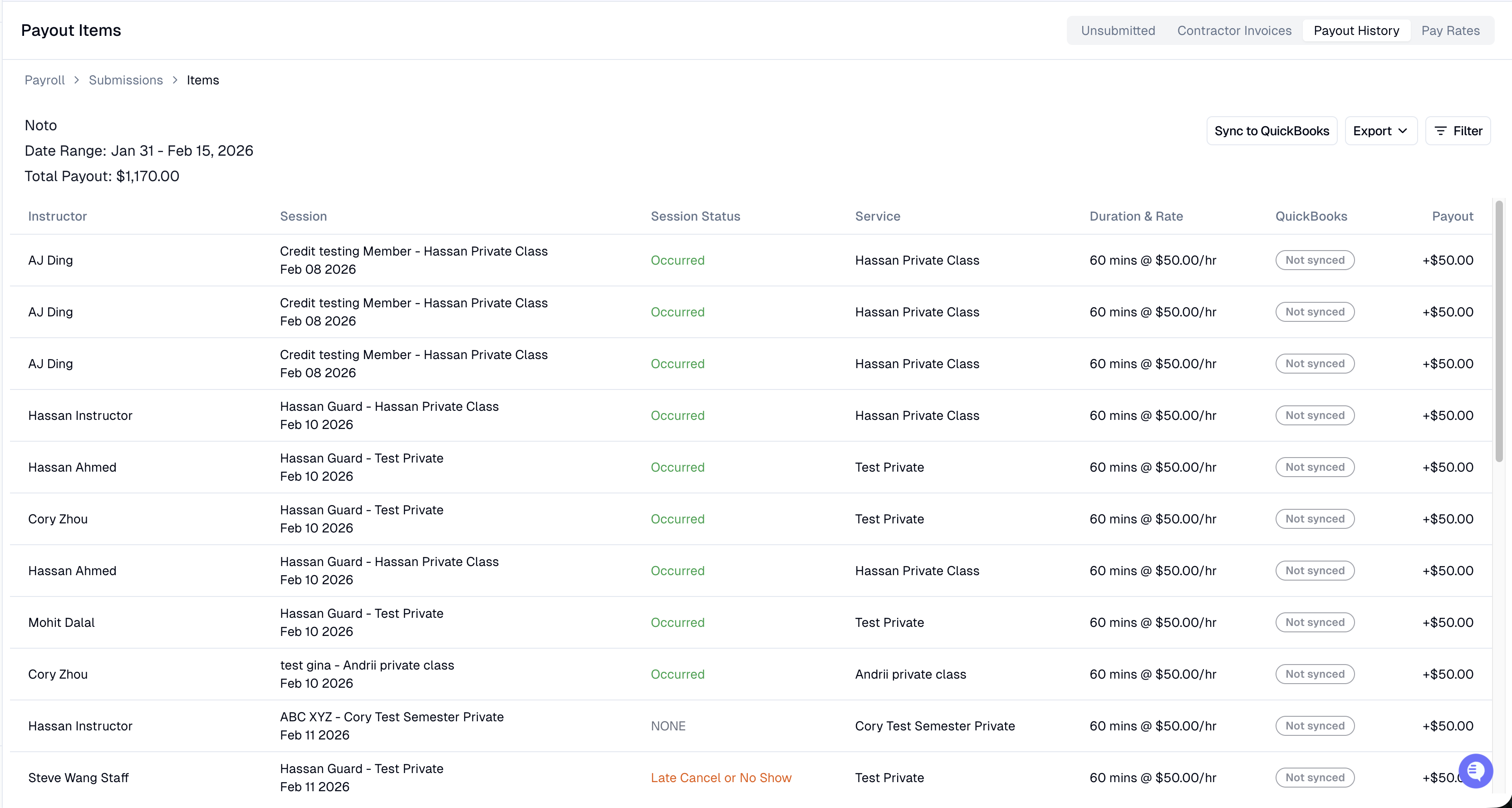
Navigate to Payroll → Payout History, open a submission, and click Sync to QuickBooks.
How staff are matched
Noto finds each staff member in QuickBooks by their email address. They must already exist in QuickBooks — Noto won't create new records for you. Anyone who can't be matched is skipped; add them in QB or correct their email and sync again.
What gets posted
Staff type in QB | Posted as | Notes |
|---|---|---|
Vendor (1099) | Bill | One bill per staff member per submission, with a line for each shift (showing date and event). Works on all QB plans including Simple Start. |
Employee (W-2) | Time entry | One entry per shift, with hours and minutes logged. The pay rate isn't sent — QB Payroll calculates pay based on the rate set in QuickBooks. Requires the Essentials plan or higher; employees are skipped on Simple Start (contractor bills still sync). |
Note: If someone appears in QuickBooks as both a Vendor and an Employee, Noto will treat them as a Vendor.
⚠ Heads up: QuickBooks Contractor Payments vs. Bill Pay
If your contractors entered their bank info via QuickBooks' contractor invite flow, that information is stored in QB's Contractor Payments system — which is a separate product from Bill Pay. The two don't share data, so the bulk "Schedule payment" screen may still show "Missing info" even though your contractors already submitted their bank details.
To pay contractors immediately: Go to qbo.intuit.com/app/contractors and use the "Pay with direct deposit" button next to each contractor's name.
To enable bulk payments going forward: Go to your Vendors page and use "Ask for payment info" in the Bill Pay ACH Info column to have each contractor re-enter their bank info into the Bill Pay system specifically.
Revenue Sync
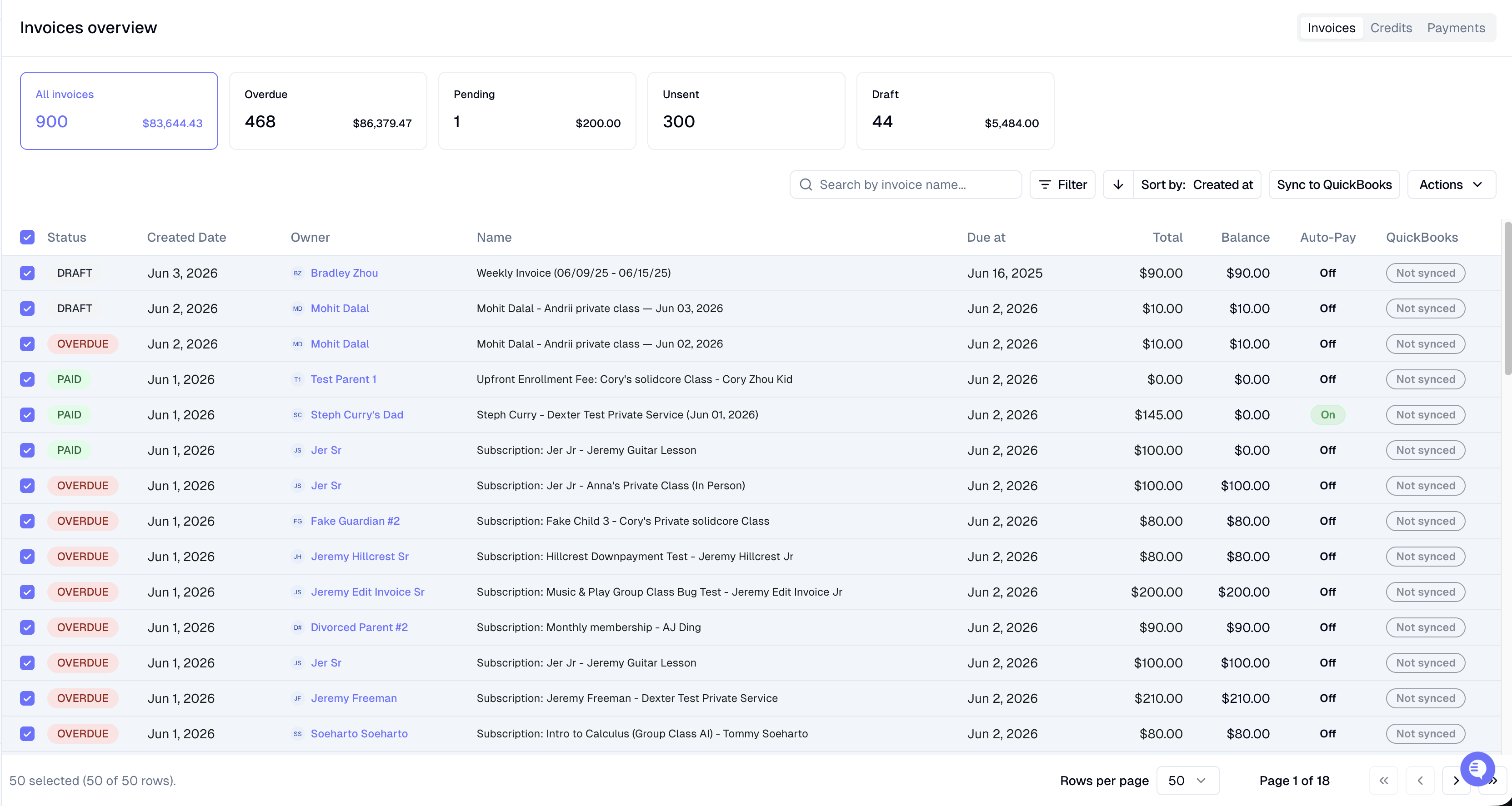
From the Invoices or Payments page, select rows and click Sync to QuickBooks. You'll see a preview of what will be created, updated, or skipped before anything is sent.
How members are matched
Noto matches members to QuickBooks customers by email address. Unlike payroll, if no match is found, Noto will automatically create a new customer in QB. Members without an email address are skipped. If two members share the same name, the second one gets an (email) added to their name to keep things unique in QB.
What gets posted
Noto | QuickBooks | Notes |
|---|---|---|
Member | Customer | Matched by email; created automatically if no match found |
Service | Product/Service | Created or updated before the invoice syncs; linked to your Income account |
Invoice | Invoice | One line per charge. Enrollment charges use the service name; other charges (enrollment fees, manual charges) use the Default line item |
Payment | Payment | Linked to the invoice it was applied to. Payments not tied to an invoice are recorded as a customer credit |
Processing fee | Sales Receipt | Posted separately whenever a fee is charged |
Refund | Refund Receipt | Linked back to the original payment for your records |
Noto syncs dependencies automatically
If you sync a payment but its invoice hasn't been synced yet, Noto will sync the invoice first. Same goes for refunds — if the original payment isn't in QB yet, Noto syncs that first too.
Re-syncing
Safe to repeat. Syncing the same record multiple times is fine — Noto updates what's already in QB rather than creating duplicates.
Unchanged invoices are skipped. If nothing has changed on an invoice since the last sync, Noto won't send it again.
Deleted records in QB. If something was deleted in QB, Noto will detect this on the next sync and re-create it.
Disconnecting QB removes the QuickBooks link from all members, invoices, payments, and services in Noto.
Troubleshooting
Error | Why it's happening | How to fix it |
|---|---|---|
"Sync skipped — select a payroll expense account" | No payroll expense account has been chosen | Pick one in QuickBooks Settings |
"Sync skipped — map Tuition Revenue, Tuition Item, and Deposit-to…" | Some required fields haven't been filled in | Set up all four mapping fields in QuickBooks Settings |
"Sync skipped — map Deposit-to…" | No deposit account selected | Pick one in QuickBooks Settings |
"Surcharge skipped — map a Surcharge Item…" | There's a processing fee on the payment but no fee item has been mapped | Map a Processing fee item, or deselect those payments |
"Refund skipped — map a Tuition Item…" | Refunds need a Default line item set up | Map a Default line item in QuickBooks Settings |
Staff or member shows as unmatched | Their email doesn't match anyone in QB, or the member has no email | Add them in QB, correct the email, or add a missing email to the member |
Employees aren't syncing but contractors are | The QuickBooks plan is Simple Start, which doesn't support time entries | Upgrade to Essentials or higher |
Employee pay shows as $0 in QB Payroll | No pay rate has been set for that employee in QuickBooks | Set the pay rate in QuickBooks |
Invoice didn't update after re-syncing | Nothing changed on the invoice since the last sync, so it was skipped | Make an edit to the invoice in Noto, then sync again |