Set up self-scheduling for recurring sessions
Last updated: July 29, 2026
Recurring self-scheduling lets your customers book a repeating weekly time slot with billing handled through a payment plan. This article covers how to turn it on for a scheduling link and how Noto decides which recurring times to offer.
Turn on recurring booking for a scheduling link
Recurring booking is configured per scheduling link from the Self-Scheduling page. Open the link you want to edit and go to the Service and pricing section of the form builder.
Enable the Allow recurring booking toggle to let customers book repeating slots on this link.
Decide whether to keep the Allow individual sessions toggle on. Leave it on if you want customers to still be able to book a one-off session; turn it off to make recurring the only option.
For each booking option on the link, use the Payment Plan selector that appears and assign a plan. The list is filtered to plans that are eligible for the service and that allow self-enrollment.
Every recurring booking option needs a payment plan attached. This payment plan is used to set up the enrollment.
Save your changes on the scheduling link when you are done.
What the customer sees
When recurring is enabled on the link, the customer picks a booking option and sees a Weekly toggle in the booking flow. Turning it on switches the calendar to recurring availability.
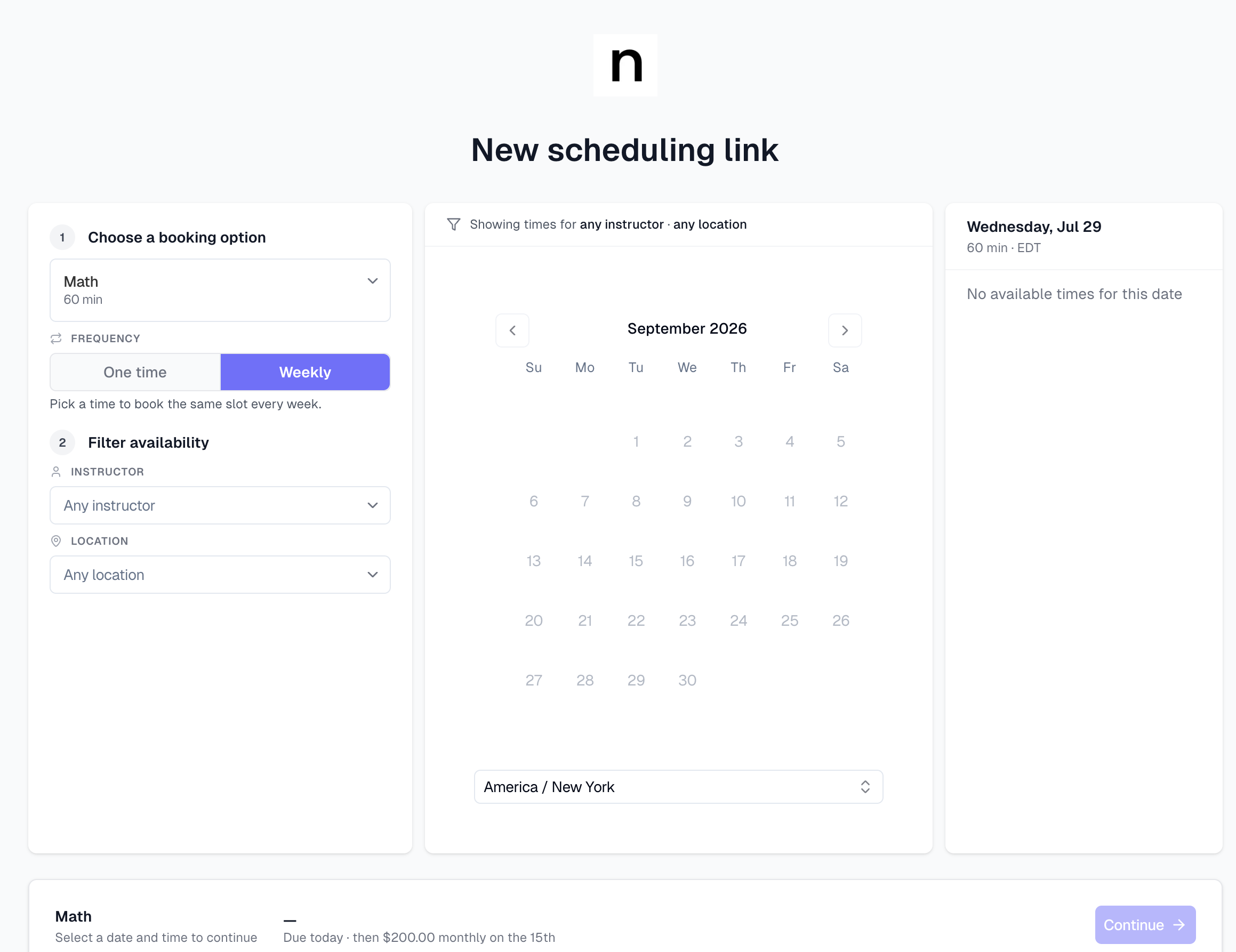
A few things to know about the customer flow:
Recurring bookings use the assigned payment plan, so make-up credits cannot be applied to a recurring booking — the two are mutually exclusive.
The calendar looks further ahead than a normal single-session booking and only shows times that will work every week.
How recurring availability is calculated
For a time to appear as a bookable recurring slot, the same staff member must be free at the same location, on the same weekday, at the same time of day, every single week from the first session for one year.
If any week in that stretch has a conflict — a blocked time, another booking, a schedule change — that slot is removed entirely. Customers only ever see first-occurrence times that pass the full weekly check, so they cannot accidentally book a recurring series that breaks partway through.
The recurrence pattern created on booking is weekly, anchored to the weekday of the start date the customer chose, and it runs for one year from that start date.
What happens when a customer books
Each recurring self-scheduling submission creates a new enrollment on the assigned payment plan and generates the recurring weekly sessions at booking time. Billing is handled through the plan as part of enrollment.
A few consequences worth noting:
Existing credits or existing enrollments on the member's account do not reduce the price of a recurring booking — it always enrolls fresh on the configured plan.
Whether the generated events are tentative or confirmed follows the scheduling link's existing tentative-events setting.
Limits and gotchas
A payment plan is required per option. If you enable recurring but forget to assign a plan to a booking option, customers who pick that option will hit a submission error. Assign a plan to every option before publishing.
Availability is strict. Because the weekly-streak check is all-or-nothing, a single conflict anywhere in the year will hide that day-and-time from the customer. If customers report "no times available," check the assigned staff member's calendar across the whole upcoming year for blocks or existing commitments at the expected times.
Google Calendar sync and unavailability blocks. If synced Google Calendar events are blocking available time slots that you would like to make available, you can do one of the following:
A) Remove conflicting events from Google Calendar
B) Mark conflicting events as available in Google Calendar
C) Disconnect Google Calendar --> Noto sync