Recurring discounts and recurring charges on enrollments
Last updated: August 6, 2026
Noto lets you adjust an enrollment's ongoing billing in two ways: a recurring discount subtracts from the recurring amount, and a recurring charge adds to it. Both are set per enrollment, so you can tailor pricing to an individual student without creating a separate plan for each one.
Where to find it
Recurring adjustments live on the enrollment, not on the plan. During enrollment creation, open Adjust Billing and Pay Rate and add the recurring discount or recurring charge there. You can reach an existing enrollment from the Enrollments page.
How to add a recurring discount
Start or open the enrollment.
Open Adjust Billing and Pay Rate.
Choose whether the discount is a percentage (%) or a fixed dollar amount ($).
Enter the value and save the enrollment.
The discount is then applied each time the enrollment bills.
How to add a recurring charge
The recurring charge uses the same area of the enrollment as the recurring discount, but the amount adds to the bill instead of subtracting from it. Enter the per-student amount you want added to each recurring invoice and save.
When to use each
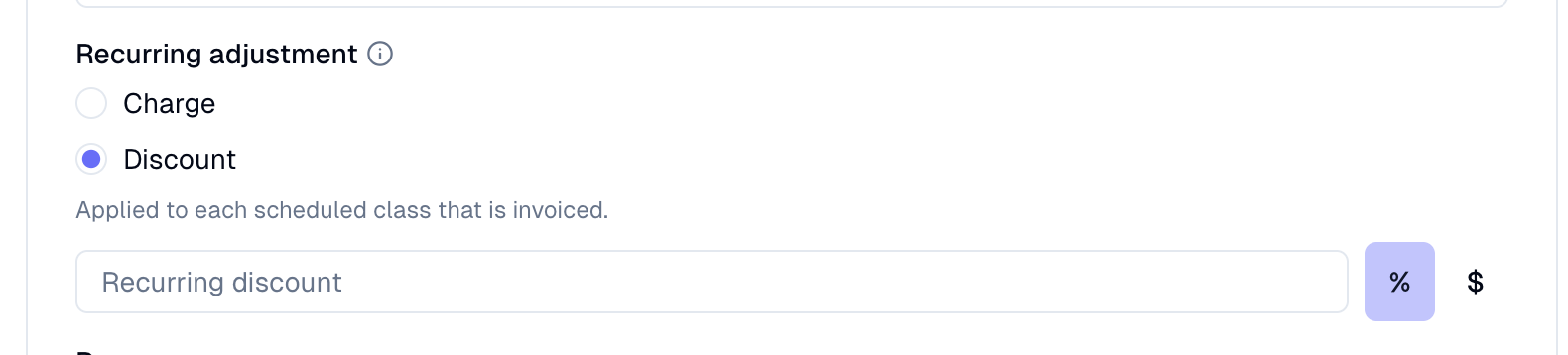
Recurring discount — reduce a student's recurring bill from the plan's standard rate (for example, a sibling discount or a scholarship).
Recurring charge — add to a student's recurring bill (for example, a recurring additional fee, or a custom price for each student).
Which plan types have access
Recurring discounts and recurring charges are available on plans that have recurring billing. This includes subscriptions, monthly and weekly prepaid, and pay as you go.
How the adjustment is applied across plan types
Recurring adjustments are applied to every line item generated by the plan, but what counts as a "line item" differs by plan type:
Subscription plans — the adjustment is applied once per billing cycle, against the cycle's total charge.
Monthly and weekly prepaid plans — the adjustment is applied per scheduled class. Each class that is billed in the month gets the discount or charge applied to it individually.
Pay-as-you-go (PAYG) plans — the adjustment is applied per class at the time each class is billed.
Keep this in mind when deciding between a percentage and a fixed dollar amount: on monthly and PAYG plans, a fixed dollar amount will be added or subtracted for every class.
Percentage vs. fixed dollar amount
Both recurring discounts and recurring charges can be entered as either a percentage or a fixed dollar amount. Here is how they differ:
Percentage (%) — calculated as a percentage of the plan's configured price. If the plan price ever changes, the adjustment scales with it automatically.
Fixed dollar amount ($) — a flat amount that is added or subtracted from the recurring bill as-is. It does not replace or interact with an hourly rate — it is simply a flat adjustment applied on top of the plan's price each billing cycle, regardless of how many hours are logged.
Pick the type that matches how you want the adjustment to behave if the plan price ever changes.
Limits and gotchas
Dollar discounts are capped by the plan's configured price. If a plan is priced at $0 and you try to enter a fixed-dollar recurring discount, the form's cap can behave in confusing ways. If you hit this, switch to a percentage discount, or use a recurring charge on a $0 plan instead of trying to discount from zero.
Percentage vs. fixed amount: a percentage scales with the plan price; a fixed amount does not. Pick the one that matches how you want the adjustment to behave if the plan price ever changes.