How do I configure Settings?
Last updated: June 22, 2026
Navigate to Settings -> General on the left-hand navigation bar to configure organizational and individual settings. Organizational settings can be modified by any user with an ADMIN or RESTRICTED ADMIN role, while users with an INSTRUCTOR role only have access to individual settings.
My Profile
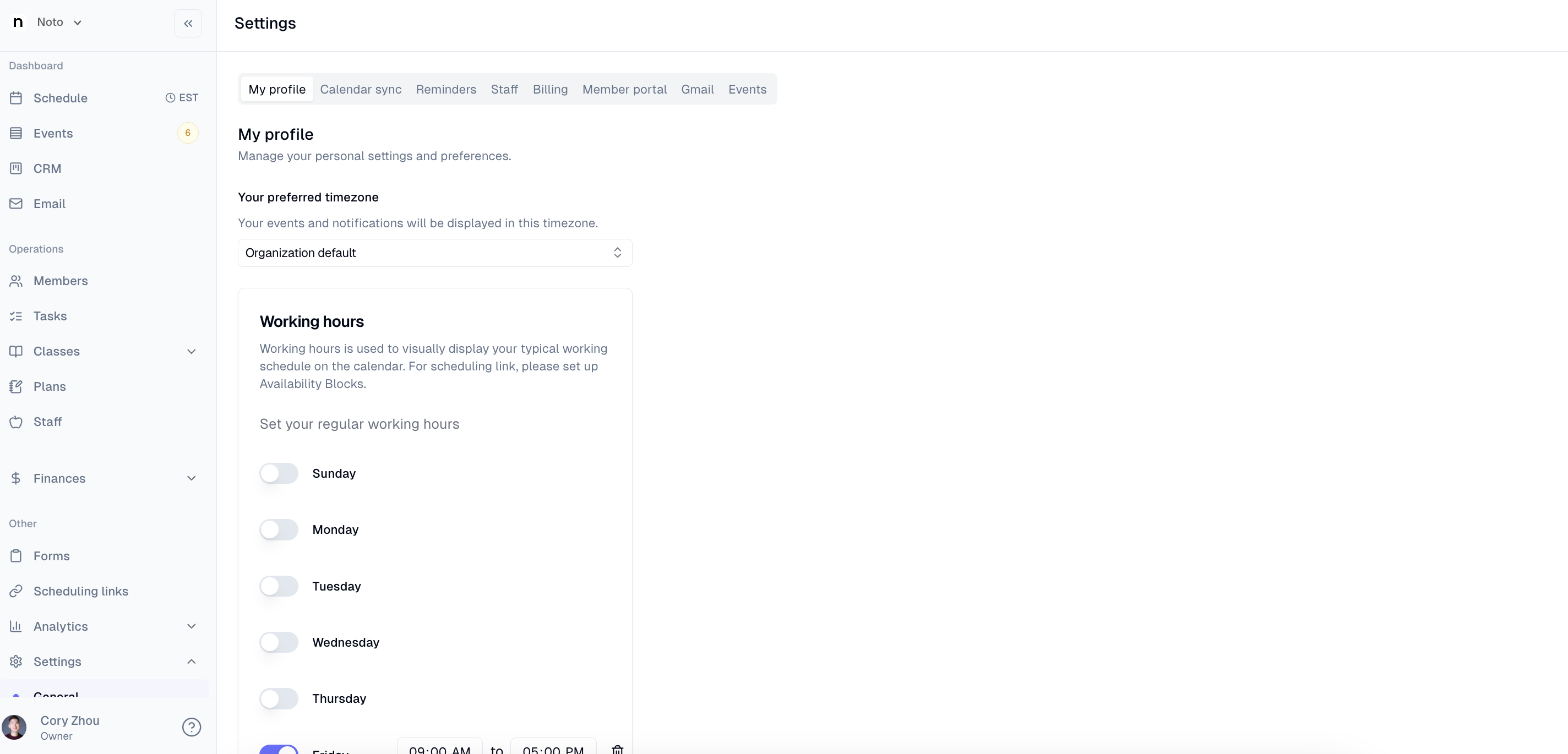
Under My Profile, individual users can set the following:
Preferred timezone: by default, this will be the timezone of the organization. This is the timezone in which this user's calendar session and session reminder emails will display in.
Working hours: this will set the user's default working hours and will display this time block as available in the calendar.
Calendar Sync
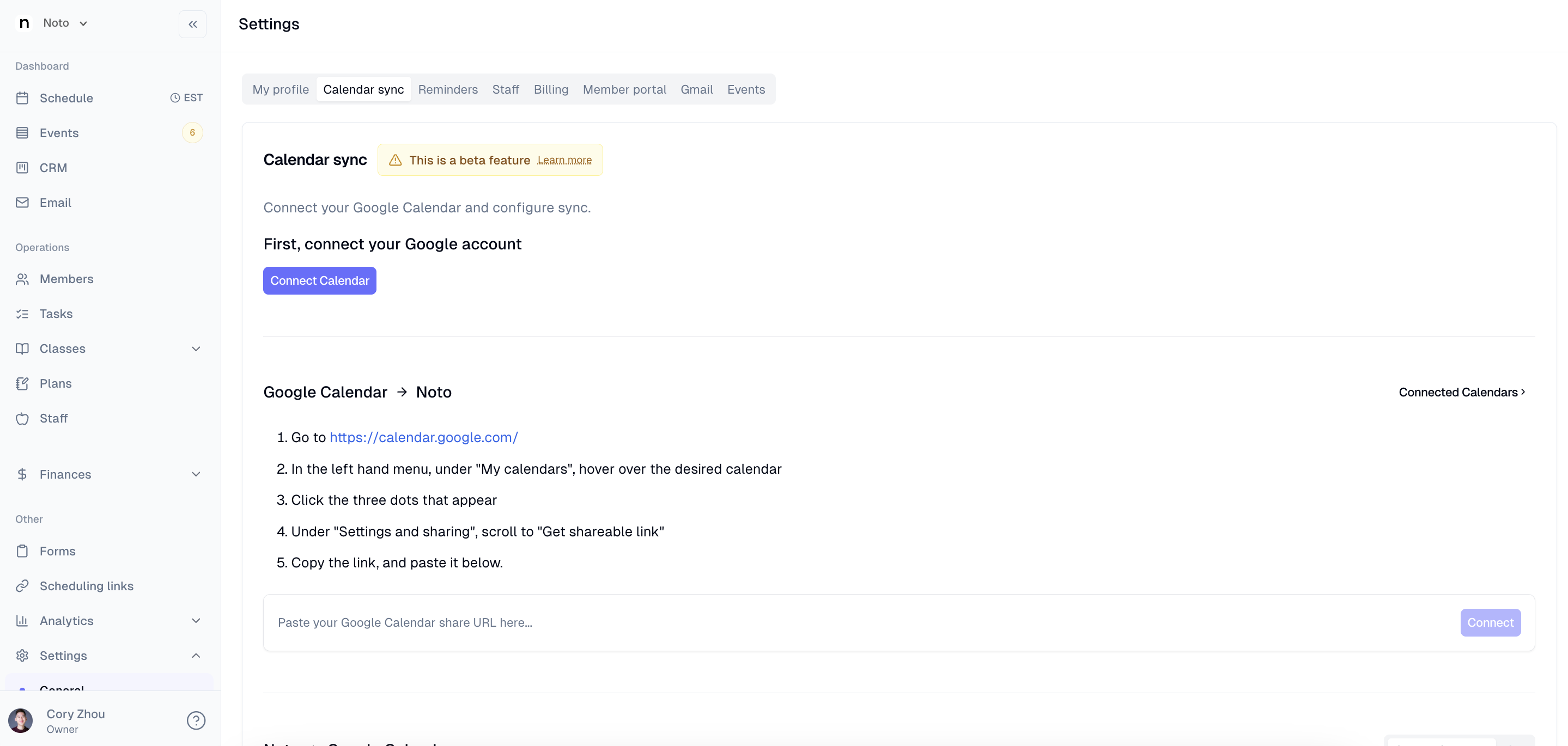
Under Calendar Sync, individual users can follow the instructions to connect their personal calendar to Noto or vice versa.
Reminders
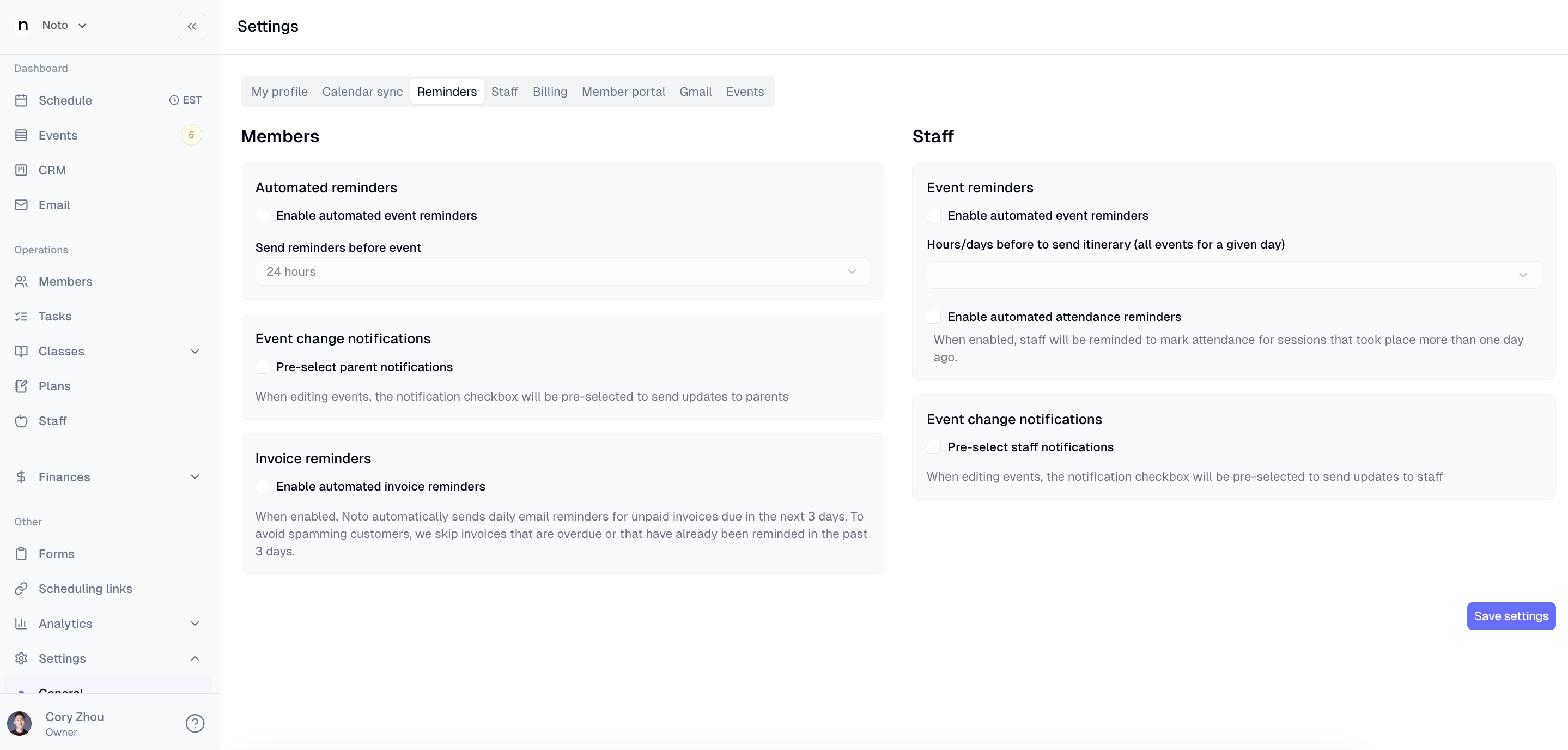
Under "Reminders", admins or restricted admins can set the following:
Automated session reminders: email reminders that will go out to students AND guardians before sessions. The length of notice is configurable.
Pre-select parent notifications: when sessions are changed, the checkbox to send change notifications to parents will be checked by default (but can be unchecked).
Invoice reminders: invoice email reminders that will go out to guardians 3 days before invoices are due.
NOTE: These reminders will not go out for overdue invoices. Overdue invoices should be emailed manually.
Automated staff session reminders: email reminders that will go out to staff before sessions. The length of notice is configurable.
Enable automated attendance reminders: email reminders that will go out to staff after sessions have occurred if attendance has not been marked.
Pre-select staff notifications: when sessions are changed, the checkbox to send change notifications to staff will be checked by default (but can be unchecked)
Staff Permissions
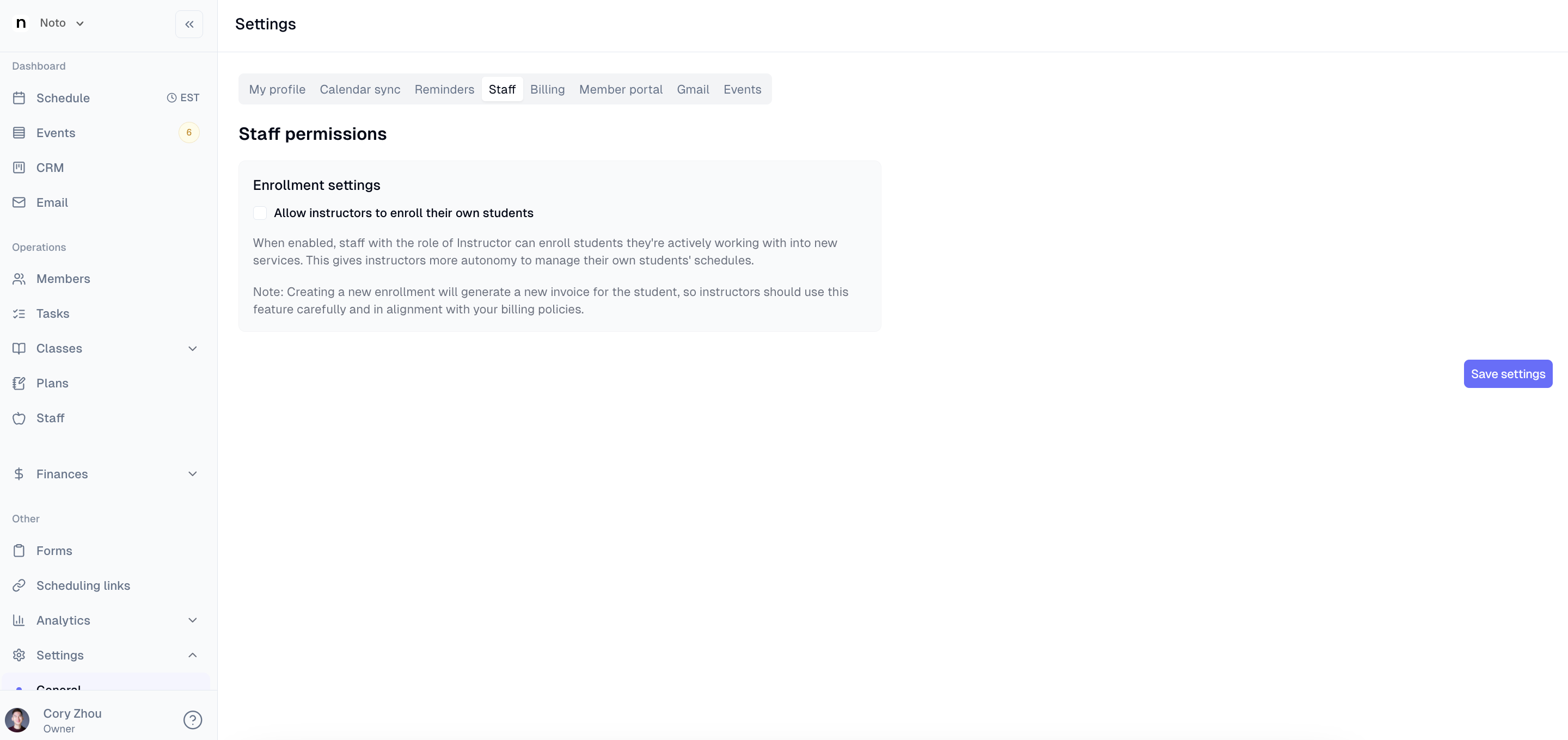
Under "Staff", admins can determine whether or not to allow instructors to enroll their own students. This would allow staff to enter new students in Noto themselves, setting their own service and rate.
Billing
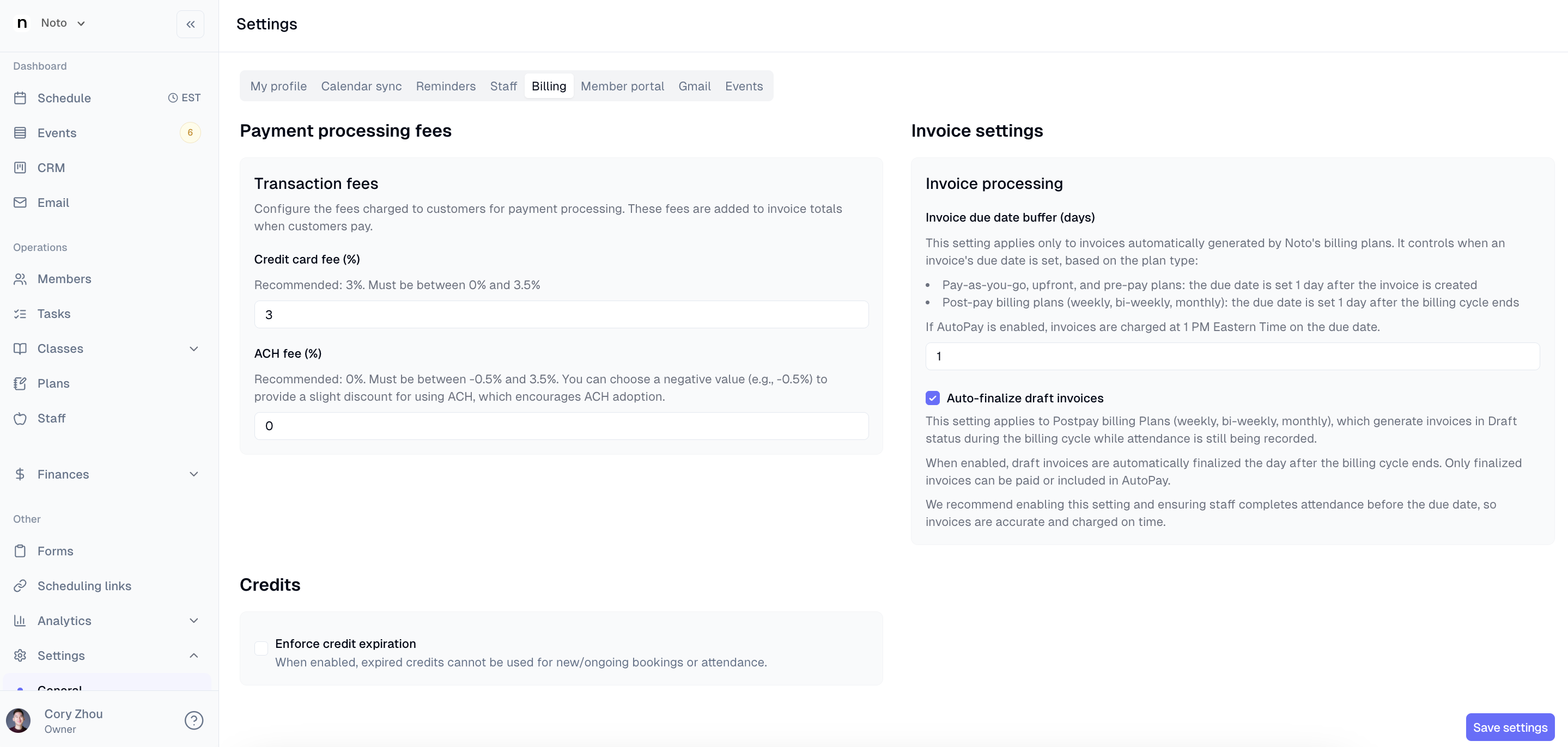
Under "Billing", admins can set the following:
Credit card and ACH fees: Noto's payment processor charges 3.15% + $0.30 for CC transactions and 0.6% for ACH transactions. Here, the business owner can determine what fees to pass onto your clients.
Invoice due date buffer: This sets the default due date for invoices generated. See "When is an Invoice Due?" for more detailed information.
Auto-finalize draft invoices: This setting is only for post-pay plans. When this setting is on, invoices will be finalized automatically at the end of the post-pay cycle. If this setting is off, invoices will manually have to be finalized.
A
finalizedinvoice will not have new sessions added to it if attendance is marked late. If a session is marked late for a given post-pay cycle, it will be added to a new invoice if the existing invoice has been finalized.
Enforce credit expiration: If your business offers credit packages, this setting allows you to set and enforce an expiration date on credits
Member Portal
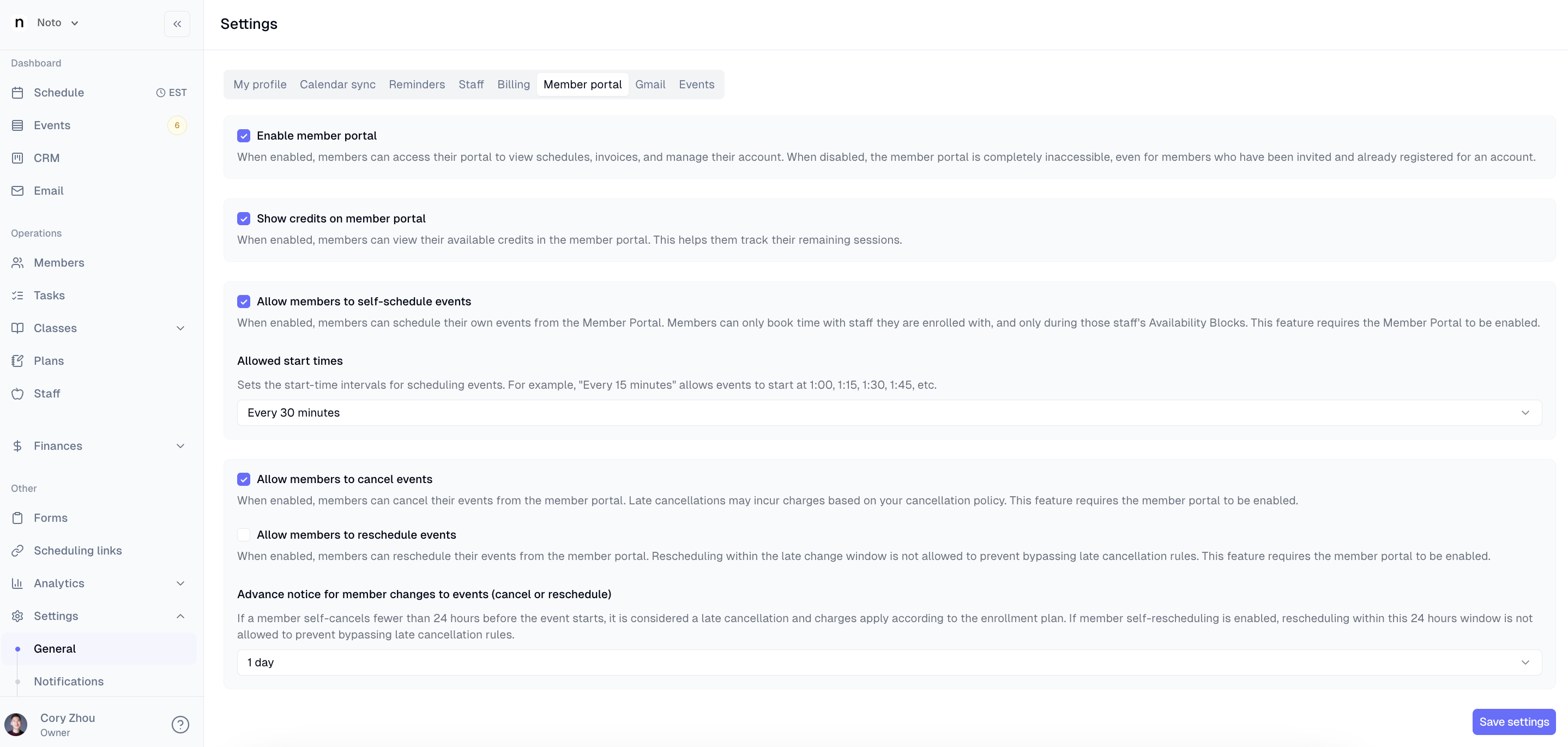
Under "Member Portal", admins can set the following:
Enable member portal: By default, the member portal allows clients to access their schedule of sessions, historical and future invoices and any files added to the student's profile.
Show credits on member portal: If your business offers credit packages, this setting allows your clients to see how many credits they have remaining.
Allow members to self-schedule/cancel/reschedule sessions: If your business allows your clients to self-schedule/cancel/reschedule sessions, this setting allows them to do so from the member portal.
Gmail
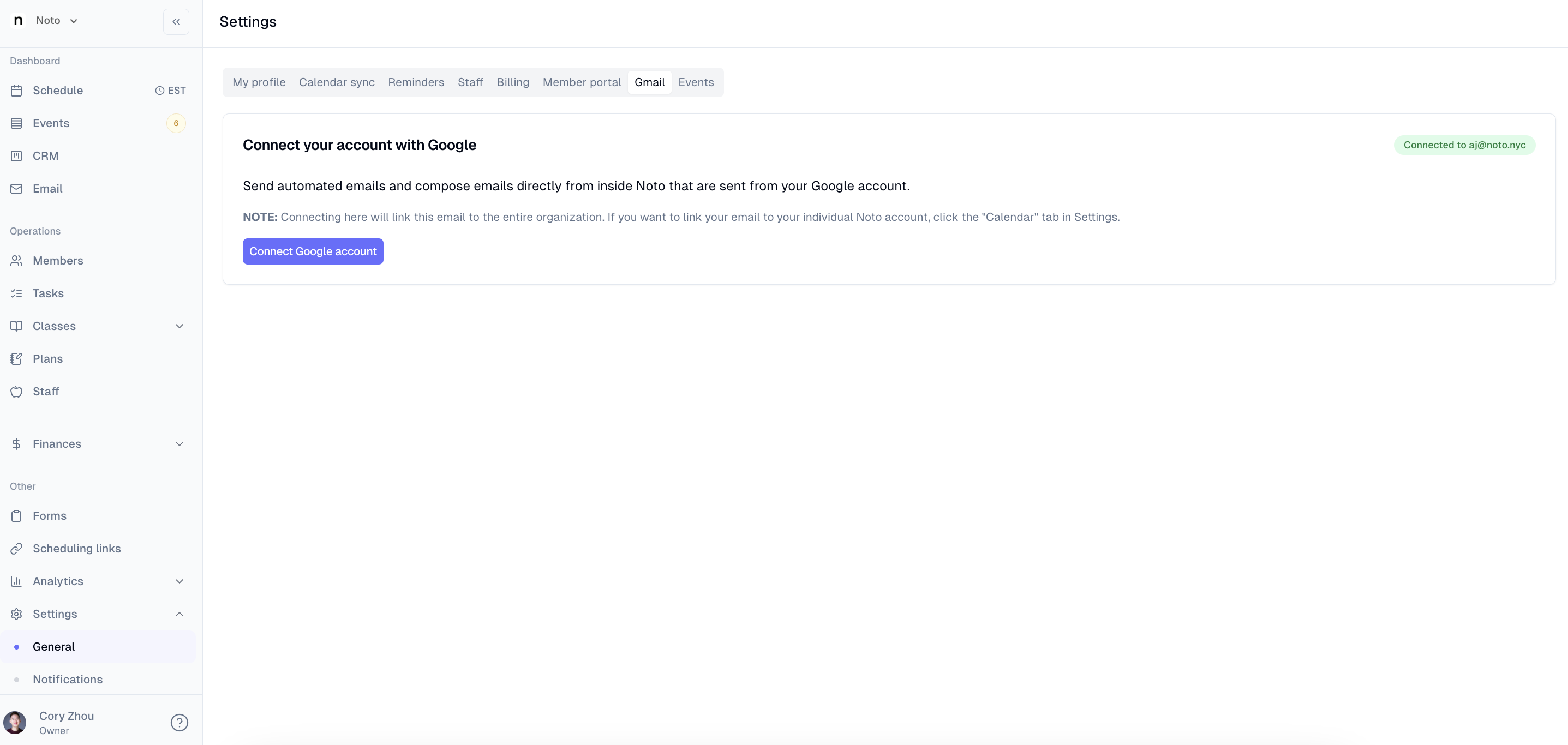
Under "Gmail", admins can set the organizational email address. This is the email address that all notifications coming out of Noto will send from. We recommend using a central "office" or "admin" email address if your business uses one.
Sessions
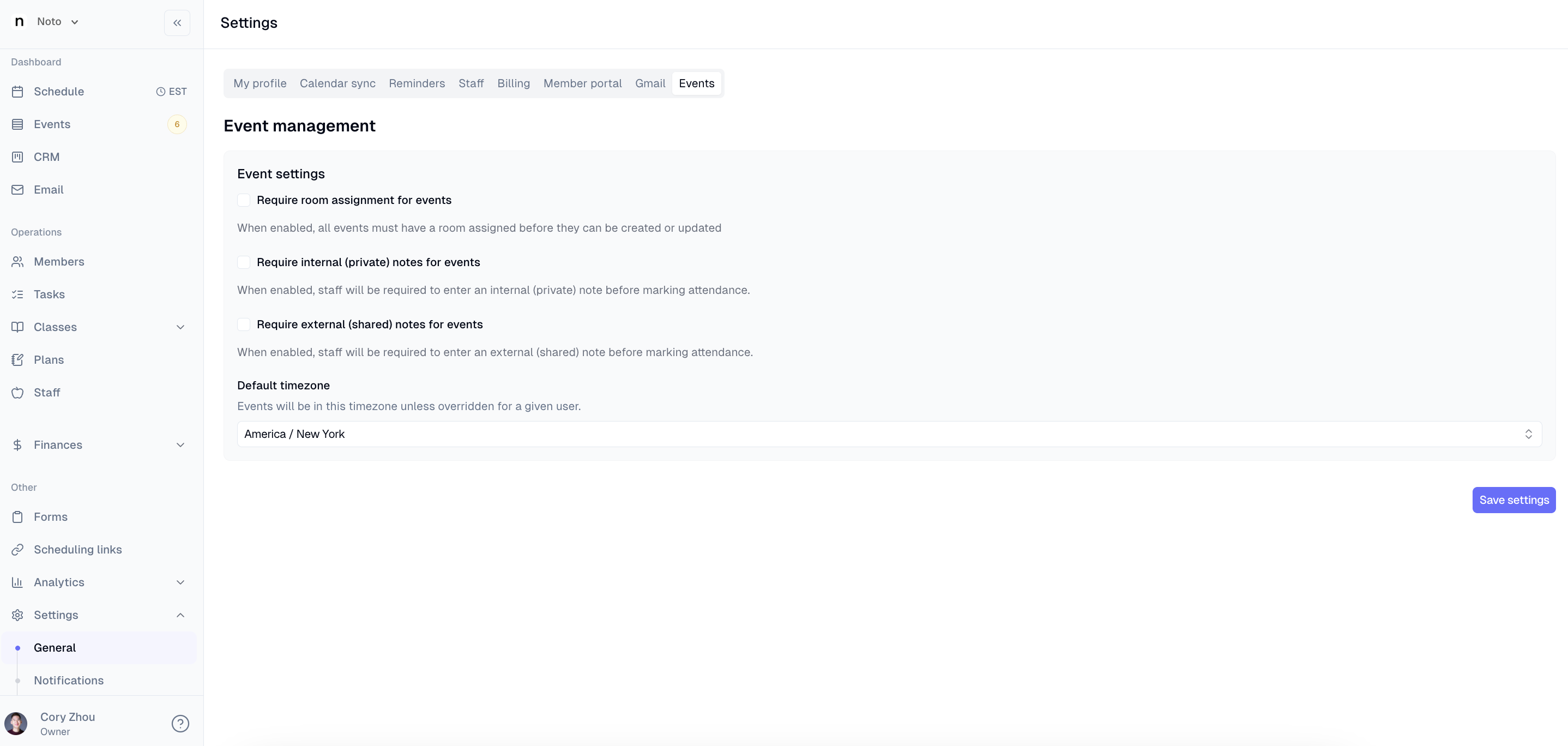
Under "Sessions", admins can set the following:
Require room assignment for sessions: Will not allow sessions to be scheduled if no room/online location is set.
Require internal/external notes for sessions: Will not allow sessions to be marked attended without these notes. This is useful if your business enforces a policy on session notes.
Default timezone: The default timezone of your business. This is the timezone that all users will see their calendar sessions and reminder emails in.