How do I set up Group Class Sections?
Last updated: May 19, 2026
Sections can be created under group classes if you have an "umbrella" group class that house multiple equivalent events or recurrences of this group class, each with different rosters of students. Sections provide an organizational structure for group classes, and they also allow for the same pay rate overrides to apply across recurrences of these events
Some good use cases for Sections include:
Summer Camps
Practice Tests
Recurring One-Time Events
Creating a Group Class with Sections
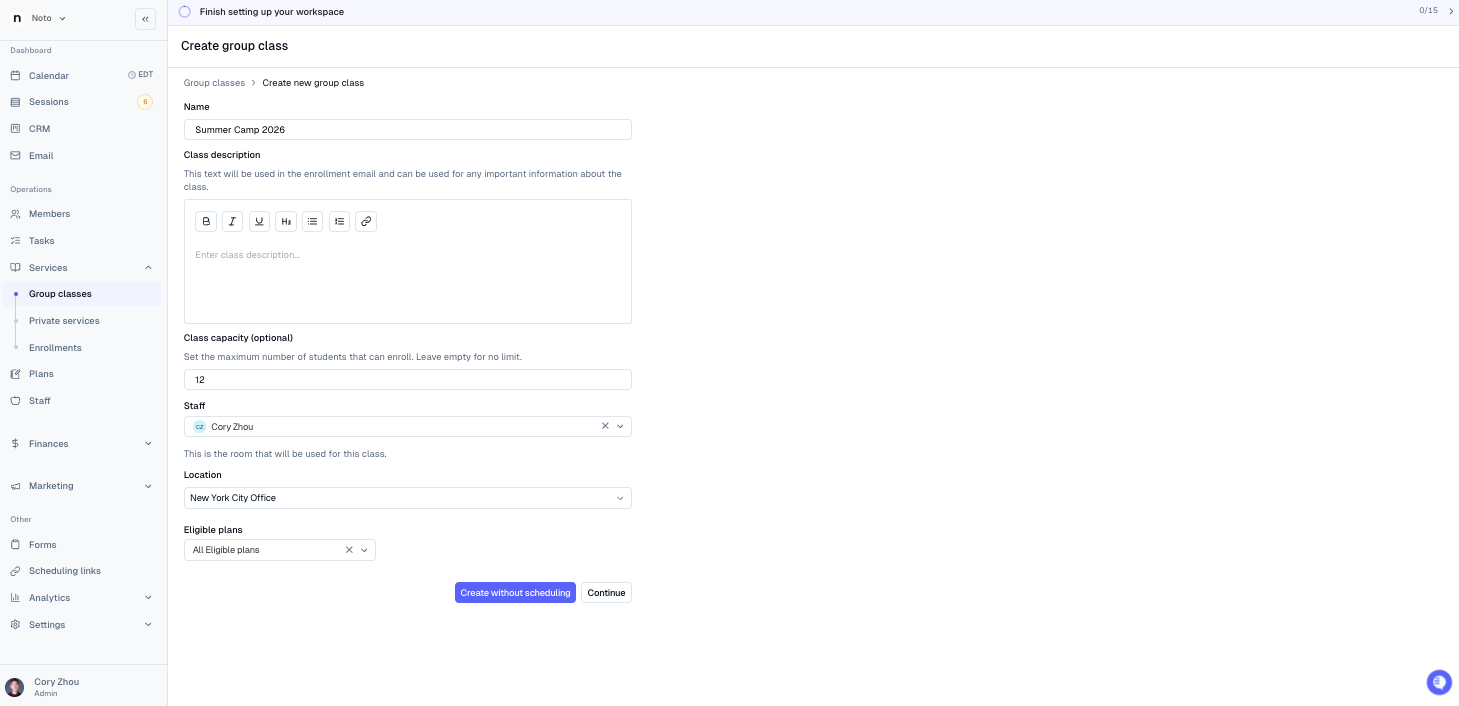
Navigate to Services -> Group Classes -> Add group class. Fill in the information for this class and click "Create without scheduling".
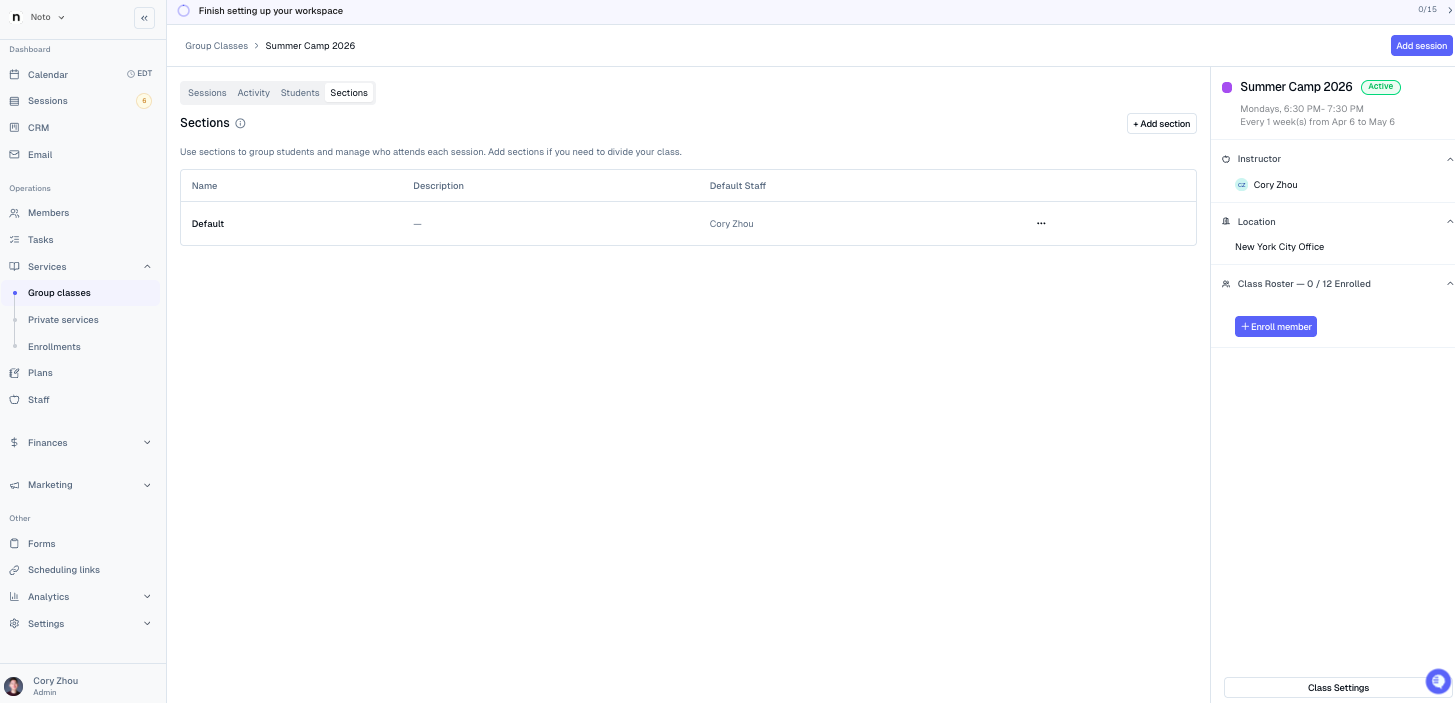
Navigate to this group class and click the Sections tab.
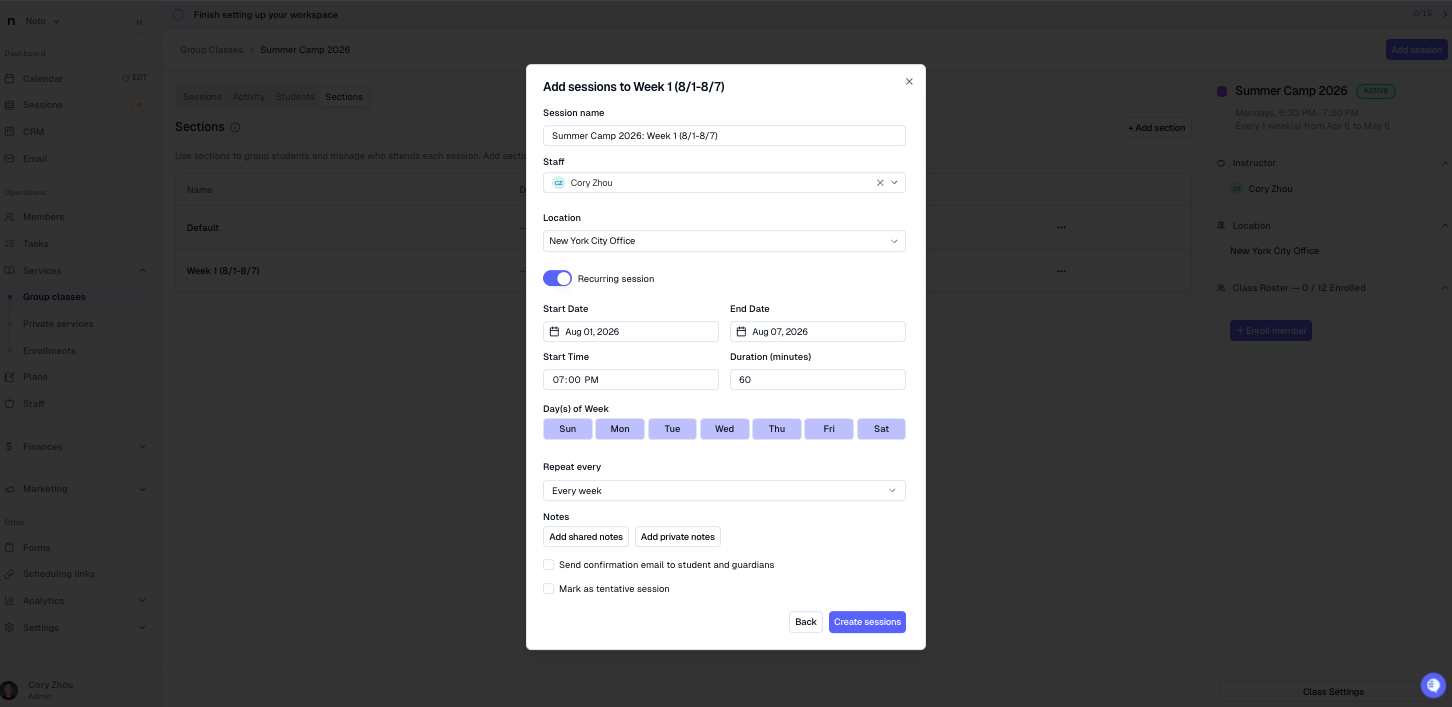
Click + Add section, specify the name/description/location, click "Create", and specify the dates for this section.
Enrolling a Member in a Section
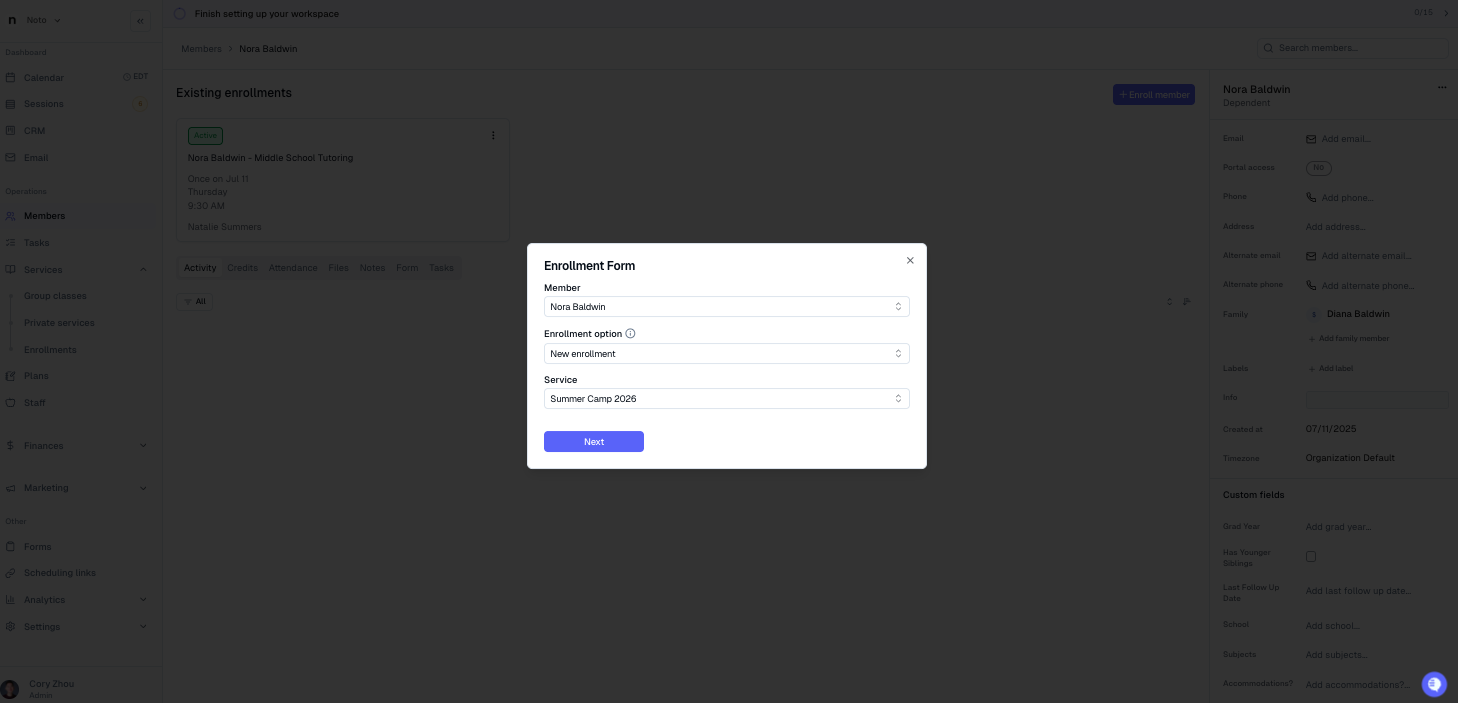
Navigate to the member you want to enroll, click + Enroll member, select the group class and click "Next".
From the enrollment screen, select the plan and section(s) to enroll the student. Any number of sections can be selected.
NOTE: The selected plan will bill the same regardless of how many sections are selected. This means that if you are enrolling the student in multiple sections, the price should reflect the price/billing structure for all sections combined.
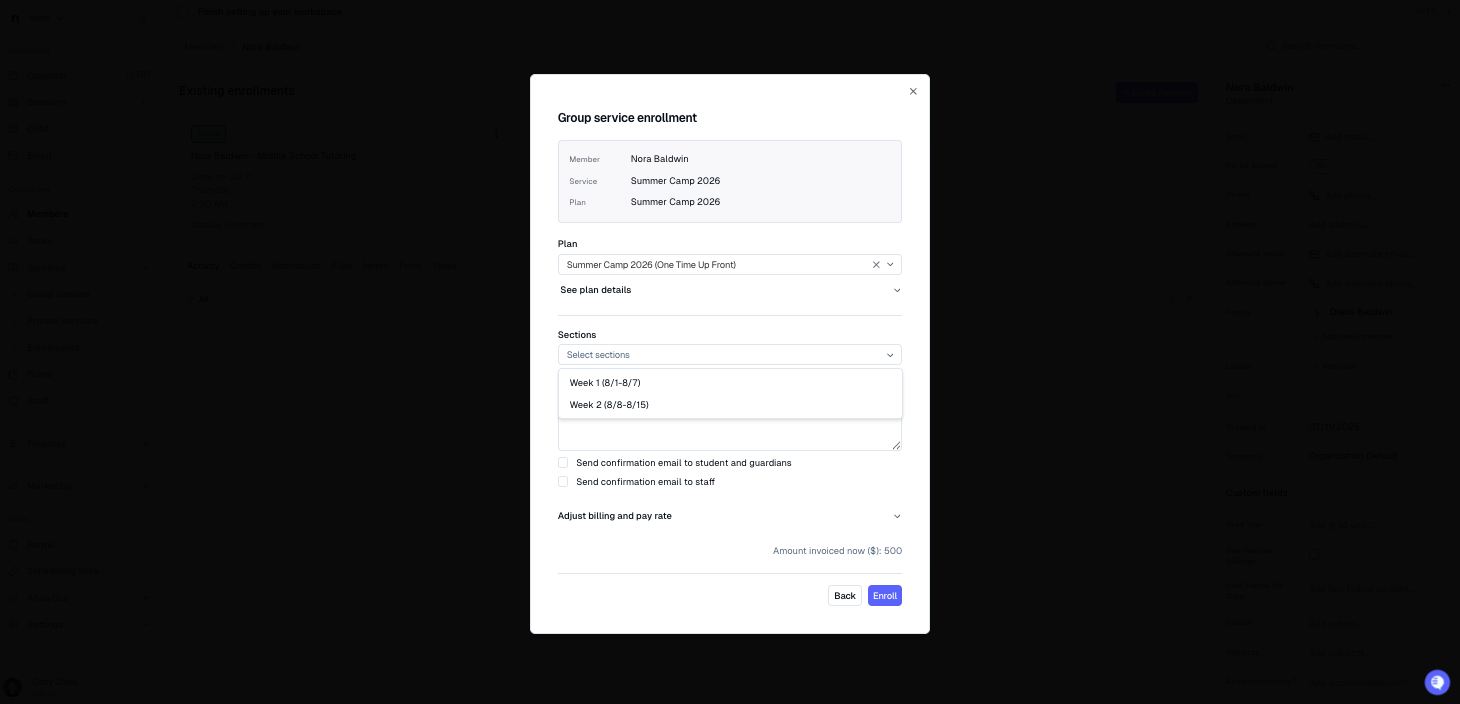
Click "Enroll" to complete the enrollment.
Group Class Self-Enrollment
Similar to group classes without sections, self-registration forms can be created for group classes with sections for members to register directly into each session.
Navigate to Forms -> + Create form -> Self Enrollment Form.
Click the Service & Payment Plan field at the top, select the group class, plan, and the eligible sections for this form.
NOTE: Members can only register for a single section with this form.
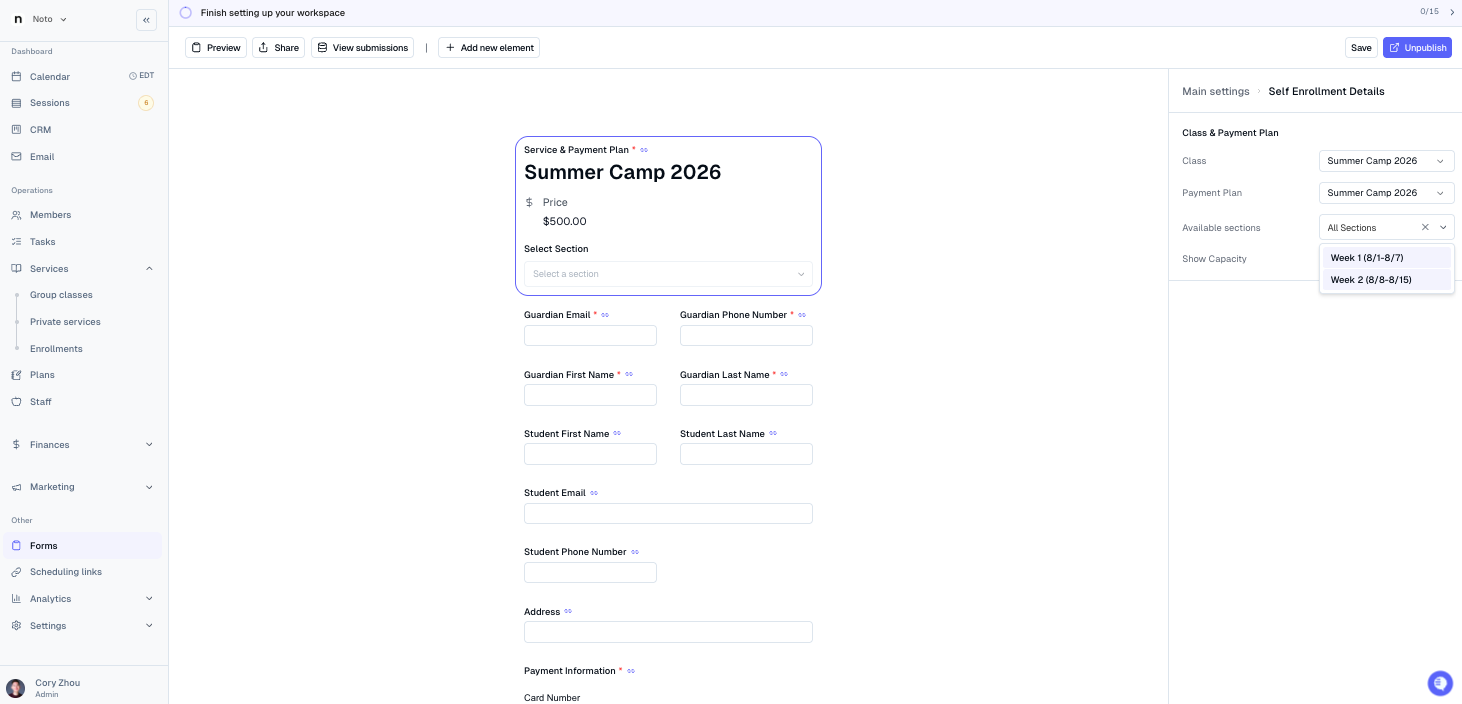
Customize the remaining fields of this form and click "Save" to save this form.