How do I approve sessions before clients are billed?
Last updated: July 2, 2026
Session review and approval is an optional org-level setting in Noto that inserts an admin oversight step between a tutor completing a session and the downstream effects — billing, invoices, and shared notes reaching students and guardians. This setting can be found in Settings -> General -> Scheduling -> Sessions -> Require review before billing and sending session notes.
When the setting is off, marking attendance triggers billing right away, and shared notes can be sent immediately. When it is on, an admin has to approve each session before those things happen.
What approval gates
With session review and approval turned on, the following are held back until an admin approves the session:
Billing is deferred — attendance alone does not trigger a charge.
Invoices are created at the moment of approval, not before.
Shared session notes are withheld from students, guardians, and the member portal.
The option to email notes to students or guardians is suppressed.
Staff payroll is not gated. Payroll continues to be driven by attendance, because the approval flow only controls what is communicated to students and families.
How a session enters the approval queue
A session is routed into the approval queue automatically when its attendance status changes from pending to present or no-show. Instructors do not need to submit sessions manually — marking attendance is what puts the session in front of an admin.
Until an admin approves the session, tutors can still edit their notes and correct the attendance status if they made a mistake.
For no-show sessions, a note entry is still required (for example, "called parent, called student") before attendance can be set.
Approving sessions
Approval actions are admin-only. Tutors do not see the approve control.
To approve sessions:
Open the Sessions page.
Use the Awaiting Review filter to see sessions waiting on approval.
Click into each session to view notes for each session. Approve sessions individually, or select multiple and approve them in bulk by clicking Actions -> Complete Review.
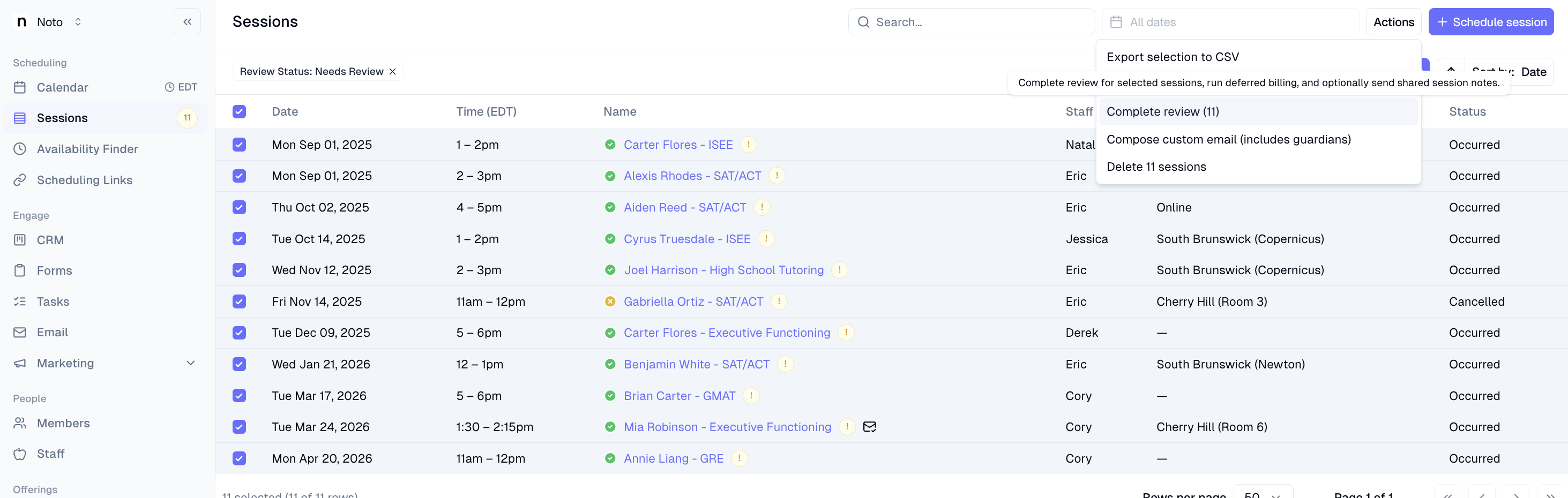
At the point of approval, choose which students or guardians should receive the session notes. Simultaneously, the invoice(s) will automatically be generated or updated under Billing -> Invoices for these sessions.
Viewing unsubmitted notes
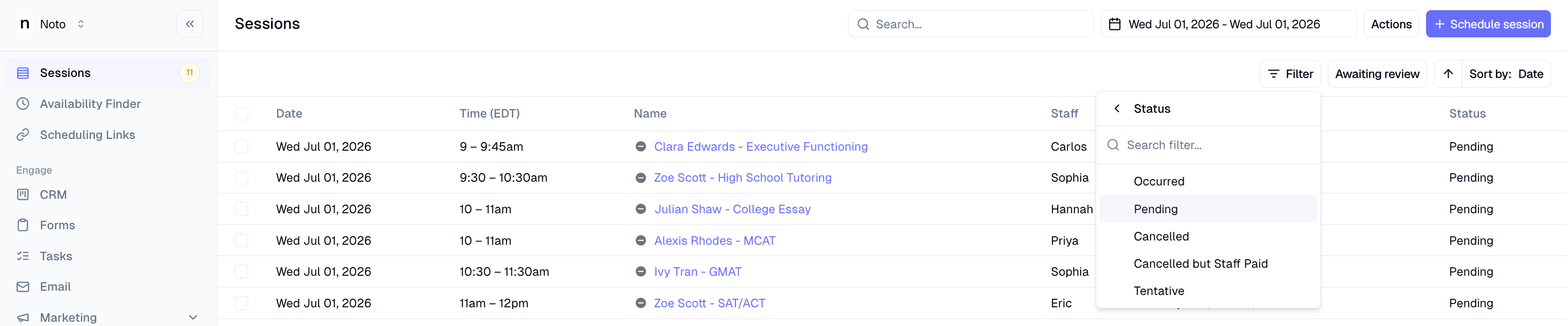
As attendance marking is the trigger that sends session notes for approval, sessions with attendance unmarked (Status = Pending), means that the session has not been submitted for approval.
On the Sessions tab filter by date range and "Status" = Pending to view all sessions that need to be submitted for approval.
Related settings and notifications
Require notes is a system-wide setting. When enabled, it applies across the whole org rather than being configured per client.
Overdue note reminders: if an instructor has not written notes and taken attendance 24 hours after a session, Noto sends a notification to help catch forgotten write-ups.
Limits and gotchas
The Awaiting Review filter shows sessions where a note has been submitted and is waiting for approval. It does not currently surface sessions where the tutor has not written a note at all — you may want a separate process to catch those.
Group classes and private lessons are treated the same way by the approval flow; there is no separate configuration for one versus the other.