Custom field linking on forms
Last updated: June 17, 2026
Custom field linking connects a question on one of your forms to a member custom field in your CRM, so the answer options on the form are pulled directly from the custom field's settings. This keeps your form choices and member records in sync — for example, a "Preferred instrument" dropdown on a sign-up form can draw from the same list of instruments stored on every member's profile.
How linking works
When you link a form element (such as a single-select or multi-select question) to a member custom field, the custom field becomes the source of truth for the options. You can no longer edit those options from inside the Form Builder. A linked field shows a message reading: "This form field is linked to the '[Field Name]' member custom field. To modify the options, update the custom field settings in the CRM."
To change what choices appear on the form, you edit the custom field in Settings > Data & Customization > Custom Fields.
Note on terminology: a "Dropdown" custom field and a "Single Select" form element refer to the same field type — the names differ between custom field creation and the Form Builder.
Where to find it
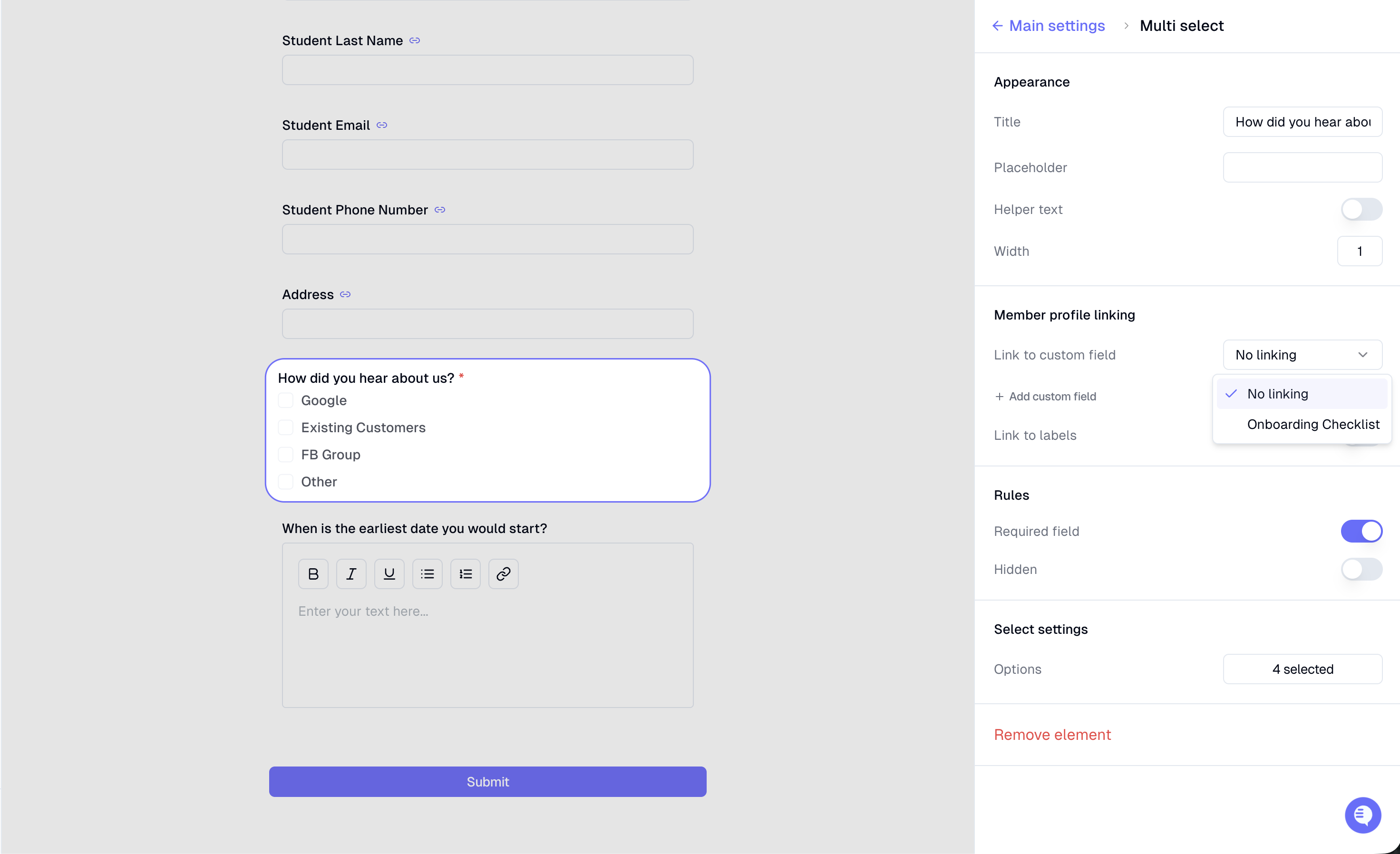
Linking is configured in Form Settings when you open a form in the Form Builder. Inside Form Settings, look for the Member Profile Linking section, which contains:
Link to custom fields
Add custom field
Link to labels
You can reach your forms from the Forms page.
Setting up a linked field
Create the custom field in your CRM custom field settings, including the options you want to offer.
Open the form you want to edit from the Forms page and go to Form Settings.
Under Member Profile Linking, choose Link to custom fields and link the form element to the custom field you created.
Once linked, the form element's options are controlled by the custom field. To change the options later, edit the custom field in your CRM settings — not the form.
How it appears on the member profile
Once a form is submitted, the information entered in the field is saved to the member's profile. If a member with the same email address already exists, the data in the linked custom field will be updated with the new information from the form, matching the corresponding Noto profile. For new members, a profile will be created automatically, and the linked custom fields will be populated accordingly.
Updating options after linking
If you edit a linked custom field after it has been linked to a form — for example, adding a new option to a multi-select — the form will not automatically reflect the change. To pull in the updated options, open the form, unlink the field, and link it again.