How do I set different pay rates for my instructors?
Last updated: May 19, 2026
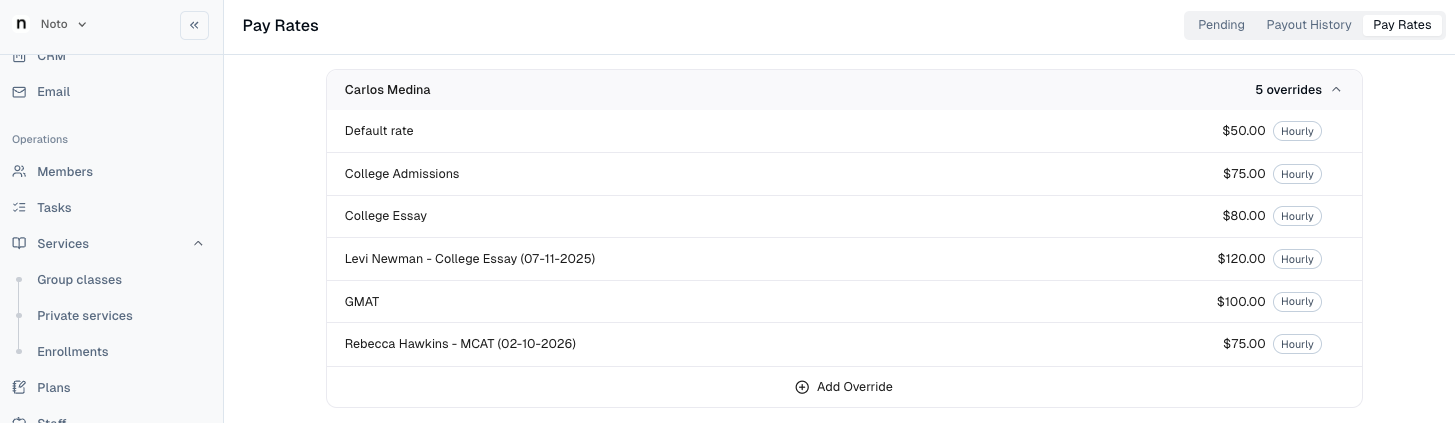
Each Staff member has a Default Pay Rate that is set when creating their profile. Pay rate overrides can additionally be defined for staff members at both the service level or Enrollment/Student level. Pay Rates can be viewed and configured by navigating to Finances -> Payroll -> Pay Rates.
NOTE: Changing an instructor's pay rate (either default or override) will take effect immediately for all "Pending" and future sessions. This will not retroactively update past payroll submissions.
Configuring Pay Rates from Payroll Page
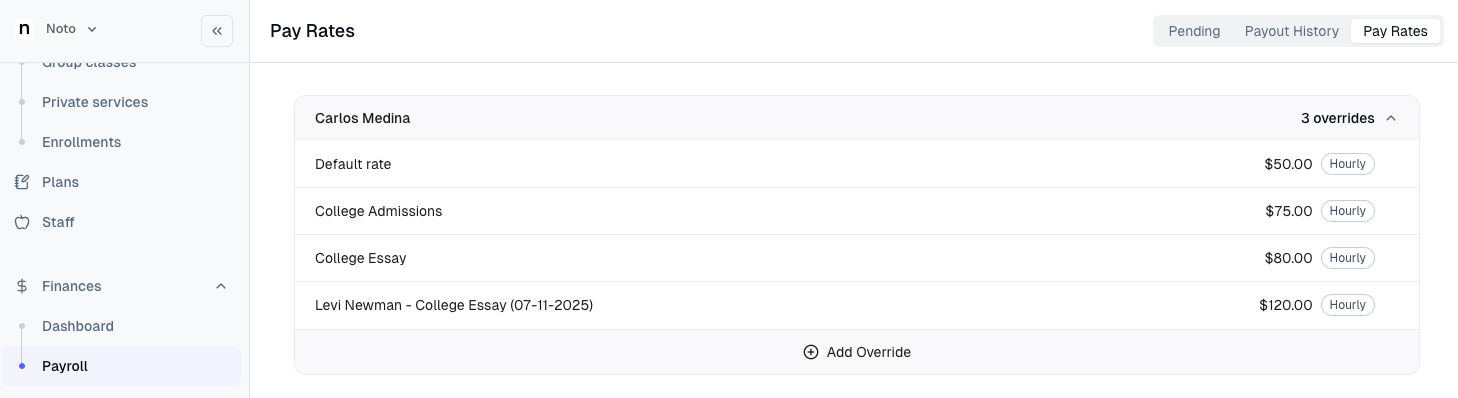
Navigate to Finances -> Payroll -> Pay Rates, where you should see all staff members as well as their default pay rate. Click the instructor you want to add an override for and click "Add Override".
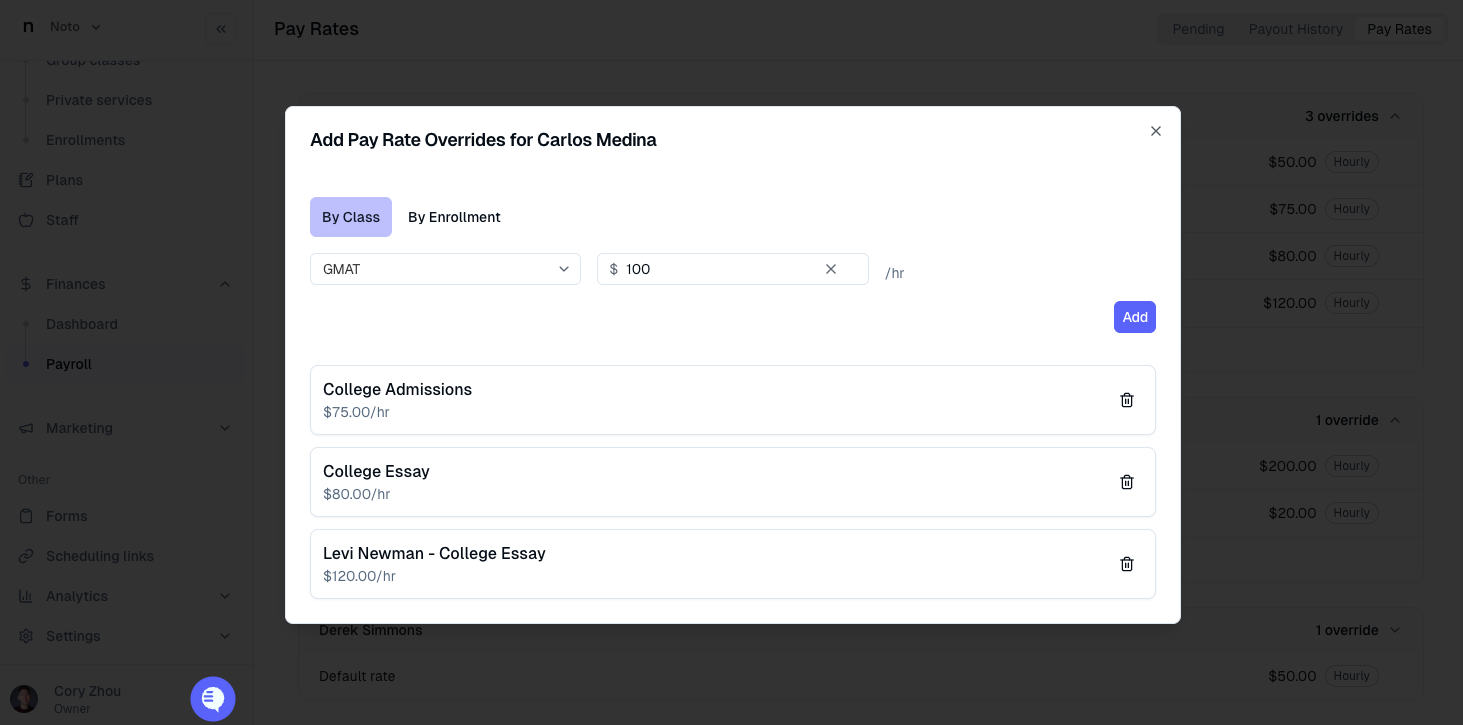
Select if this override is by Class or by Enrollment, define the hourly pay, and click "Add".
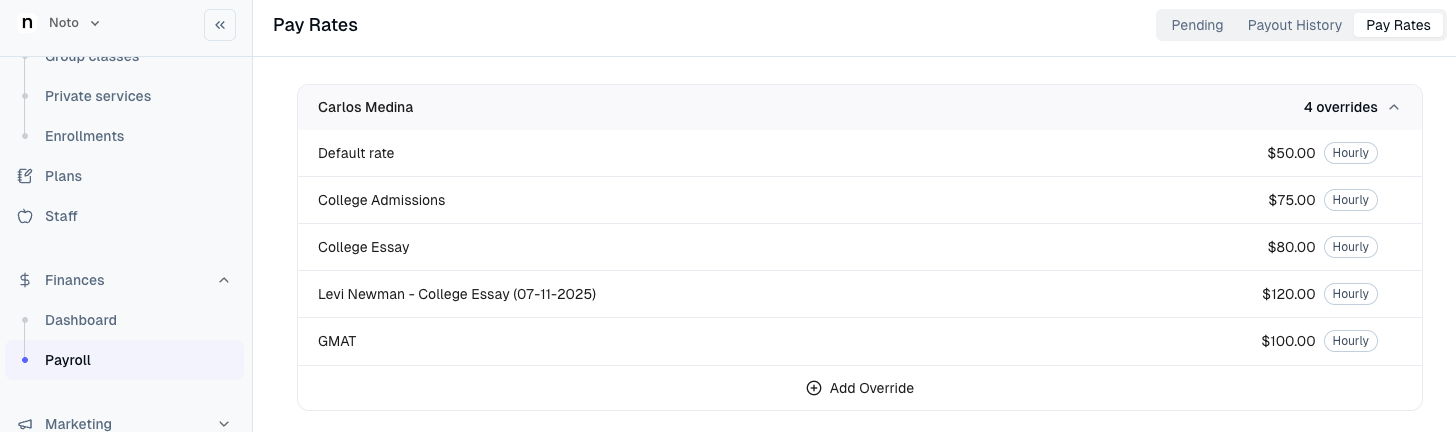
The pay rate override should then display on the instructor.
Configuring Pay Rate Override on Enrollment
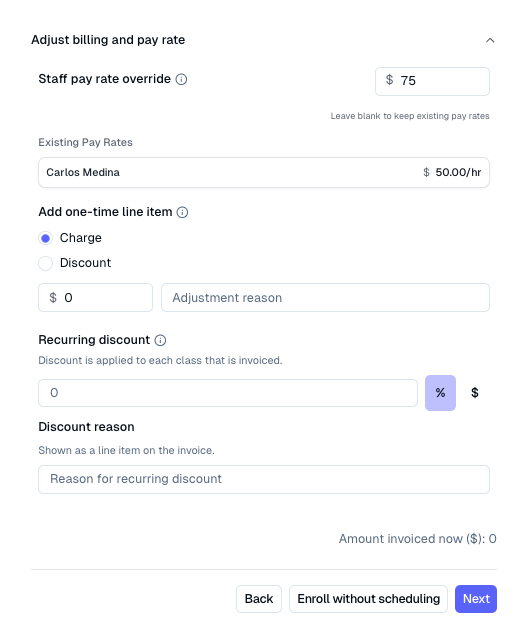
Enrollment-level pay rate overrides can also be configured when creating an enrollment for a student. This would primarily be used if a student has a special rate or if your instructors pay is a percentage of the client's bill rate. To configure this, navigate to the "Members" tab and select the member to enroll.
Click + Enroll member, select the service, and select the plan and instructor.
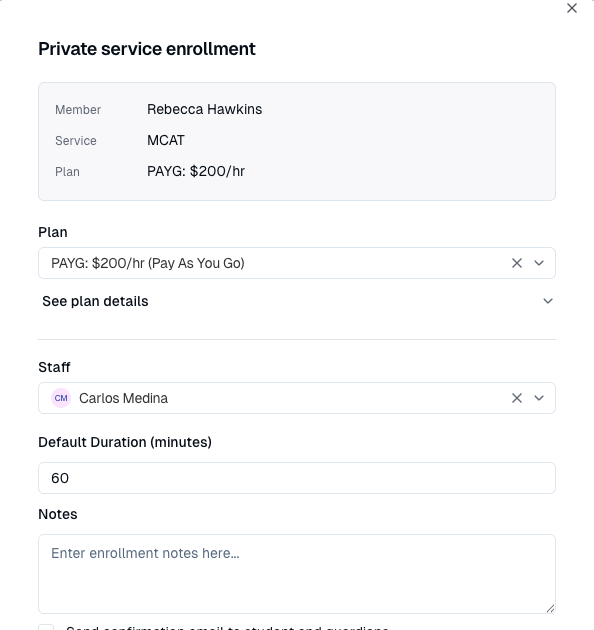
At the bottom of this "Private service enrollment" modal, expand Adjust billing and pay rate. Here, you can see the instructor's default pay rate and add an override for this specific enrollment. Complete the enrollment by clicking "Enroll without scheduling" or "Next" and then scheduling the student.
The pay rate override should then display on the instructor in the Pay Rates page.