Troubleshooting self-scheduling availability
Last updated: August 19, 2026
When a staff member's availability doesn't appear on your public self-scheduling page or in the member portal, the cause is usually one of three things: how their availability is configured, whether a location is attached, or an org- or link-level setting that's filtering slots out. This article explains how Noto builds the bookable times your members see, and walks through the most common reasons availability goes missing.
How Noto builds availability
Noto has two separate ways to define when a staff member is available:
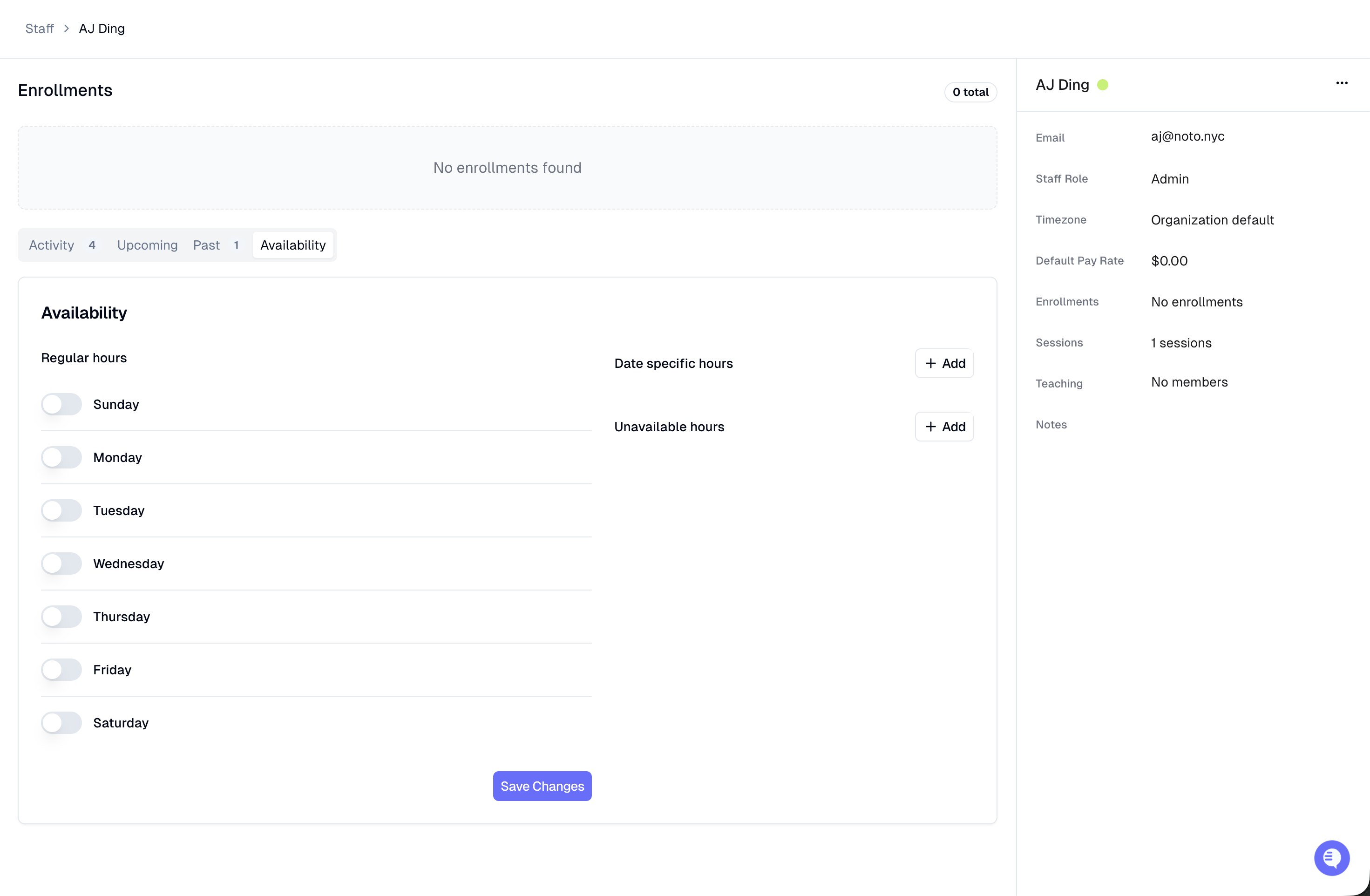
Regular hours — a recurring weekly schedule on the staff profile.
Date-specific hours — date-specific availability for individual openings.
These are independent, and they feed self-scheduling separately. All other events and calendar blocks are considered unavailable.
Both can be configured on the Availability tab of the staff member's profile, reached from the Staff page. You can also set up your own availability from the Settings page under My profile.
Regular hours vs. date-specific hours in self-scheduling
The self-scheduling calendars — your public scheduling links and the member portal's self-schedule flow — and the Availability Finder do not treat regular hours the same way.
Availability Finder always shows a staff member's regular hours.
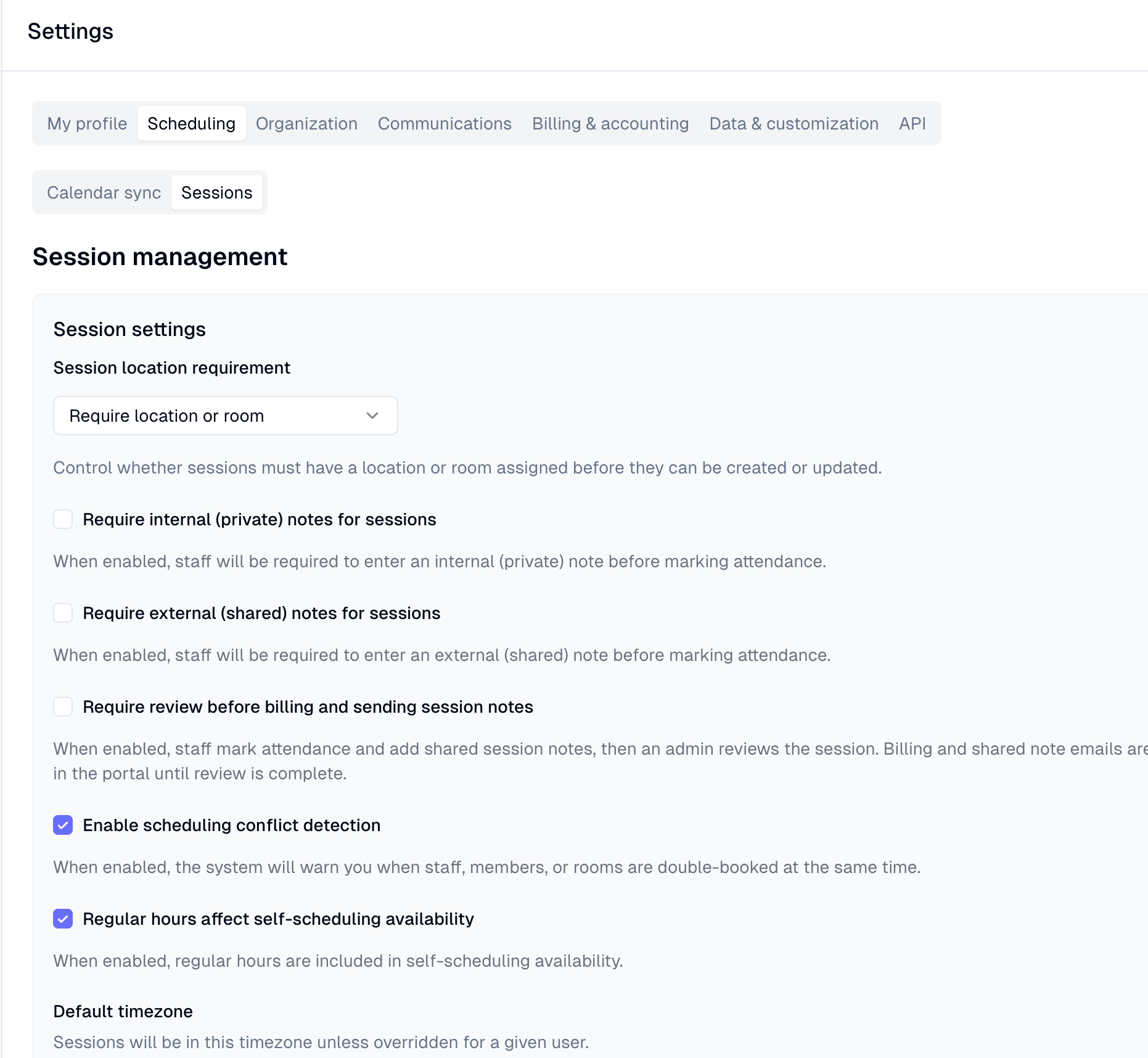
Self-scheduling (links and member portal) will only include regular hours when the org-level setting for regular hours in self-scheduling is enabled.
If a staff member has only regular hours configured (no date-specific hours) and Regular hours affect self scheduling availability is off, they will appear in the Availability Finder but not on your booking pages. To make their regular hours bookable through self-scheduling, either enable the org setting or add date-specific availability.
Settings that affect available slots
Member portal and scheduling links share a few settings that affect how availability is shown.
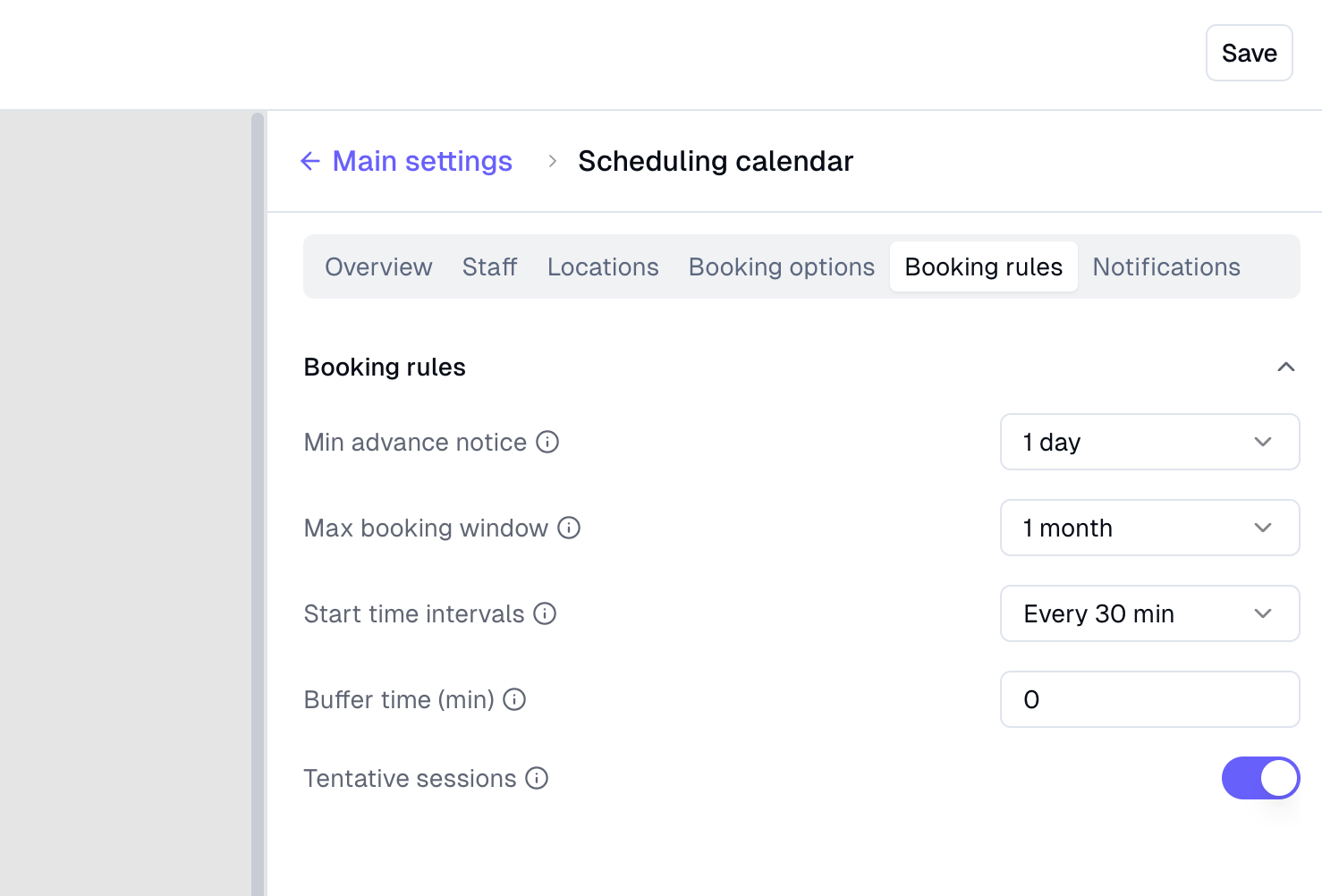
Minimum advance notice: How far ahead someone has to book. If you set this to 24 hours, availability for the next day will not be visible.
Maximum booking window: How far into the future someone can book. If you set this to 30 days, slots more than a month out won't appear.
Buffer time: adds padding around existing sessions when computing free time. With a 15-minute buffer, an existing 2:00–3:00 PM session blocks 1:45–3:15 PM from self-scheduling. A larger buffer reduces the amount of available time your members see.
You can find the member portal settings here, and for each individual link under Booking Rules.
Location is required for availability
This is a common silent failure. Availability must have a location set to appear on self-scheduling links and calendars. If you save availability without a location, no availability will surface to members or to public scheduling pages.
If a staff member's availability isn't showing up:
Open the staff profile from the Staff page.
Go to the Availability tab.
Verify each regular and date-specific availability and confirm a location is selected.
How location interacts with online availability
If a staff member is available at a physical location, Noto also considers them available online at the same times. This is intentional. If you expect physical and online availability to be strictly separate, be aware that physical-location availability will surface in online self-scheduling slots as well.
How location occupancy affects availability
Noto excludes a location from self-scheduling availability when every room at that location is already booked for the interval in question. As long as at least one room is free, the location remains eligible; once all rooms are occupied, the location drops out of the offered times.
This check only applies to physical locations that have rooms defined. Online locations and physical locations with no rooms defined are treated as though they can never be fully occupied — the occupancy check is skipped entirely for them, and they remain eligible regardless of how many bookings exist at that time.
Troubleshooting checklist
Work through these in order when a staff member's availability is missing from a self-scheduling page:
Confirm where availability is defined. Are you relying on regular hours, date-specific hours, or both? Check the Availability tab on the staff profile.
If using regular hours only, confirm the org setting for regular hours in self-scheduling is enabled. Otherwise add date specific availability.
If using date specific hours, open each one and confirm a location is set. Availability without a location will not appear in self-scheduling.
Check location alignment. Confirm the location on the availability matches a location the scheduling link or service is offered at. Remember that a physical-location availability also counts as online.
Check room occupancy at that location for the interval — if every room is booked, the location is filtered out until a room frees up.
Check the buffer setting. In your Member Portal settings, review the "Buffer time around events" value. A large buffer combined with a busy calendar can eliminate slots that look like they should be open.
Compare against the Availability Finder. If the staff member shows up in the Availability Finder but not on the scheduling page, the difference is almost always the regular-hours setting or a missing location on availability.
Common questions
I updated regular hours and nothing changed on my scheduling link. Why? Regular hours only feed self-scheduling calendars when the org setting for it is enabled. Until then, only date-specific availability will produce bookable slots on your links.
I added availability and no slots appeared. Why? The most likely cause is a missing location. The availability will not surface on self-scheduling until a location is added.
Why does a physical-location staff member show up as available online? This is by design. Physical-location availability implies online availability at the same times.