How do I fix my calendar defaulting to a past date?
Last updated: May 19, 2026
Google Chrome
Click "Schedule" on the left-hand navigation and bookmark this page by clicking the Star icon at the right of the URL.
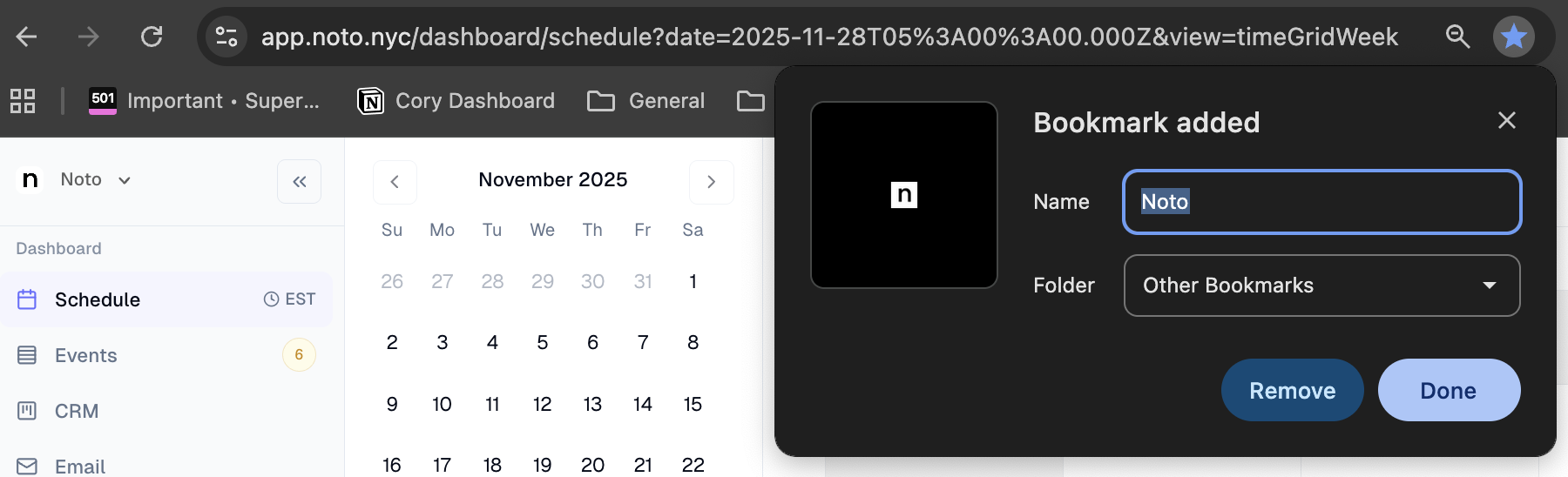
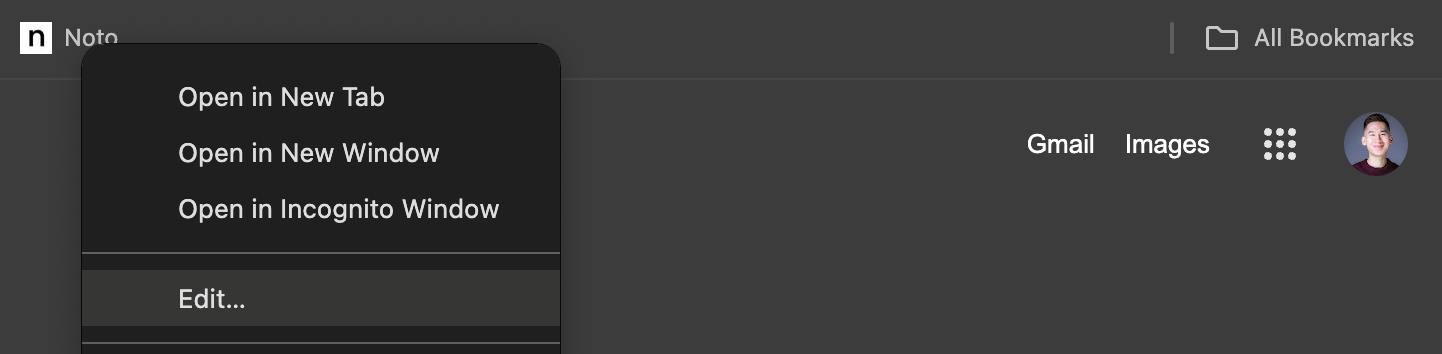
In the Bookmarks Bar of Google Chrome, right click on the Noto bookmark you just created and click "Edit".
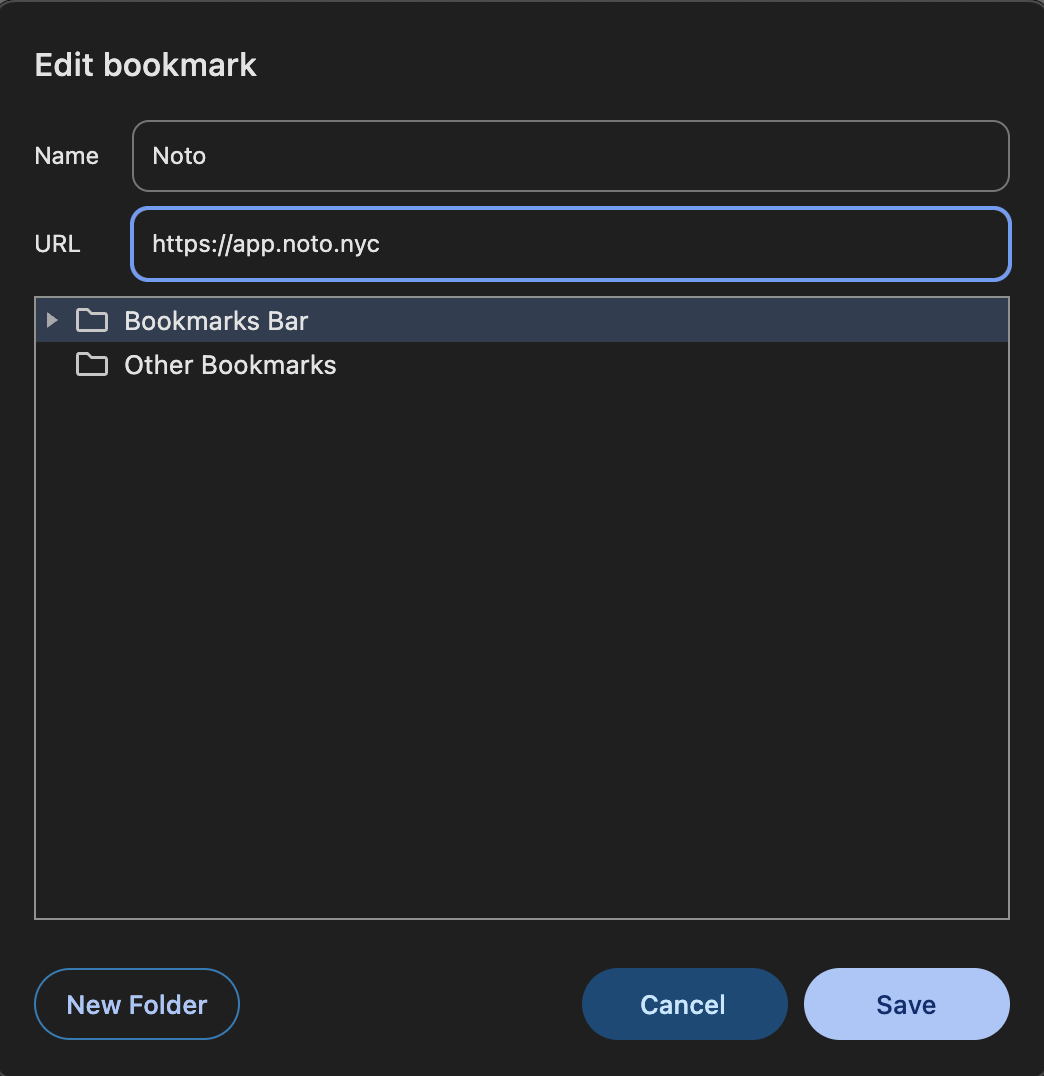
Shorten the Bookmark URL to https://app.noto.nyc/ and click "Save".
Use this Bookmark to access Noto.
Note: This will default your calendar to the date you had selected when you previously accessed the calendar.
Safari
Click "Schedule" on the left-hand navigation and bookmark this page by clicking Bookmarks at the top navigation bar and then "Add Bookmark".
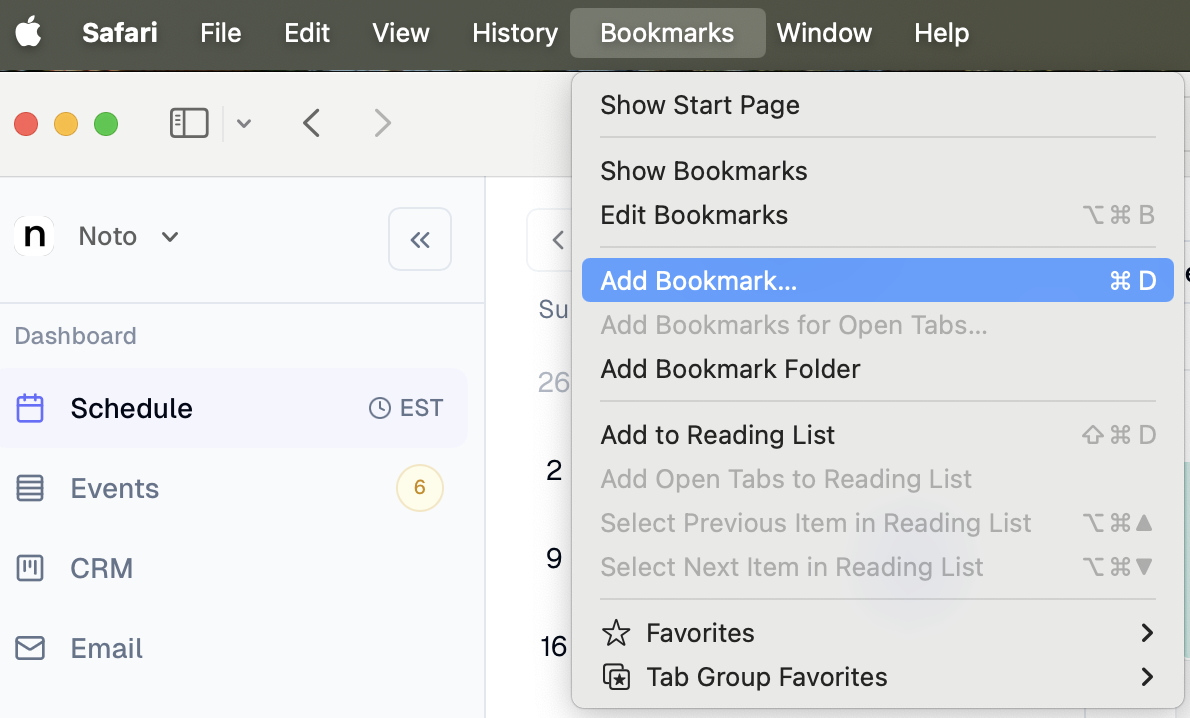
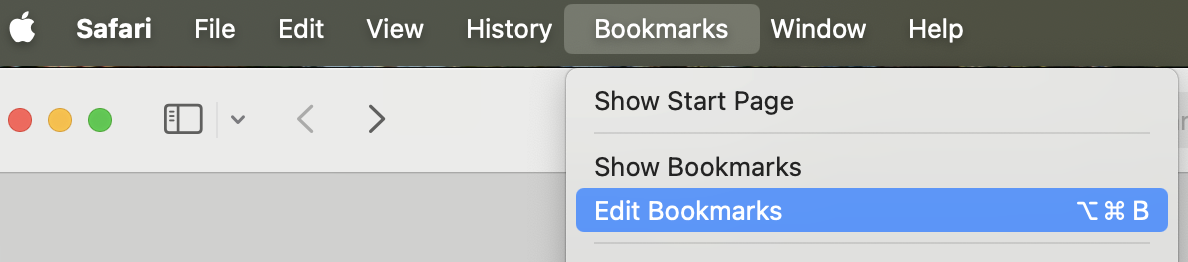
Click "Edit Bookmarks".
Find the Noto Bookmark, right click and click "Edit Address".

Shorten the Bookmark URL to https://app.noto.nyc/ and press Enter to save.

Use this Bookmark to access Noto.
Note: This will default your calendar to the date you had selected when you previously accessed the calendar.