How can my clients use the member portal?
Last updated: June 17, 2026
The member portal allows your clients greater visibility and centralization into their relationship with your business.
Client Access
Students and their parents will automatically be granted access to the member portal (but not sent a notification email) when the student is enrolled. To give guidance on how to access, you can direct them to app.withnoto.com/member-portal and to log in with Google SSO or their email and a verification code.
Inviting Clients to Member Portal
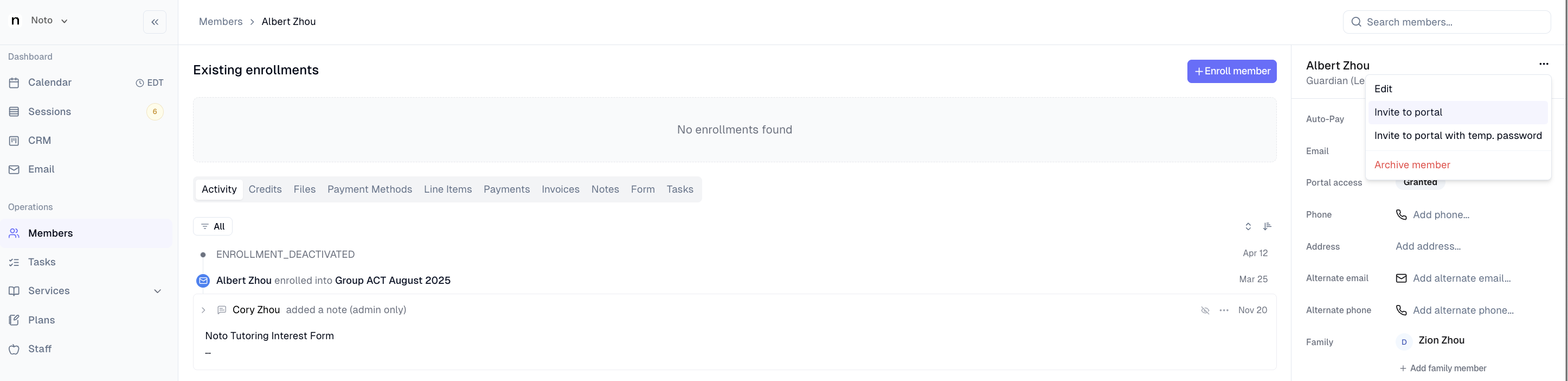
If you want to sent your clients a direct invite, you can do so the member profile. From the member's profile, click the 3 dots in the top right -> Invite to portal to grant them access.
NOTES: Google SSO is the recommended method to log in, but if the client does not have a Google account, Invite to portal with temp. password can be used instead.
Mass Inviting Clients to Member Portal
When initially migrating to Noto, it is recommended to invite all of your existing members.
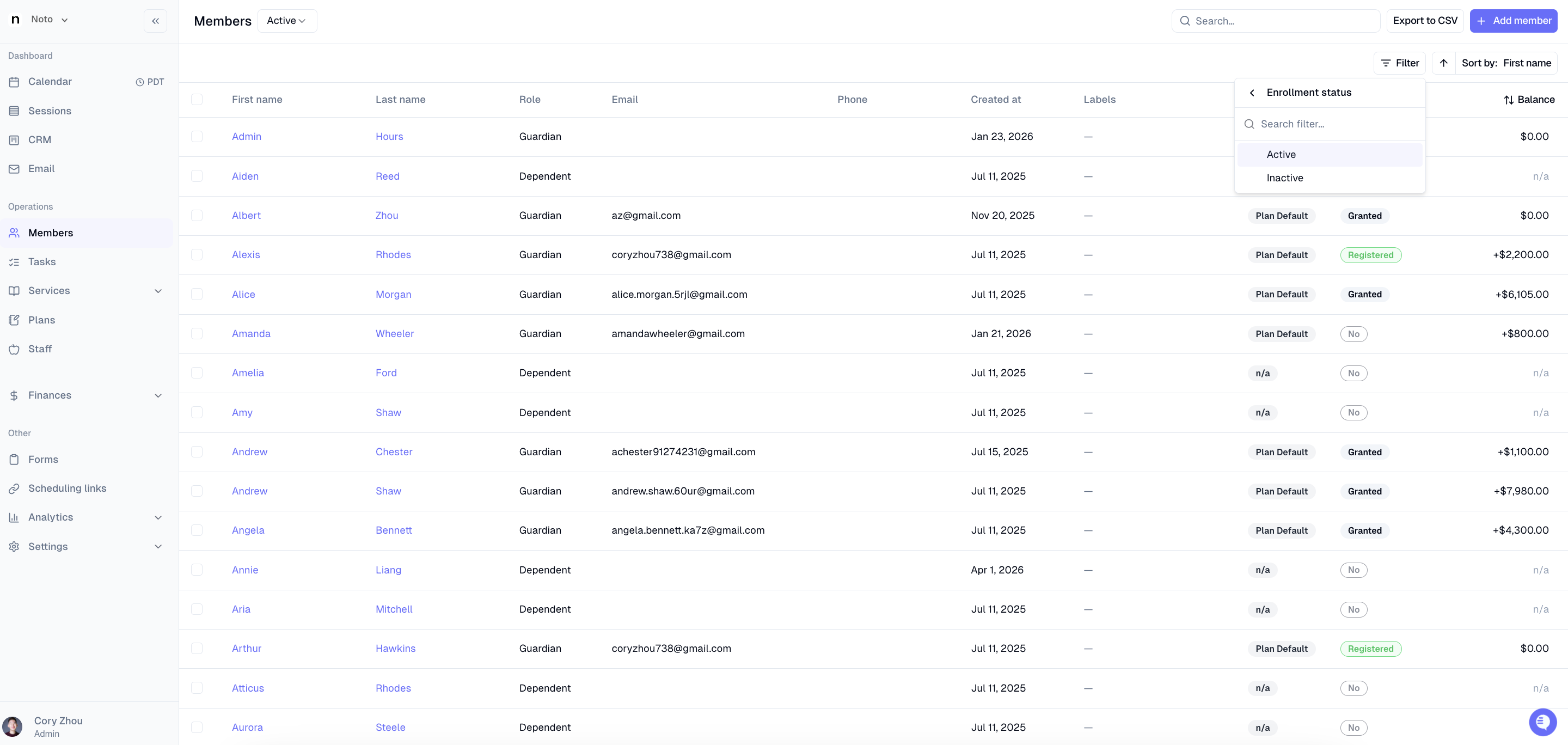
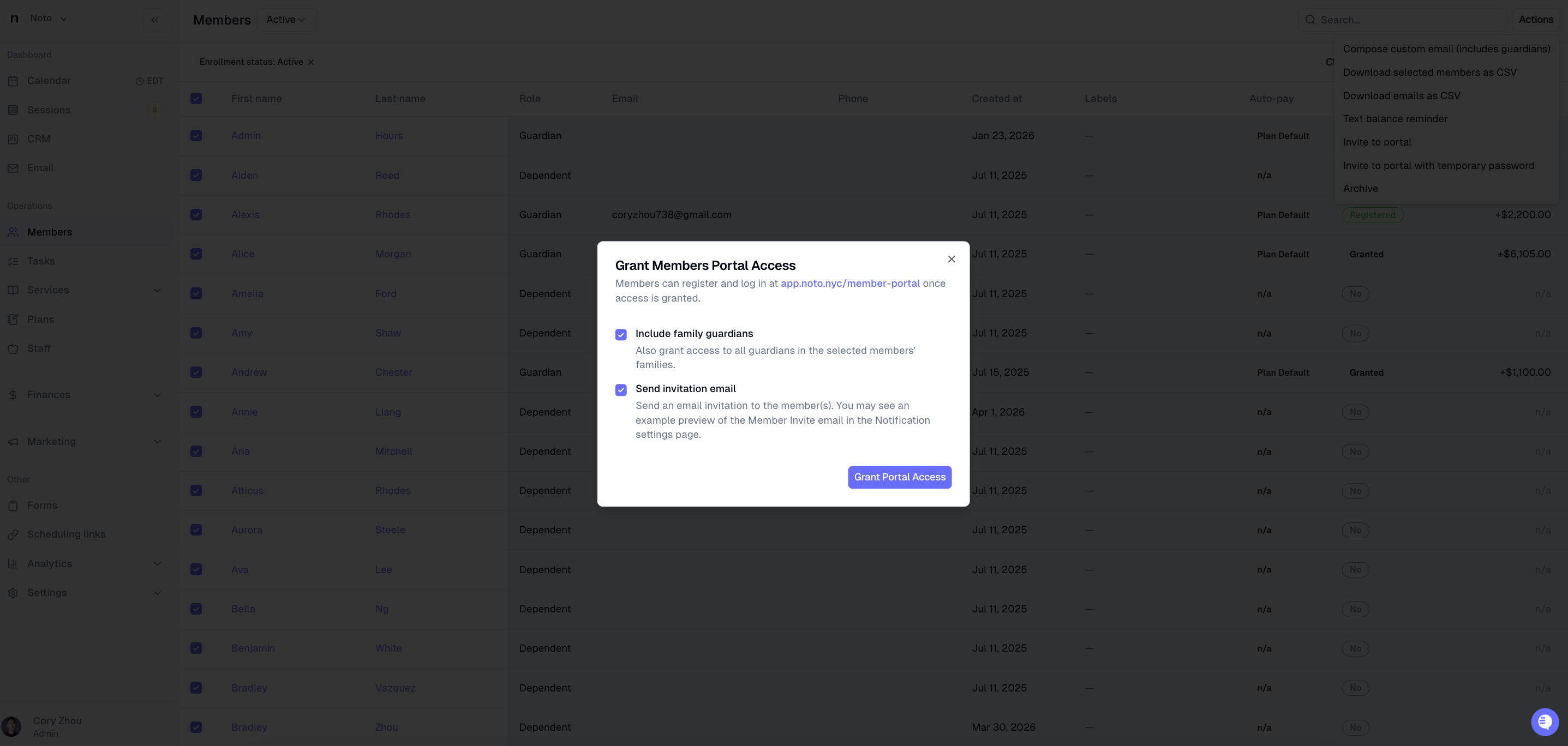
Navigate to the "Members" tab and filter by enrollment status = "Active"
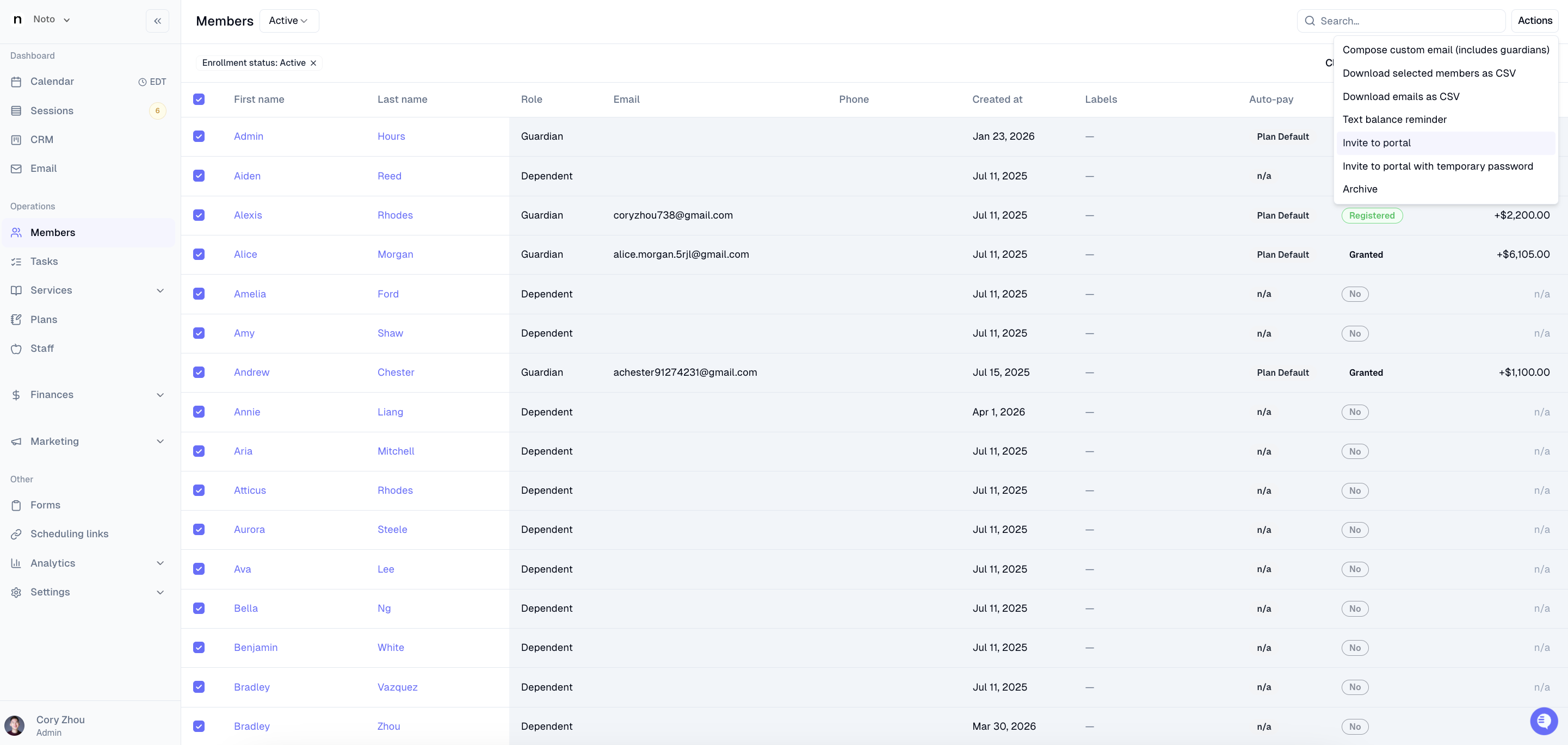
Check the checkbox in the top left to select all, then click Actions in the top right -> Invite to portal.
Select "Include family guardians" (recommended) and Send invitation email, then click "Grant Portal Access".
Member Portal Features
From the member portal, they can:
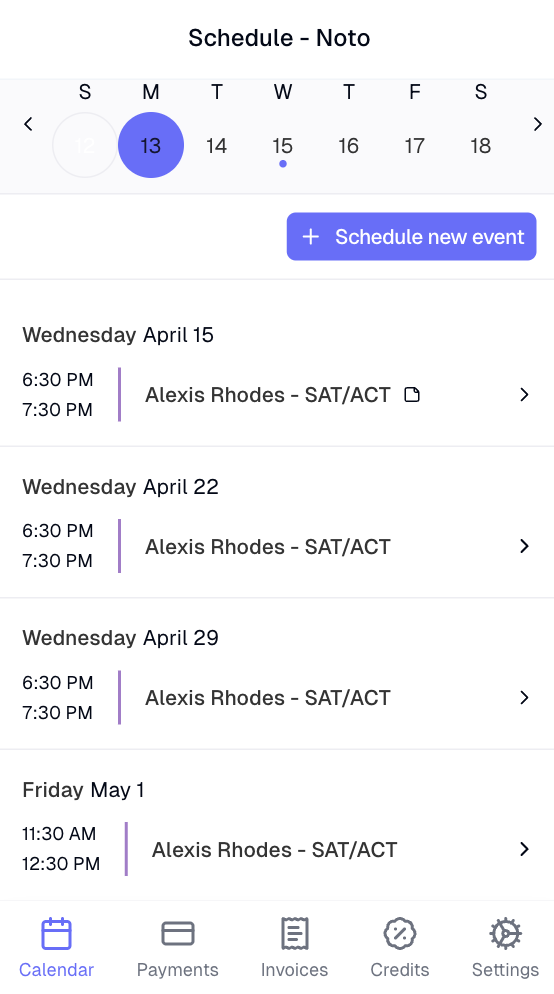
View upcoming and past sessions
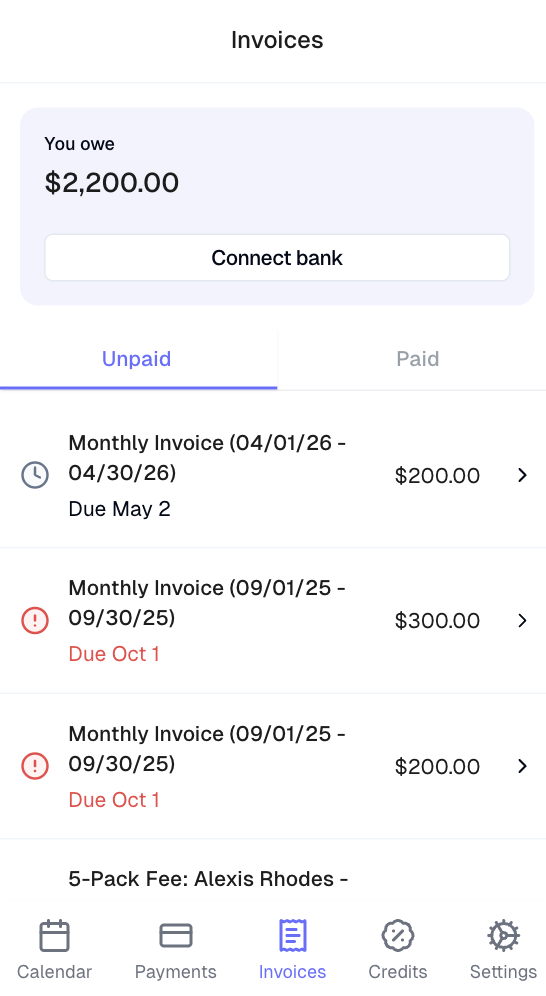
Receive and pay invoices
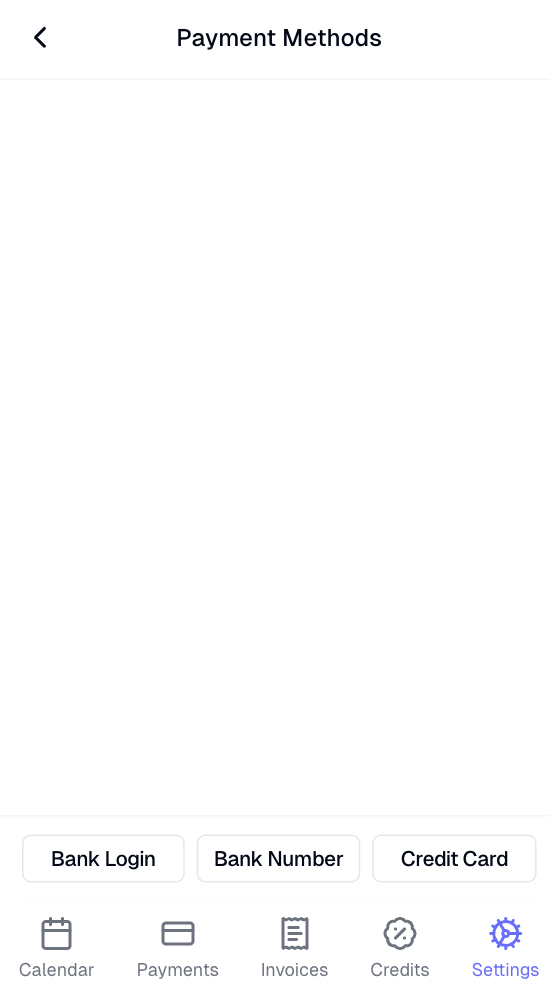
Manage payment methods
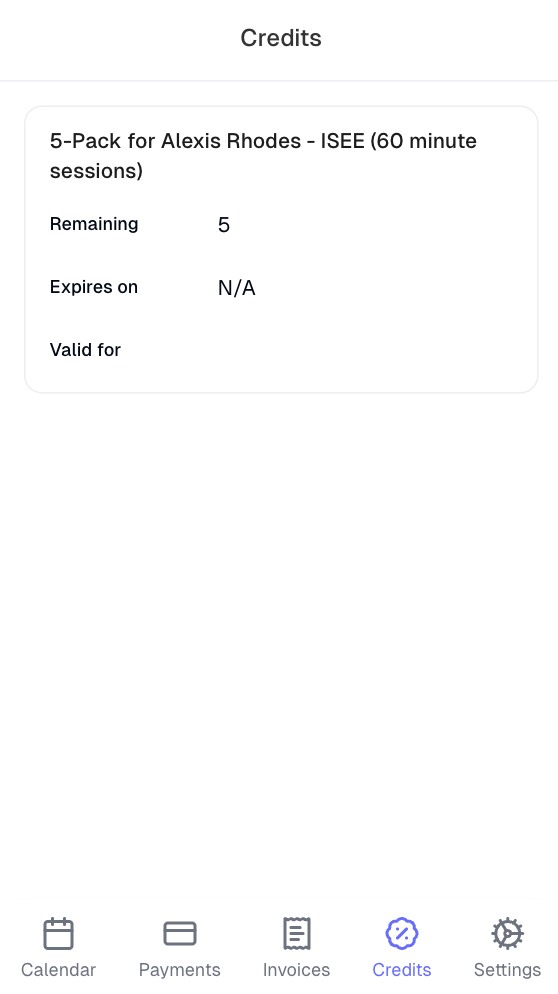
View any credit packages they have purchased
In addition, scheduling settings can be configured under Settings -> General -> Organization -> Member portal. From here, you can configure if your business allows your clients to schedule sessions, cancel sessions, and/or reschedule sessions from their portal.