Using the Noto API
Last updated: July 9, 2026
Noto offers a public REST API so you can pull your school's data — members, enrollments, invoices, forms, schedules, and more — into your own systems and reports. This article covers how to create an API key and where to find the full reference documentation.
Getting an API key
Every request to the Noto API must be authenticated with an API key. Keys are created per organization from your Noto dashboard.
Open Settings in your Noto dashboard.
Go to the API tab.
Click Create Key to generate a secret key.
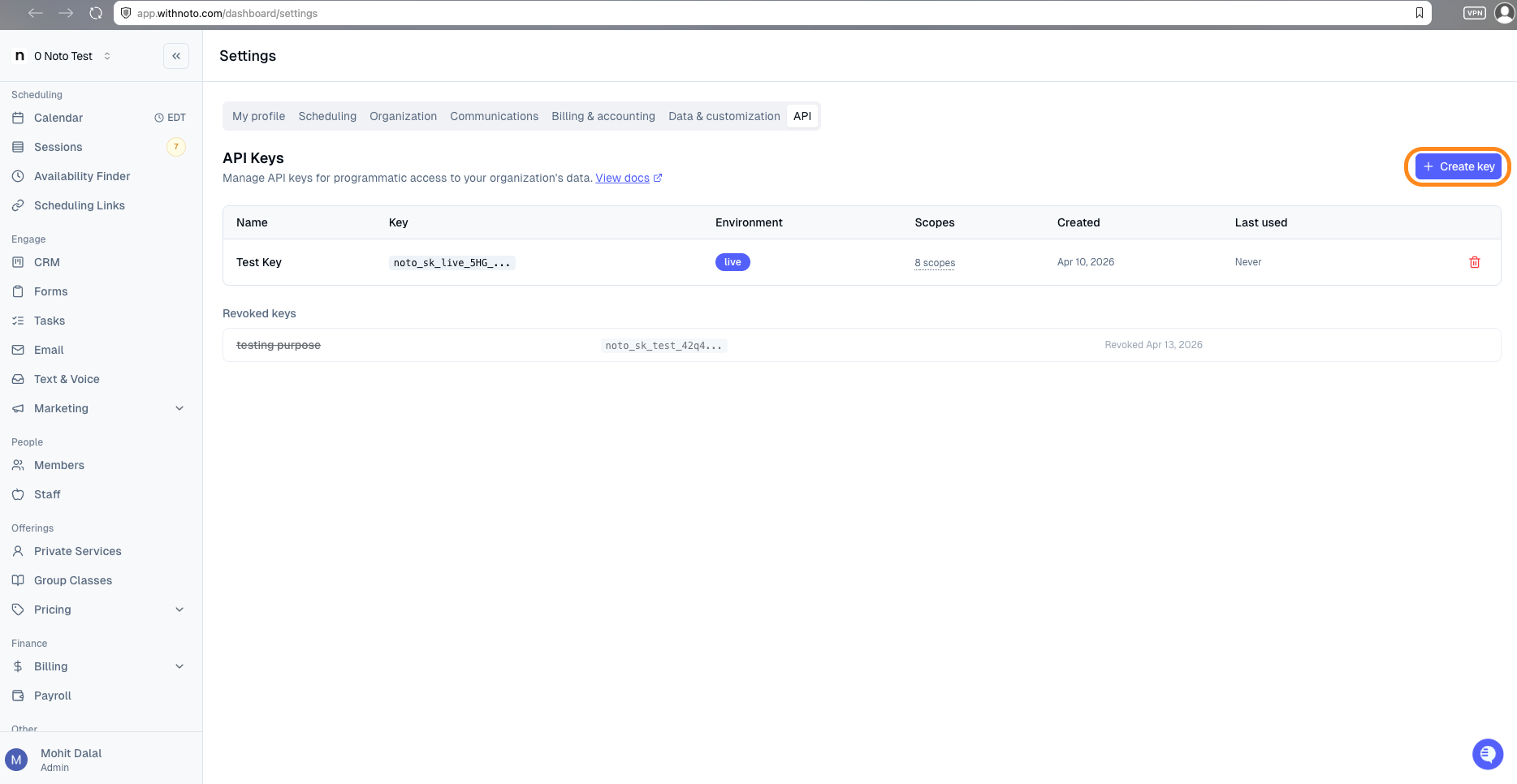
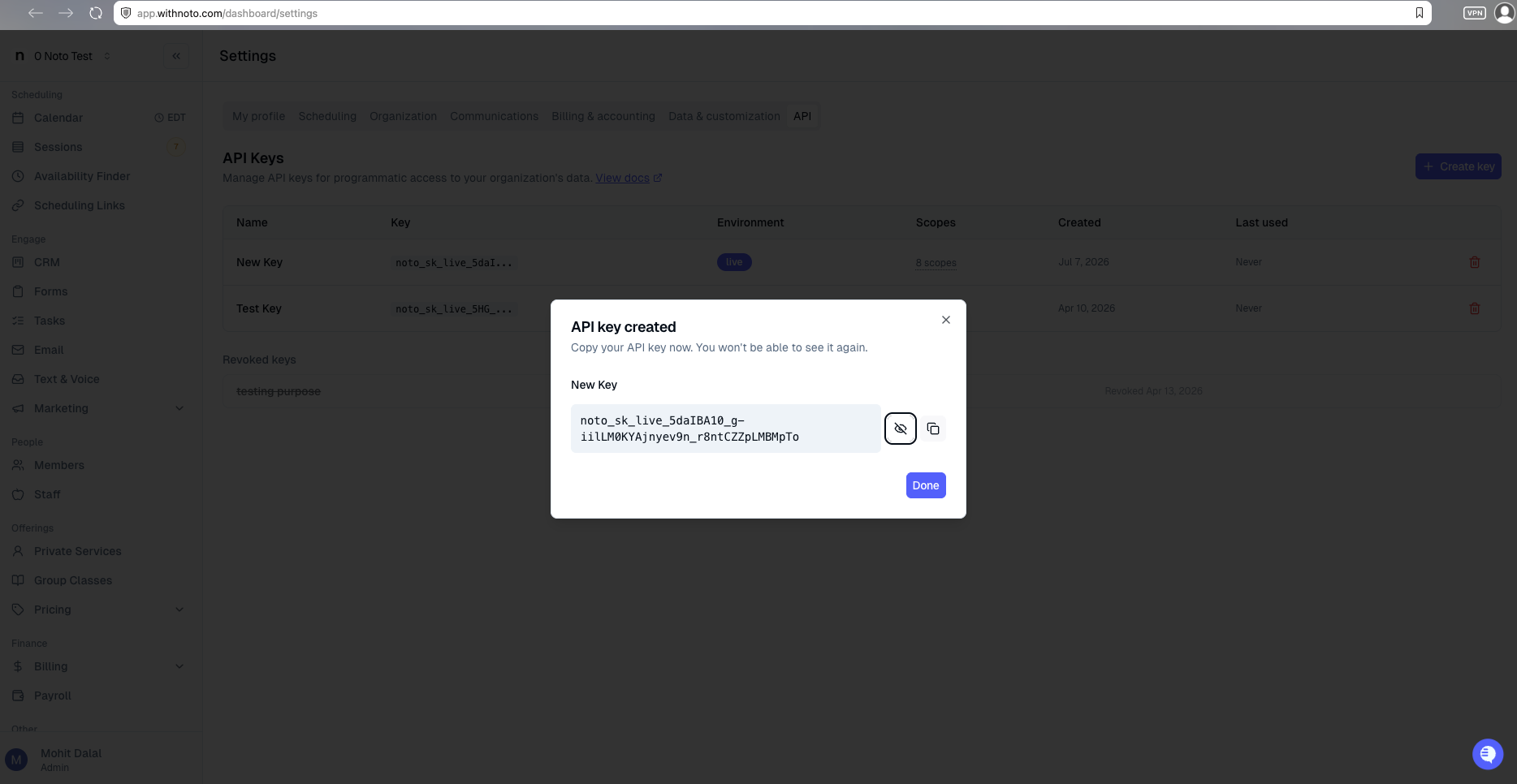
Copy the key when it is shown and store it somewhere secure — you will pass it as a bearer token on every API request.
Live vs. test keys
Noto supports two key environments:
Live keys read your real organization data.
Test keys return static sandbox data, so you can build and test an integration without touching your production records.
Scopes
Each key is scoped to the types of data it can access. When you create a key, choose the scopes your integration actually needs — for example, members:read for member data, enrollments:read for enrollments, invoices:read for invoices, forms:read for forms and form submissions, and leads:read for opportunities. Keys also inherit the role of the staff member who owns them, so a key cannot access anything that staff member could not access in the app.
What the API can do
The current version of the API allows you to list and retrieve details for:
Members
Enrollments
Invoices
Forms and form submissions
Opportunities (leads)
Sessions
Staff
Services
Semesters
Locations, rooms, and labels
List endpoints use cursor-based pagination. The default page size is 50, and the maximum is 200.
Full reference documentation
For endpoint paths, request parameters, response shapes, and example calls, see the full API reference at:
https://app.withnoto.com/api/docs
Keeping your keys safe
Treat API keys like passwords - anyone with the key can read data at the scopes it was granted.
Use test keys during development and switch to live keys only when your integration is ready.
If a key is exposed, generate a new one and stop using the old one.