Impersonating a user: viewing the Noto dashboard from the role of a member or staff
Last updated: July 13, 2026
Noto lets admins temporarily use the platform as if they were a specific staff member or member. This is useful when you want to see exactly what a client sees in their portal, troubleshoot a staff member's view of the schedule, or confirm how a change looks before telling someone where to find it.
Who can impersonate whom
Impersonation is only available for admins. An org admin can impersonate a staff member or a member. A staff member can impersonate a member.
Start impersonating someone
Open the profile of the staff member or member you want to view Noto as. Staff profiles live under Staff; member profiles live under Members.
On that person's record, open the ellipsis (⋮) menu.
Choose Impersonate.
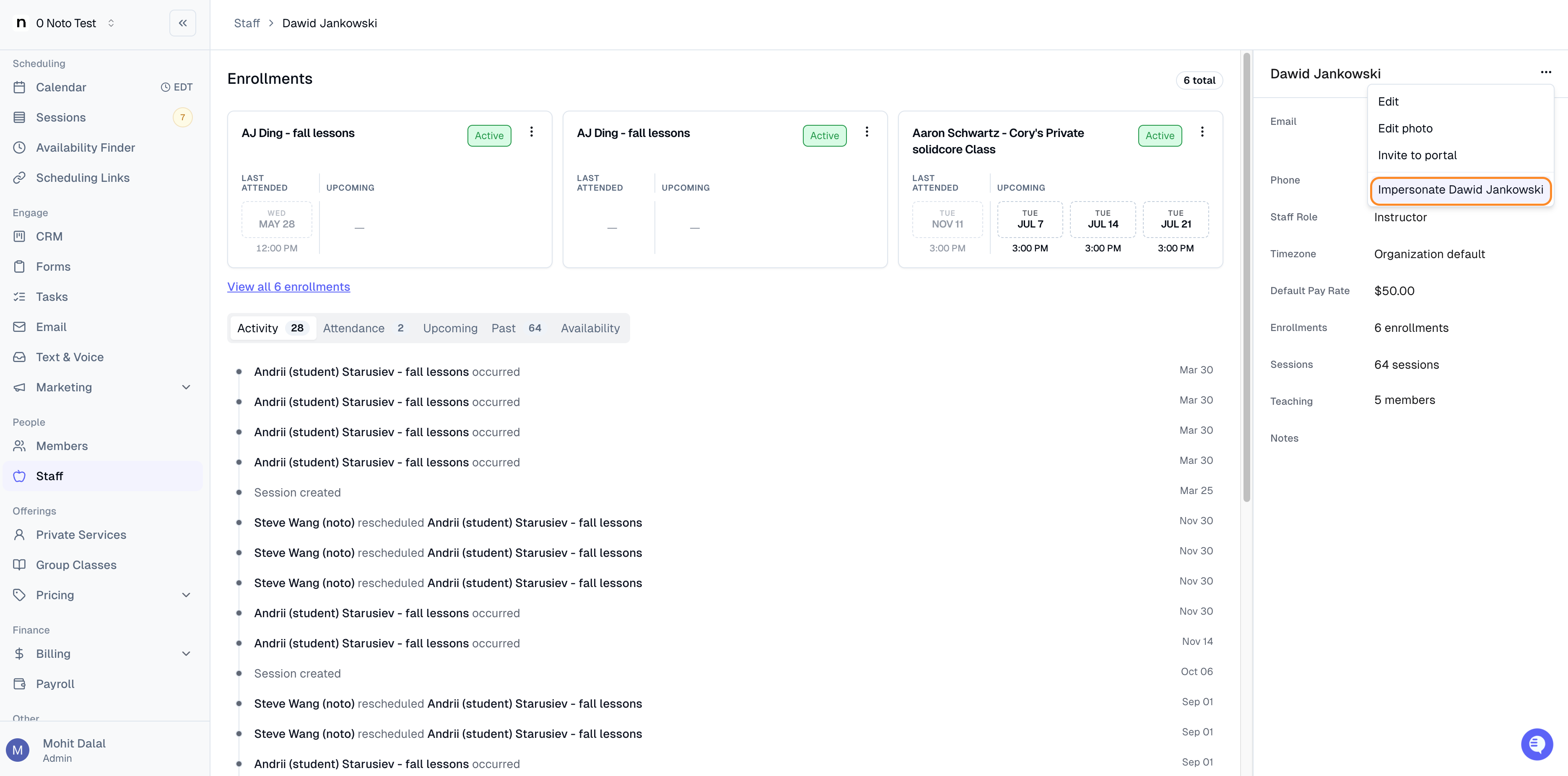
Staff impersonation example
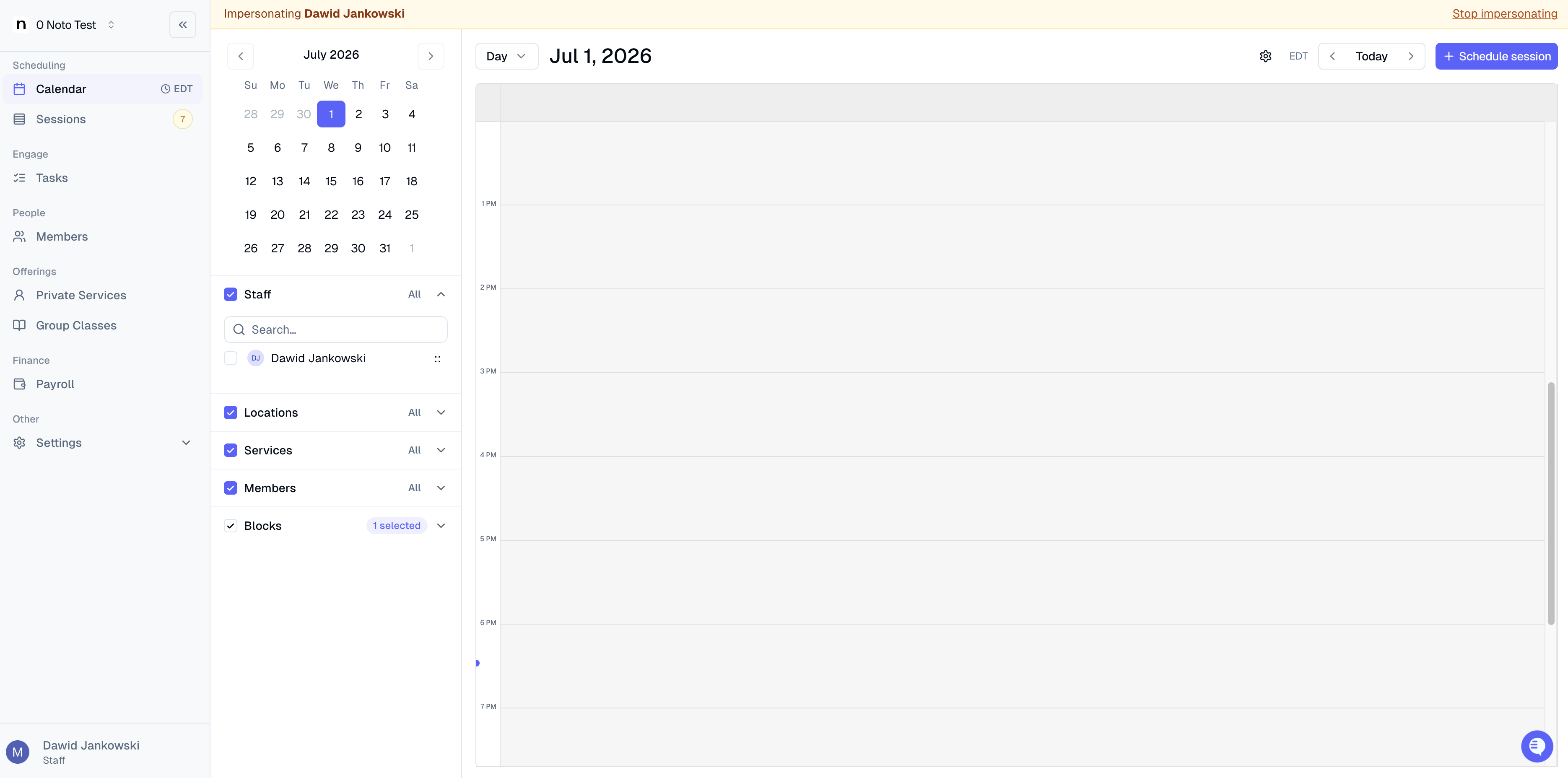
Member impersonation example
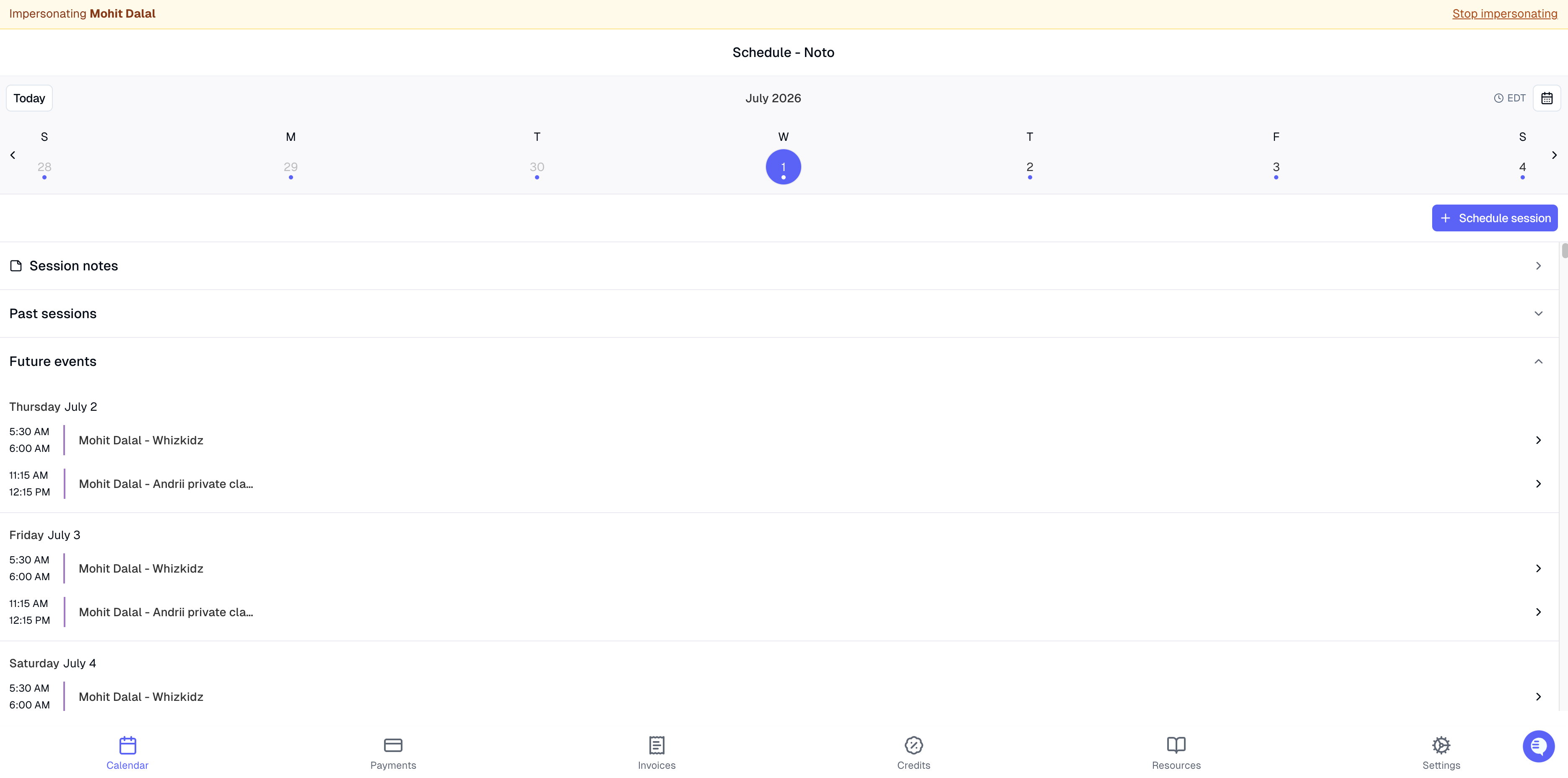
While you're impersonating
An amber banner stays pinned at the top of the screen the entire time you're impersonating someone. It shows the name of the person you're viewing Noto as, so you always know whose perspective you're in.
Everything else in Noto behaves as if that person is logged in — the dashboard, member portal, or staff portal will show what they would see.
Stop impersonating
Click Stop impersonating in the amber banner to end the session and return to your own account. Expect the same 2–3 second delay when switching back.
Good to know
The Profile page still shows you, not them. If you open the profile icon or go to Settings → Profile while impersonating, you'll see your own admin profile details rather than the impersonated user's. This is expected — use the rest of the app to check what the other person sees.
No loading indicator on transitions. Because starting and stopping impersonation takes a couple of seconds with no spinner, give it a moment before clicking again.