How do I merge duplicate members?
Last updated: June 19, 2026
When the same person ends up with two member records in Noto — for example, when an existing client fills out a form using a different email address and creates a second profile — you can combine the two records into one using Noto's member merge.
How to merge two members
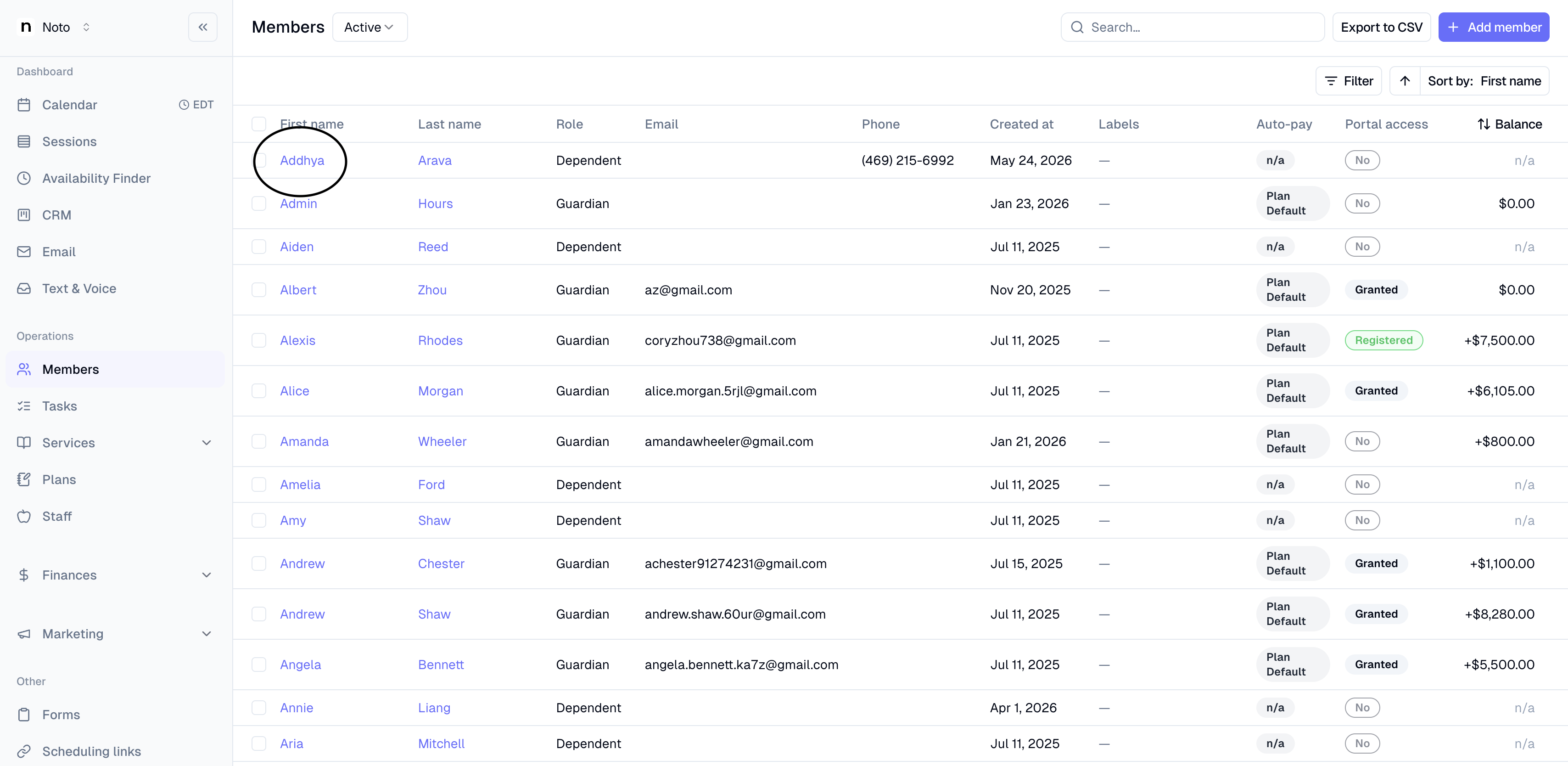
Go to the Members page.
Select one member that you want to merge and click into their hyperlink.
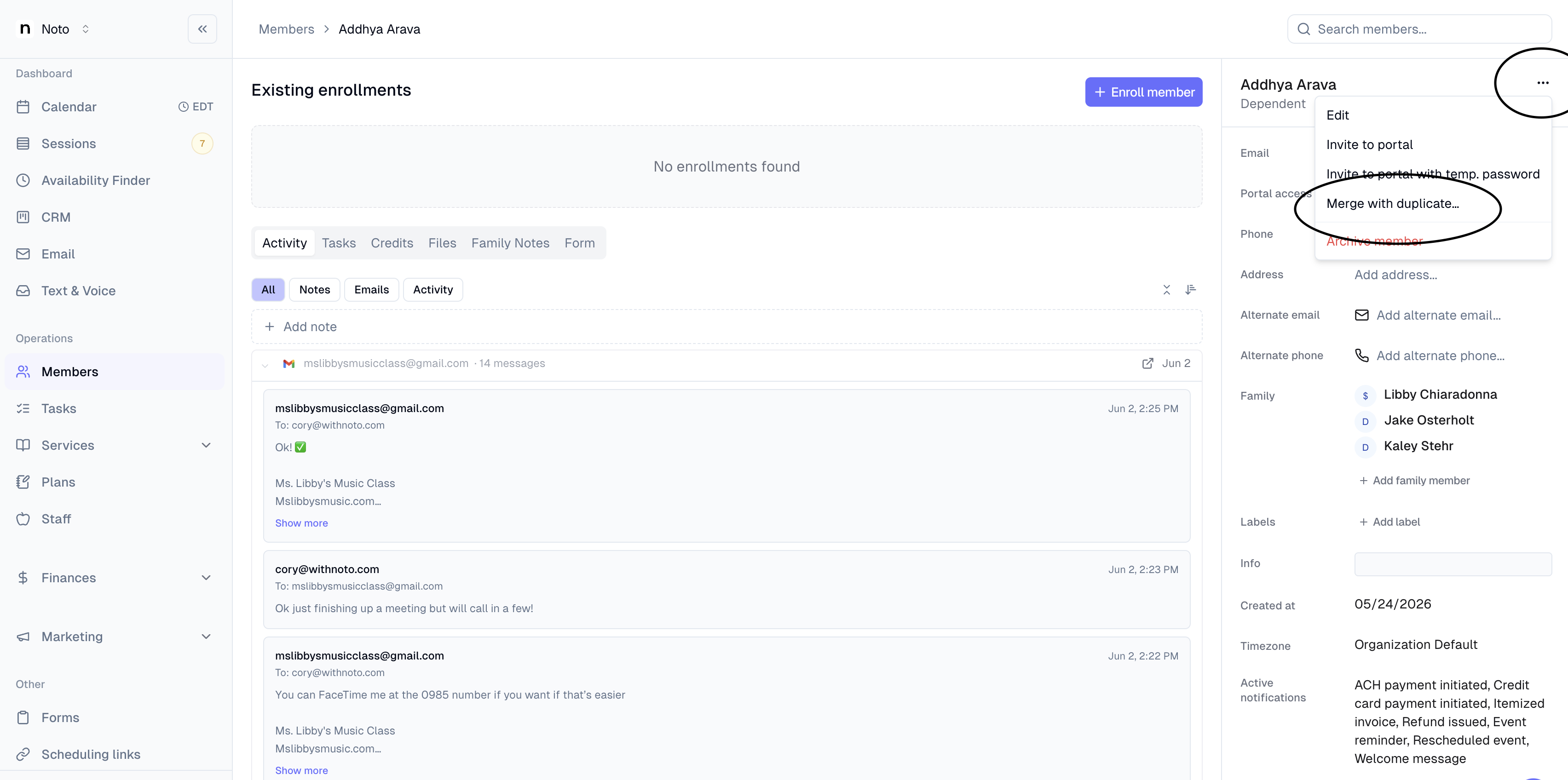
Click the three dots in the top right and then click Merge with duplicate.
On the merge screen, choose which member to keep and which member to archive, then confirm the merge.
What happens to each record
The kept member becomes the single surviving record. The archived member's history is moved onto it, so you don't lose past activity.
Events and enrollments on the kept member stay as they are. Events and enrollments on the archived member — including past ones — are reassigned to the kept member.
Payment info: If there are payment methods on the archived member, they will be moved to the kept member
Fields filled on both members: the kept member's values are persisted.
Fields only on the archived member: these values are copied over to the kept member.
Activity log: a "Member merged" entry is created on the kept member, with a reference back to both original member IDs so you can see where the data came from.
Choosing which member to keep
Because the kept member's field values take priority over the archived member's, it's worth picking the record that already has the cleanest, most up-to-date profile information (correct name, contact details, custom fields). Any fields that are blank on the kept record will still be filled in from the archived record, so you won't lose unique data either way — but conflicts resolve in favor of the kept member.
If the duplicate was created by a form submission with newer contact info, you may want to keep the profile with the more updated contact info.