How do I create a new CRM board?
Last updated: May 19, 2026
Multi-board CRM allows you to manage multiple workflows for separately tracking different groups of prospective/active clients. Some beneficial use cases for this could be:
Tracking inquiries for separate services (ex. private versus group classes)
Tracking inquiries for separate locations
Tracking follow-ups for new students after they are enrolled
Creating a New Board
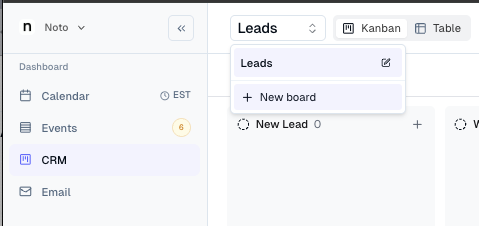
Click the board selector in the top left of the page and select "New board".
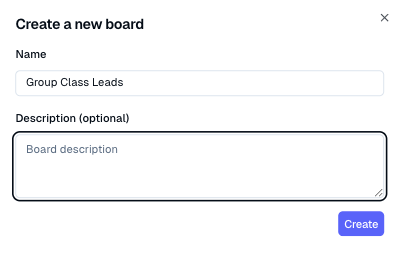
Enter a name and description for your board and click Click Create. This will create the board with a few default stages, which can then be edited.
Editing a Board
Click the Settings icon in the top right of the CRM page. Select the appropriate board in the top right.
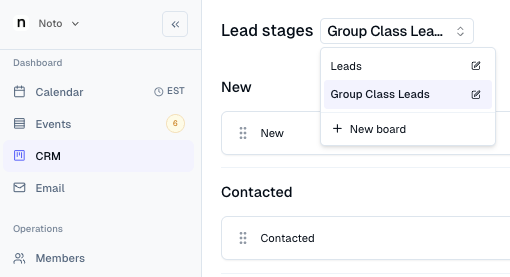
From here, you can add, delete, or edit lead stages for this board specifically.
Archiving a Board
Click the gear icon in the top right to open board settings. Click the archive button in the top right corner. This option won't appear if there's only one board.
Click Archive to confirm.
NOTE: This will archive ALL leads in this board. If you want to move leads to a different board, follow these steps.