How do I set up self-scheduling links?
Last updated: June 17, 2026
Self-scheduling links is a feature to allow clients to book sessions directly on a staff member's calendar. Self scheduling links are useful for scheduling new client consultations and trial sessions. You can also use it for existing students to book sessions using their credits or by paying ad-hoc in advance.
Before your clients can see any available booking slots on the calendar, you need to define your staff availability. Follow the directions below to set up your availability, and then proceed to the Self-Scheduling Links section.
Setting Availability and Unavailability
Staff can set their regular availability and block off specific times directly under their profile. Admins can set everyone's availability.
Setting availability:
From the staff portal, navigate to Settings -> General -> My Profile. (Admins can do this by navigating to the Staff profile -> Availability.)
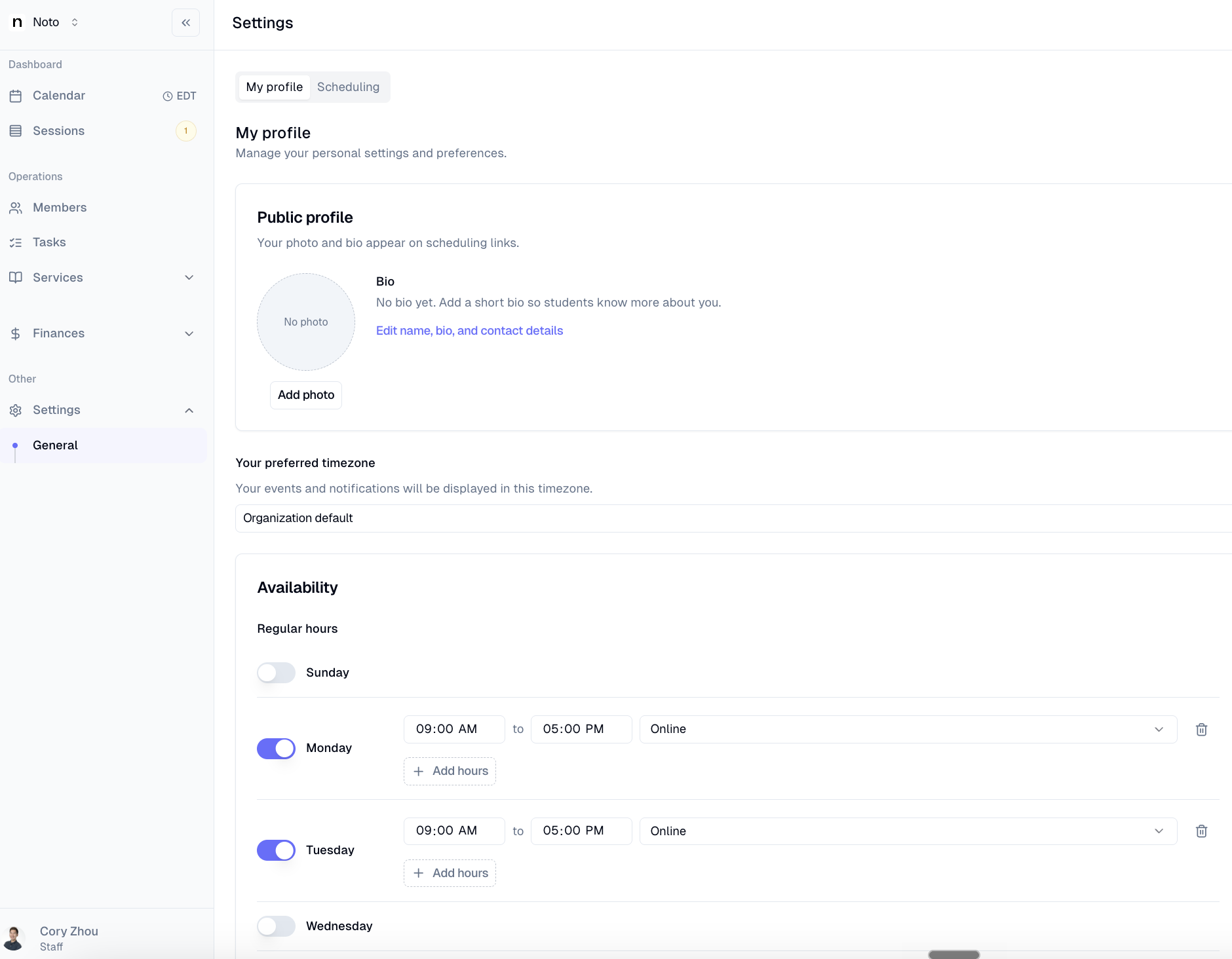
Set recurring working hours by day of week — these represent the times the instructor is generally available to be scheduled.
Click Save to apply.
Blocking off specific times and adding date-specific availability:
On the same My profile tab, find "Date specific hours" and "Unavailable hours".
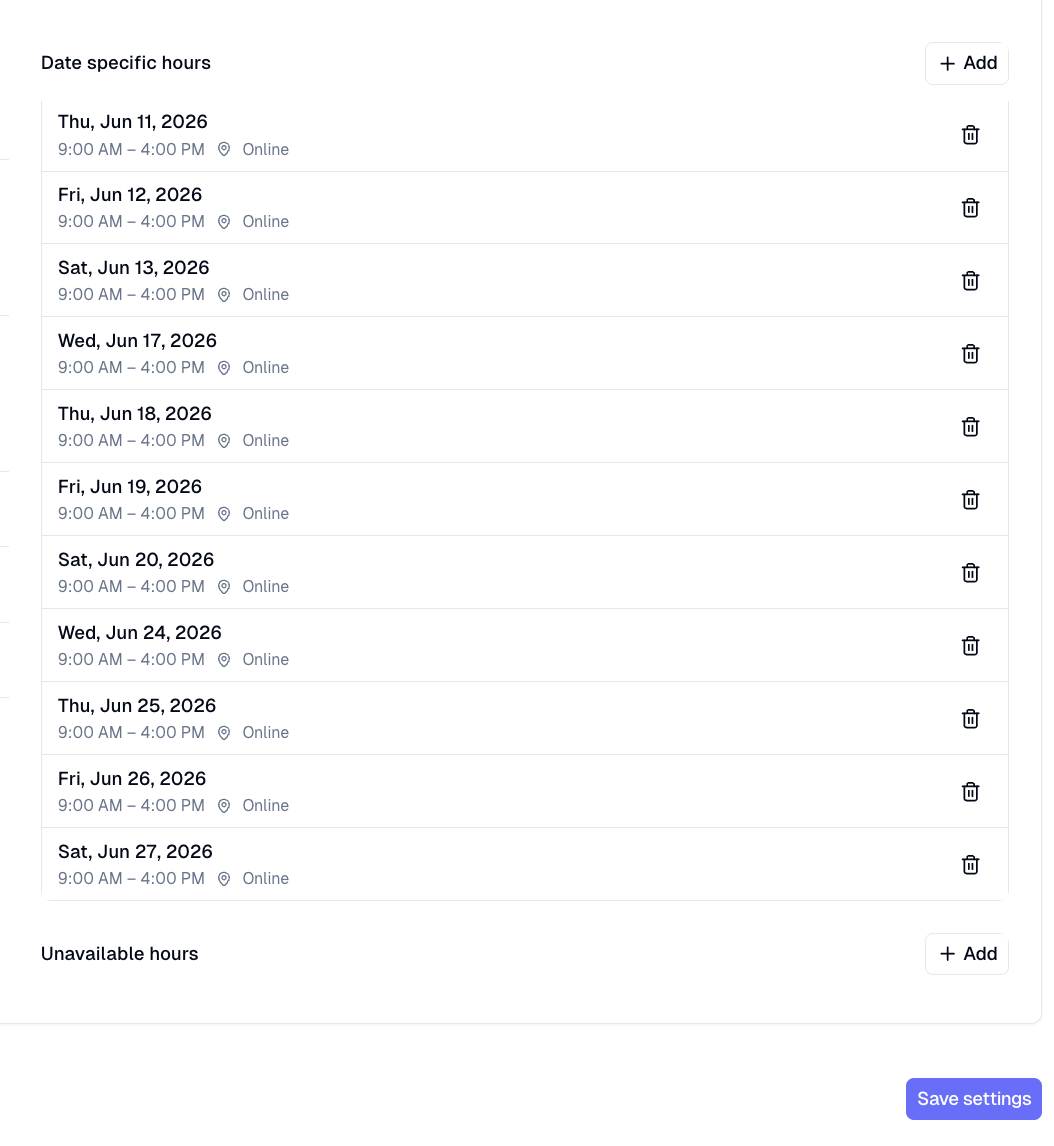
Adding date-specific hours or blocks allows you to customize availability for particular days, accommodating special events, holidays, or unique scheduling needs. This ensures accurate calendar representation and helps admins manage appointments effectively.
You can also add blocks directly from the calendar view by clicking and dragging over the desired time slot and selecting "Block".
Self-Scheduling Links
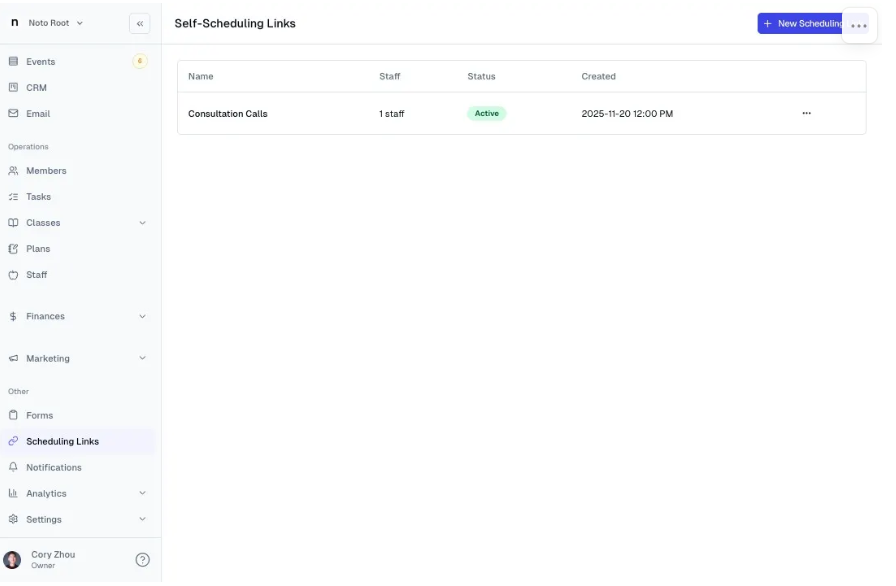
Navigate to “Self-Scheduling Links” on the left-hand navigation bar and click “+ New Scheduling Link”.
Name this scheduling link, optionally add a description and helper text, specify if this link should be public or authenticated, and specify the instructors this link can be used.
Use a public link for forms intended for new clients. Require authentication for forms meant for existing students. When students authenticate and log into their account, they can book with any eligible instructor using their credits (as long as the credits are eligible for the services), not just the instructor they are enrolled with.
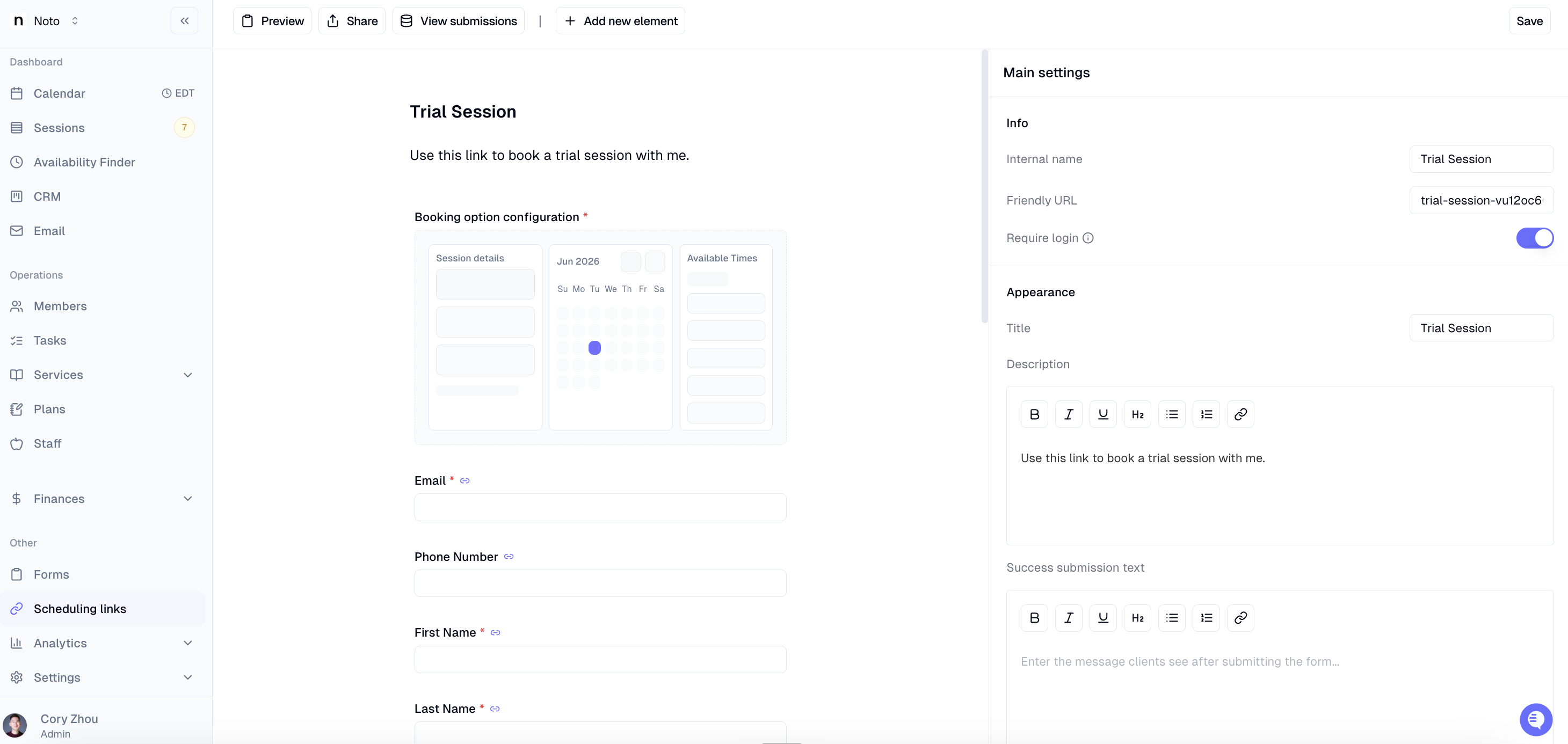
Configure the booking options by selecting the service types, duration, and price for each option and select which locations this link can be used for.
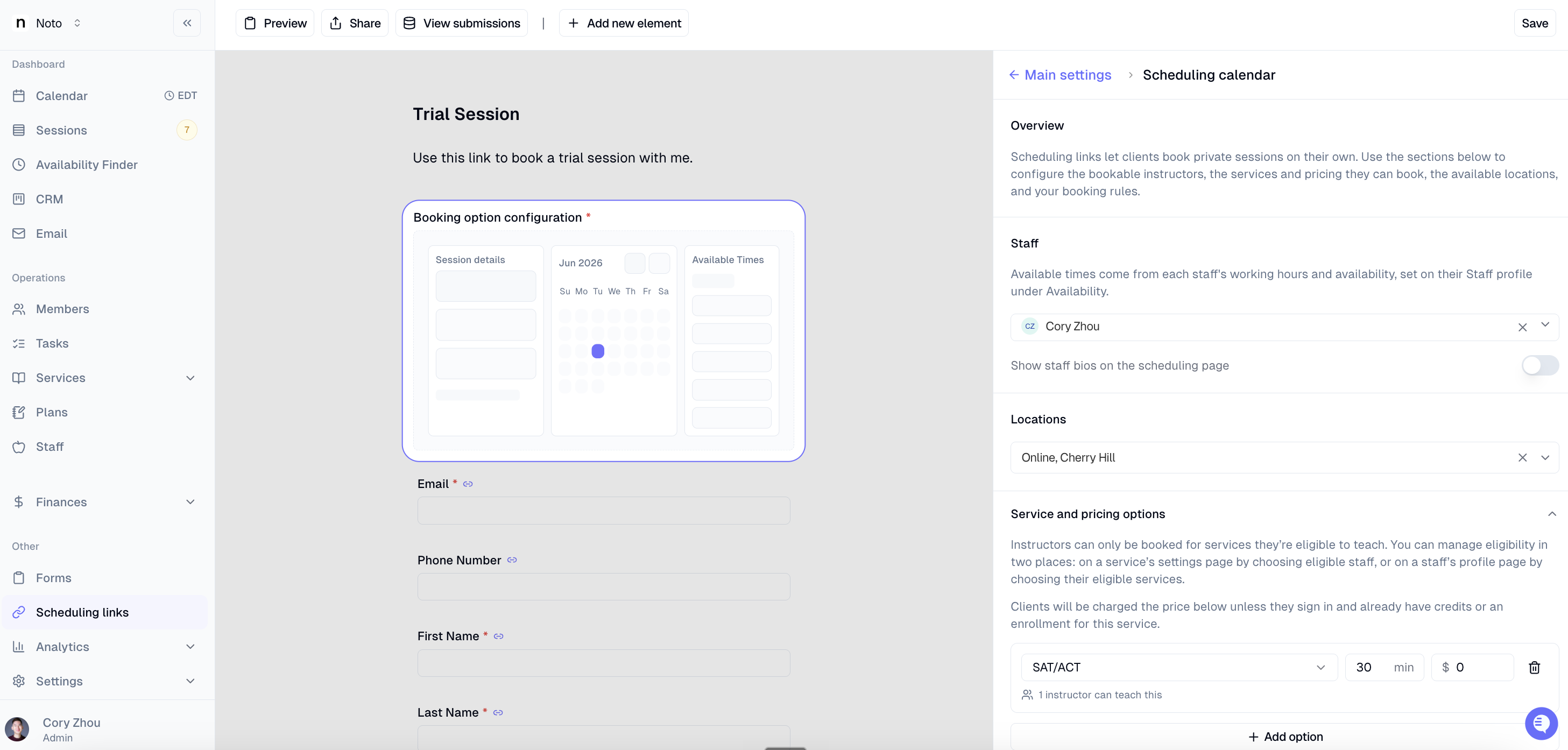
Configure the “Booking Rules” and specify who should be notified upon scheduling sessions.
If “Create tentative sessions” is checked, then sessions booked will then require instructor or admin approval before they are confirmed.
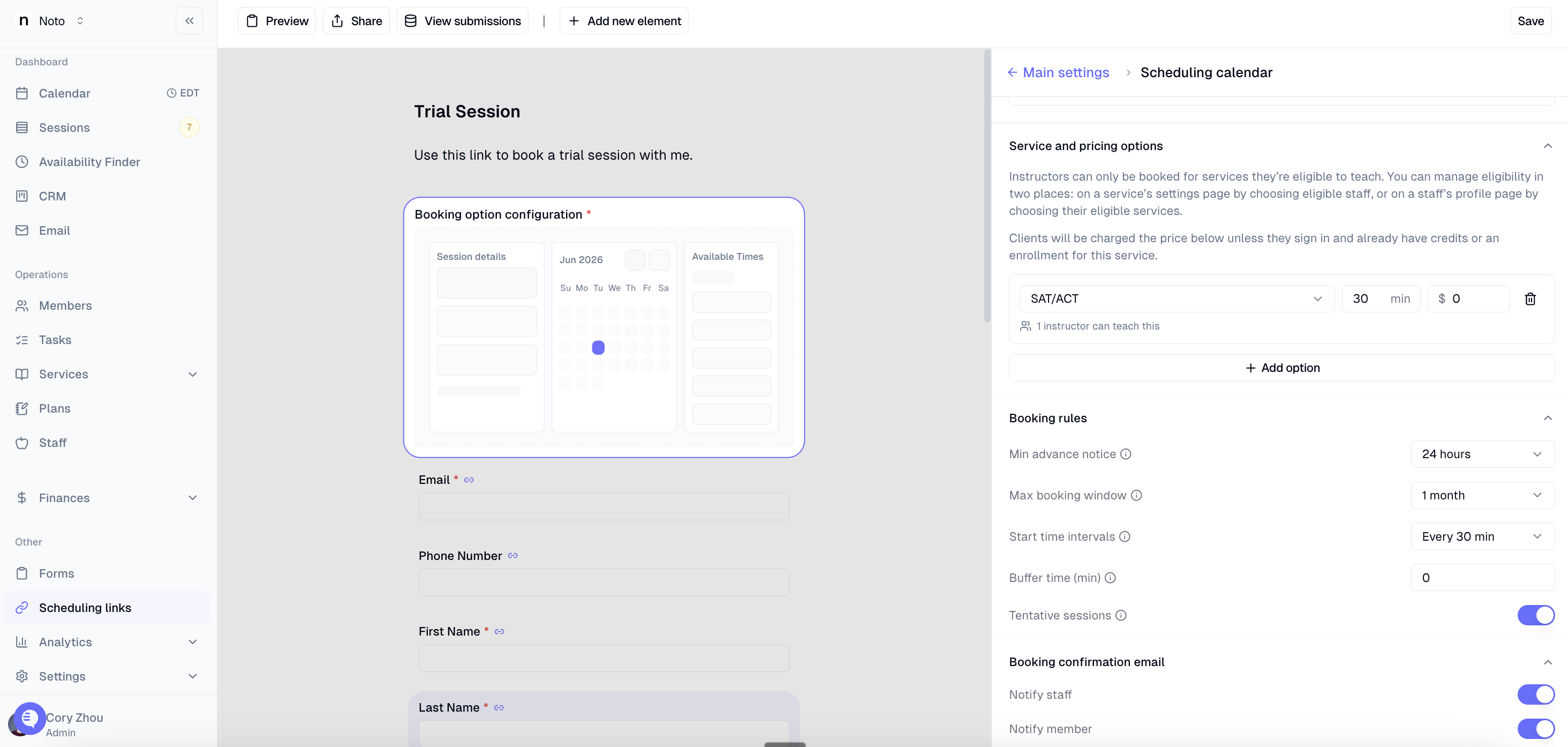
Important: When using free scheduling links (price set to $0) for trial sessions, the client will not be billed. If the client continues and enrolls in paid lessons, you can edit the Plan of their enrollment to set up the appropriate billing for the subsequent sessions.
To share this link, you can email it, include it in your Contact Us form, or link to it directly on your website.
How do I prevent students from booking a session that conflicts with my existing events?
All sessions in Noto, as well as sessions synced from your Google Calendar marked as busy, will block bookings and show you as unavailable on your self-scheduling link. To sync your Google Calendar, please follow the steps outlined in this article.