How Tentative Sessions Work
Last updated: August 16, 2026
Tentative sessions let families and leads book a time through self-scheduling, while your team keeps a final approval step. The slot goes on the calendar right away, but it stays in a pending state until staff confirms it.
What is a tentative session?
A tentative session behaves like a normal session on the calendar — it holds the time slot and shows up for both staff and members. Tentative sessions are
Orange clock icon on Schedule, Sessions, and the member portal
Tentative session banner when you open the event in the dashboard
Emails labeled Tentative Session, noting the booking is awaiting staff confirmation
Once you click Confirm session, it becomes a regular upcoming session.
Tip: Tentative is a status, not a separate session type. After confirmation, everything works the same as any other lesson.
When to use tentative sessions
Good fits:
Trials and consultations via scheduling links — let people book online, but review before it's official
Member portal self-scheduling — families book their own lessons, staff confirm each one
Office hours — someone picks a slot, the staff member approves it
Safety net for availability — if your availability blocks don't capture every real-world constraint, tentative gives you room to adjust
Skip tentative when:
Your availability setup is solid and you want fully hands-off booking
Families should be able to book and show up without a staff review step
Tentative sessions in self-scheduling
Self-scheduling has two paths, each with its own tentative setting.
Scheduling links
Scheduling links are booking pages you share for trials, consultations, and new leads.
Where to go: Self-Scheduling → open a link → Edit → click the scheduling calendar field → Booking Rules
Find Tentative sessions.
Turn it on if bookings from this link should land as tentative.
Save the form.
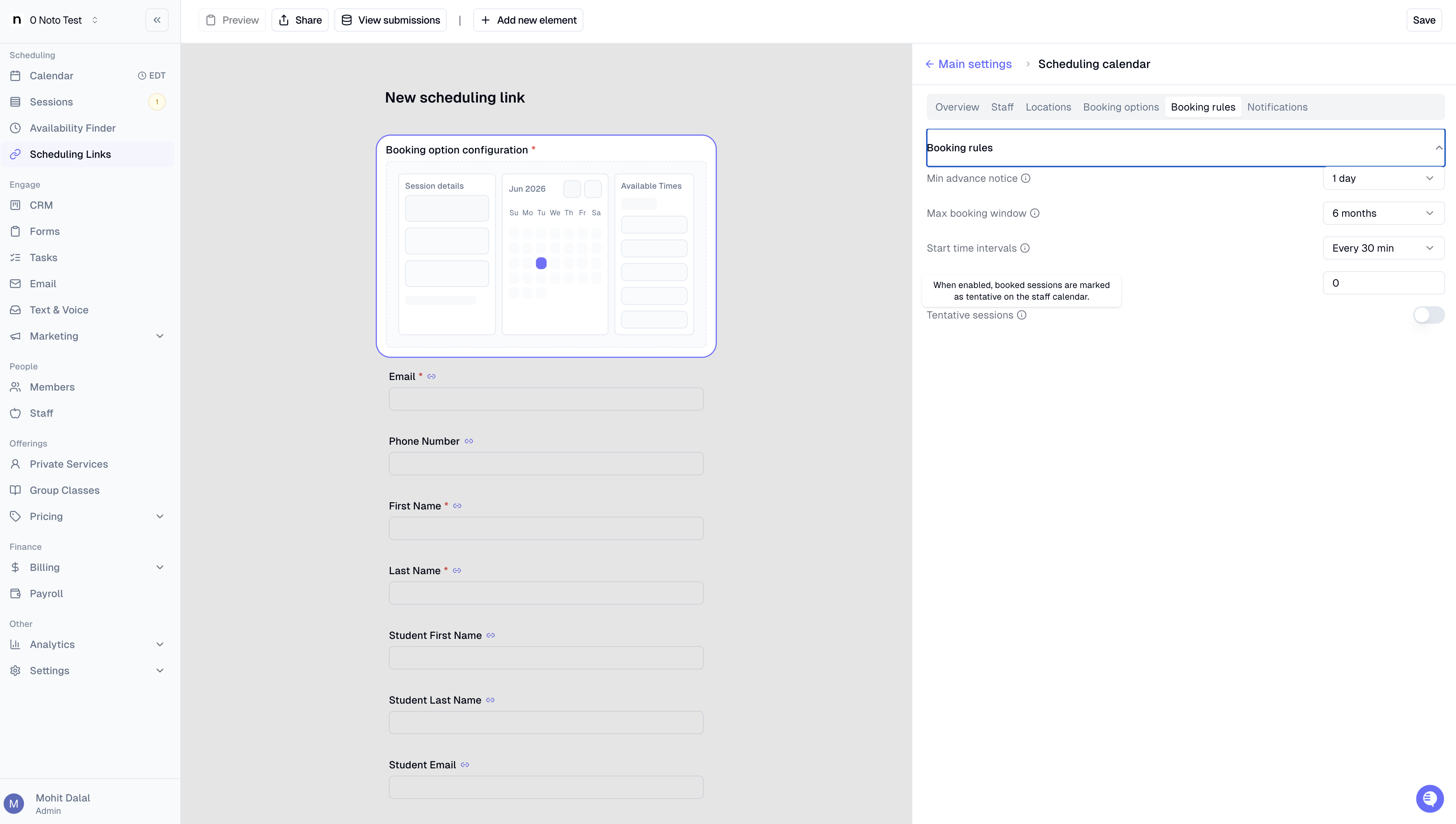
This setting is per form, so one link can require confirmation (e.g. a free trial) while another auto-confirms (e.g. a paid consultation).
Member portal self-scheduling
Enrolled families can book sessions from their portal based on their enrollment and instructor availability.
Where to go: Settings → Member Portal
Enable Allow members to self-schedule sessions.
Set Create member portal bookings as tentative:
On (default) — portal bookings need staff confirmation
Save.
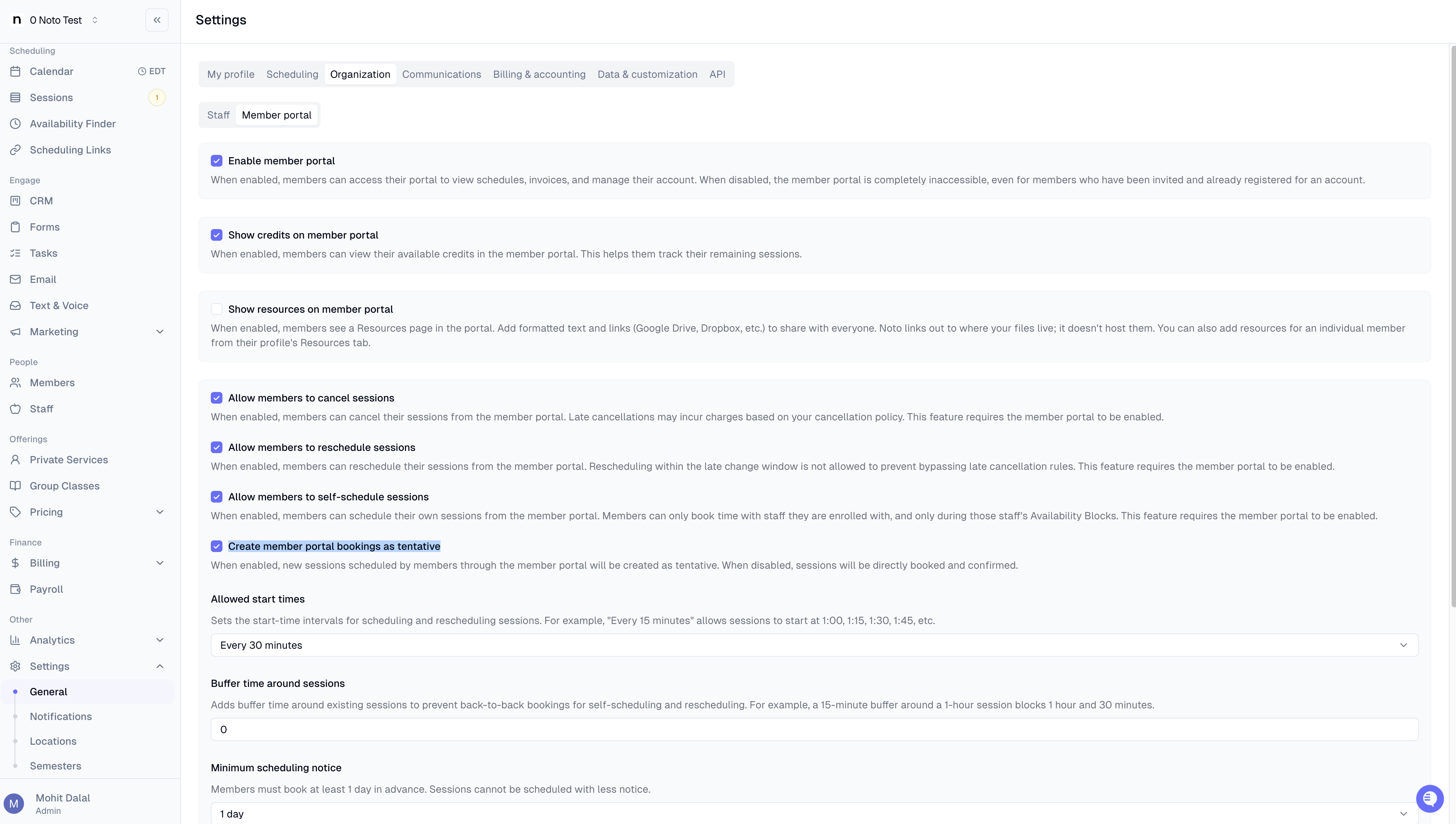
This setting is org-wide — one toggle for all member portal self-scheduling.
Scheduling link | Member portal | |
|---|---|---|
Who books | Anyone (public) or logged-in members | Enrolled families only |
Tentative setting | Per link, in form builder | Org-wide, in Settings |
Booking email | Only if Notify member is on | Sent automatically on booking |
Credits | Billing handled separately | Credits apply to the session; consumed when attendance is taken |
Best for | Trials, consultations, new leads | Ongoing students booking regular lessons |
What happens when someone books
For the person booking:
They pick a time through a scheduling link or the member portal.
The session is created and appears on their member portal schedule.
They may receive an email — always for member portal bookings; for scheduling links, only if Notify member is enabled on that link.
If the session is tentative, the email says Tentative Session and notes that staff confirmation is still pending.
For your team:
The session appears on Schedule and Sessions with the orange clock icon.
You may get a staff notification — for scheduling links, only if Notify staff is enabled on that link.
Open the session in the dashboard to review, then confirm, reschedule, or cancel.
Tip: A tentative session still reserves the slot on the calendar, same as a confirmed one.
Confirming a tentative session
Where to go: Schedule or Sessions in the dashboard → open the tentative session
Find the Tentative session banner in the event sheet.
Optionally check:
Apply to all subsequent sessions — confirms this and all later tentative sessions in the same enrollment
Notify students and guardians — sends a confirmation email when an admin confirms
Notify staff — alerts the instructor when an admin confirms
Click Confirm session.
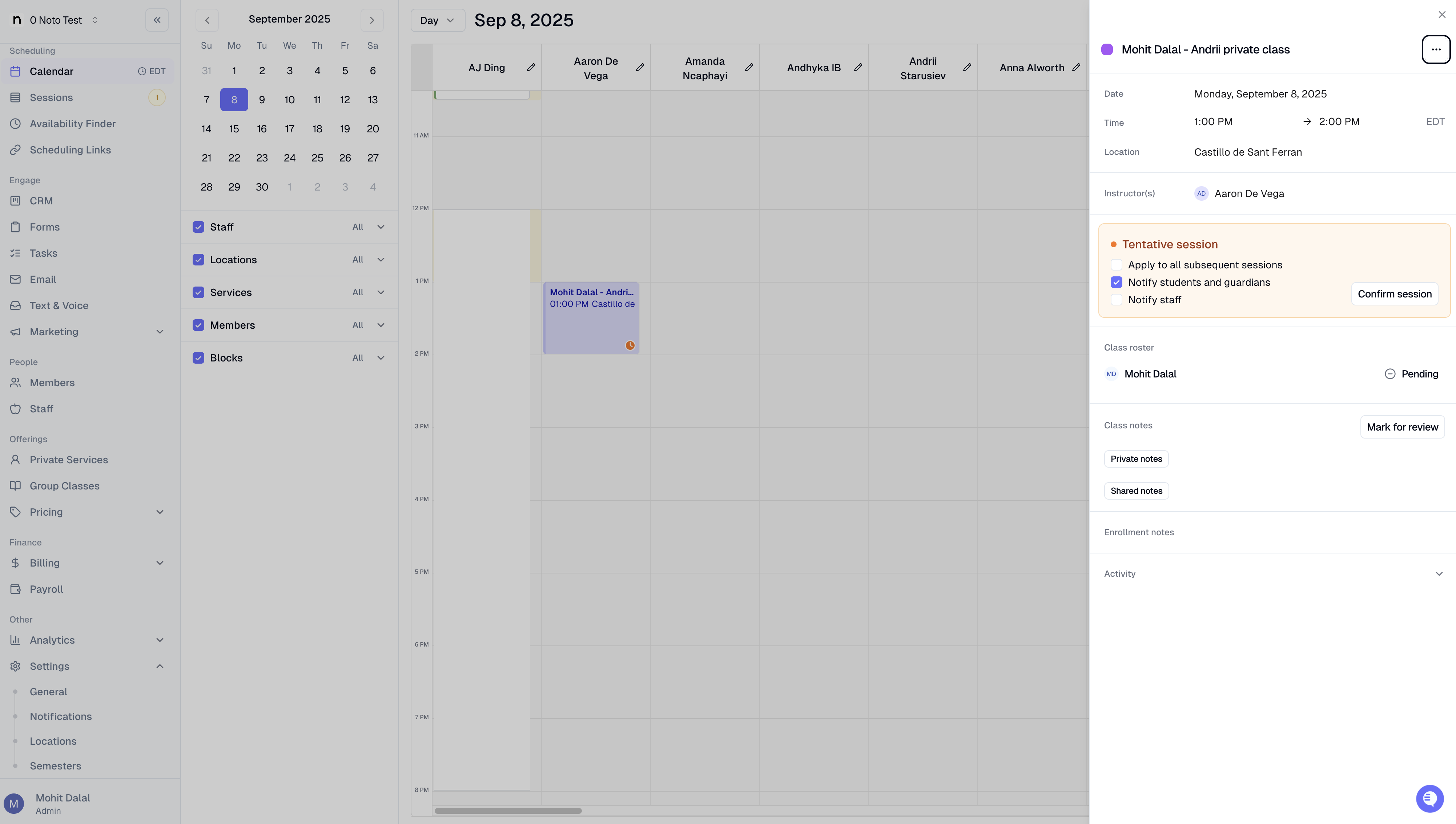
The session becomes a regular upcoming session. If an admin confirms and has the notify checkboxes selected, families and/or staff receive a follow-up email saying the session has been confirmed.
Tip: Confirm session is available in the dashboard event sheet, not in the staff portal. You can also mark sessions as tentative when creating them manually — check Mark as tentative session when scheduling from the dashboard, enrollment flow, or staff portal create-session form.