How do I enable my students to schedule in the student portal?
Last updated: June 22, 2026
Member Portal Self-Scheduling allows your students/parents to schedule sessions with you/your instructors directly from their portal. Member Portal Self-Scheduling is useful for your students regularly scheduling sessions, as opposed to Self-Scheduling Links, which are better for scheduling consults, trials, or sessions that require payment upfront.
Setting Availability and Unavailability
Staff can set their regular availability and block off specific times directly under their profile. Admins can set everyone's availability.
Setting availability:
From the staff portal, navigate to Settings -> General -> My Profile. (Admins can do this by navigating to the Staff profile -> Availability.)
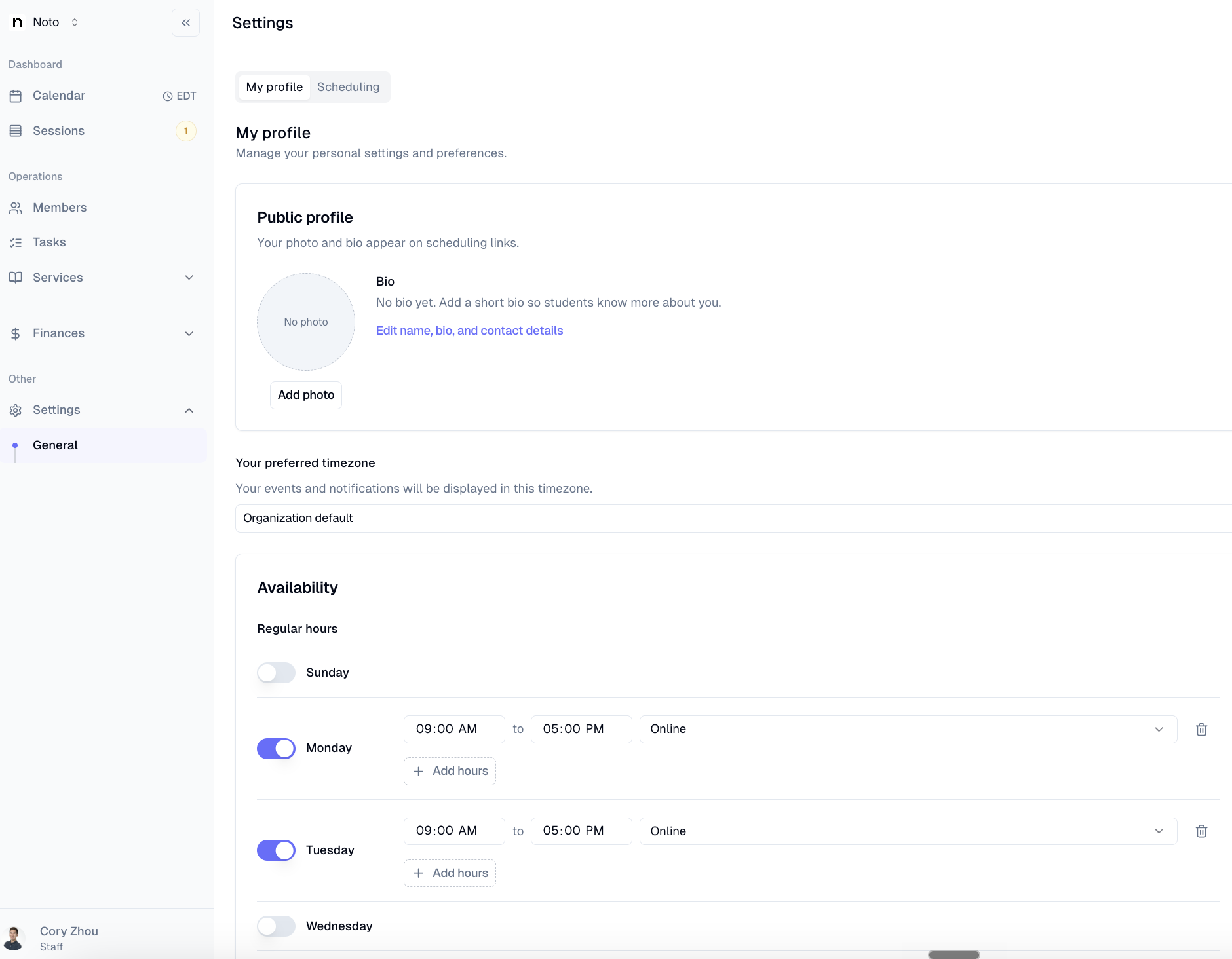
Set recurring working hours by day of week — these represent the times the instructor is generally available to be scheduled.
Click Save to apply.
Blocking off specific times and adding date-specific availability:
On the same My profile tab, find "Date specific hours" and "Unavailable hours".
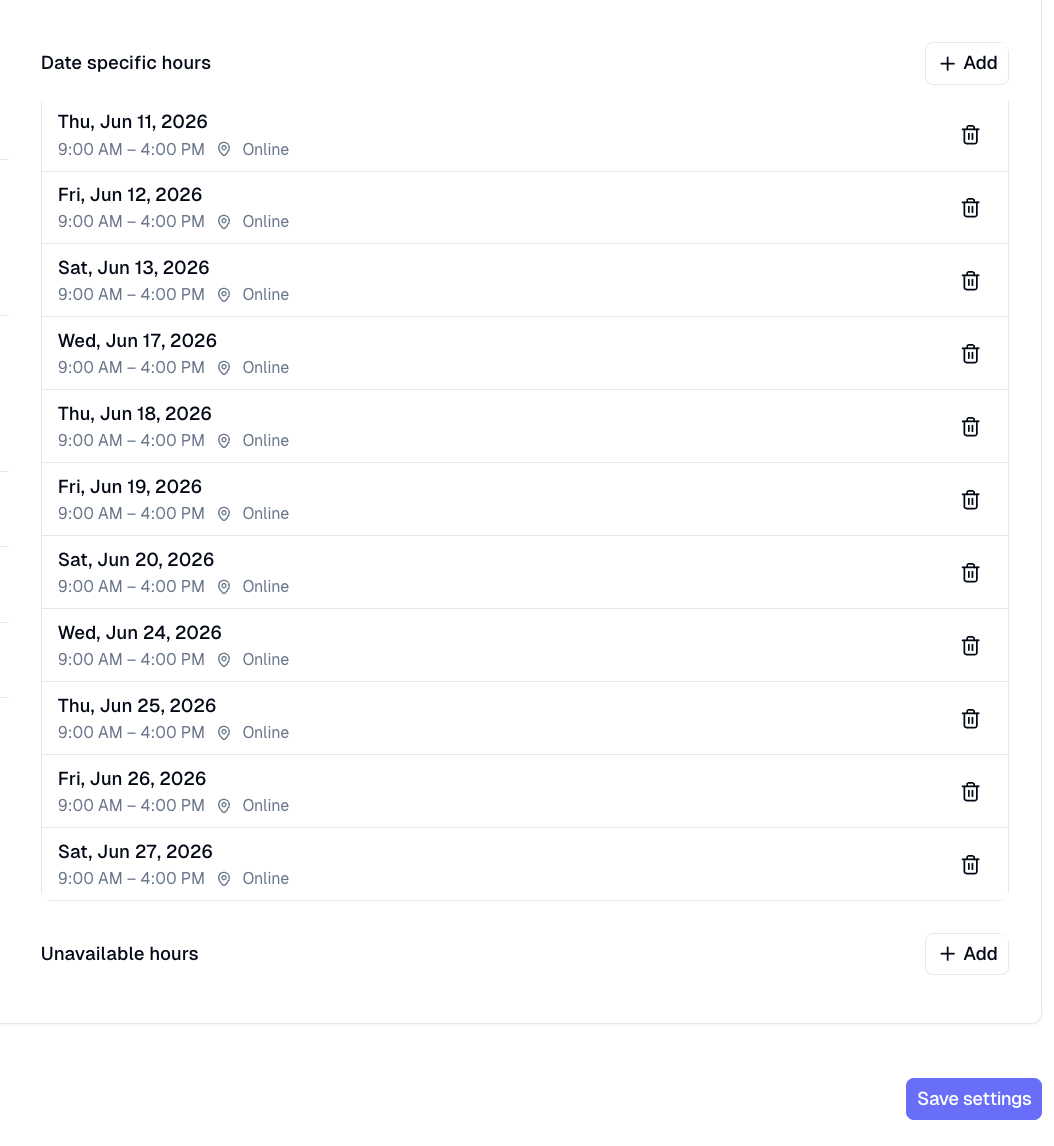
Adding date-specific hours or blocks allows you to customize availability for particular days, accommodating special events, holidays, or unique scheduling needs. This ensures accurate calendar representation and helps admins manage appointments effectively.
You can also add blocks directly from the calendar view by clicking and dragging over the desired time slot and selecting "Block".
Enabling for Students
Member Portal self-scheduling can be enabled by navigating to Settings -> General on the left-hand navigation and clicking the Member Portal tab.
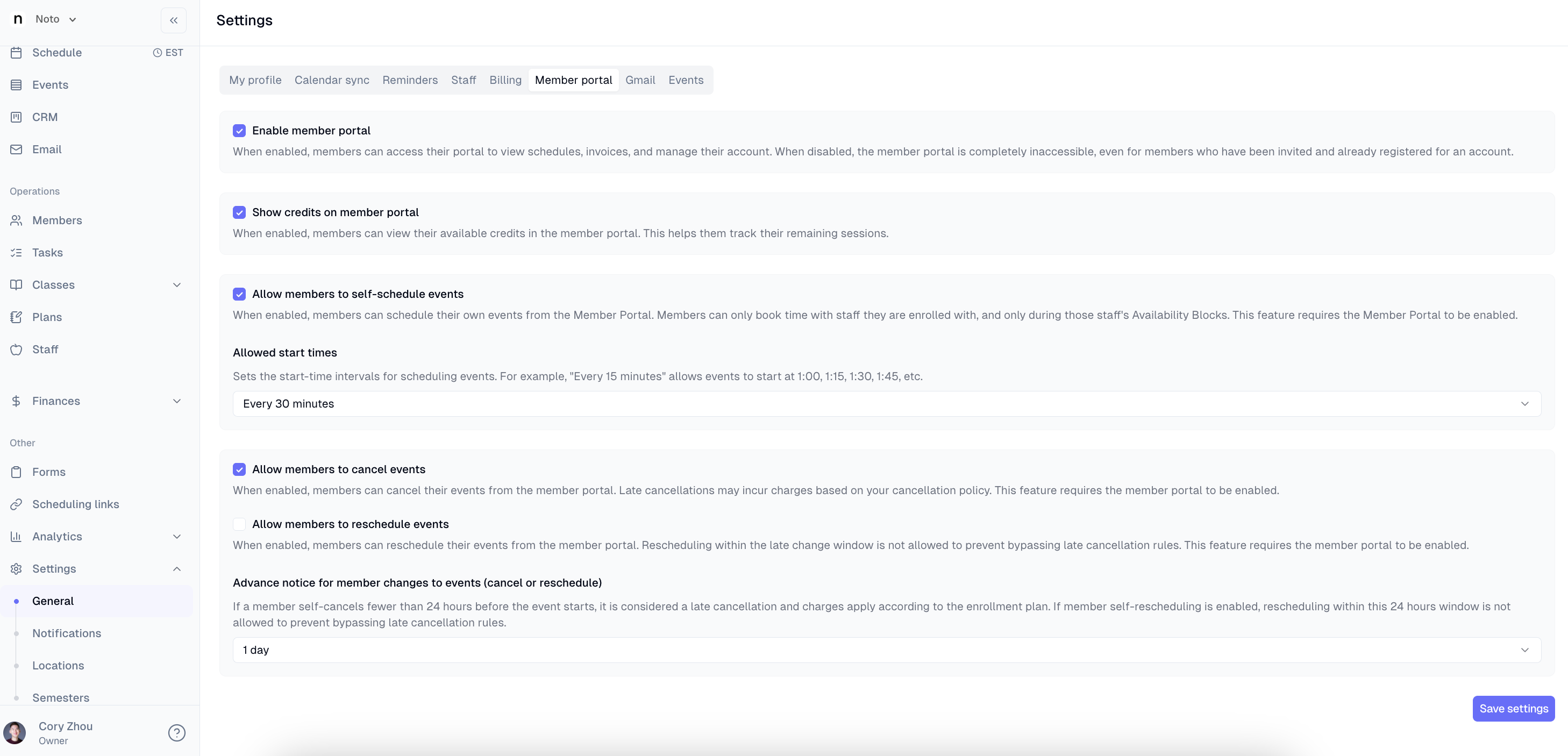
To enable self-scheduling, check off "Enable member portal" and "Allow members to self-schedule sessions". The allowed start times (:00, :15, :30, etc.) can also be configured to prevent students from taking up overlapping blocks of availability.
Allowing students to cancel or reschedule sessions can also be enabled. A late cancellation window can be configured, which will charge the family the full price of the session if changes are made within that window.
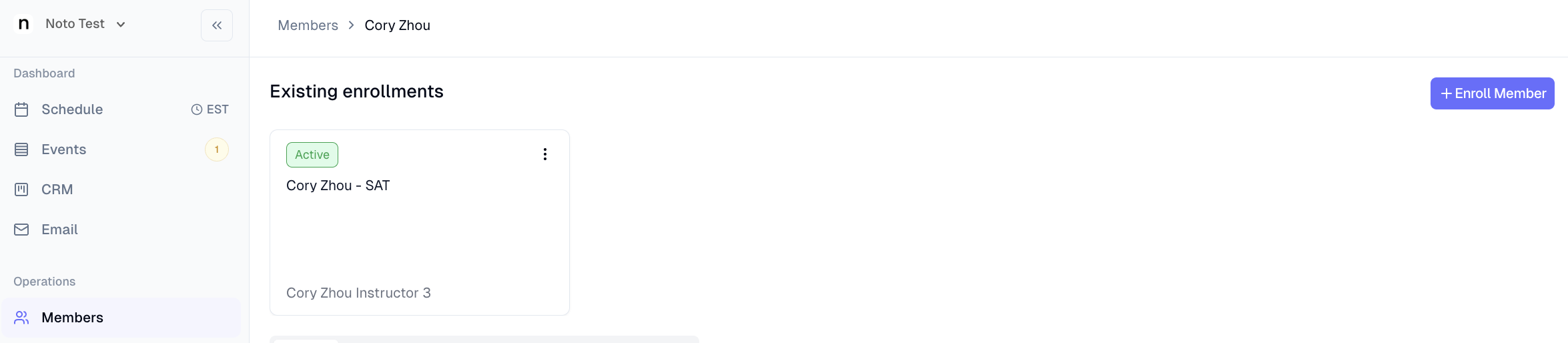
NOTE: An active enrollment must exist for the student in order to be able to self-schedule. This determines the service and instructor they can book with, as well as the rate and duration for their sessions.
Member Portal
Your members can schedule directly from the member portal by accessing their account at app.noto.nyc/member-portal and clicking "Schedule New Sessions".
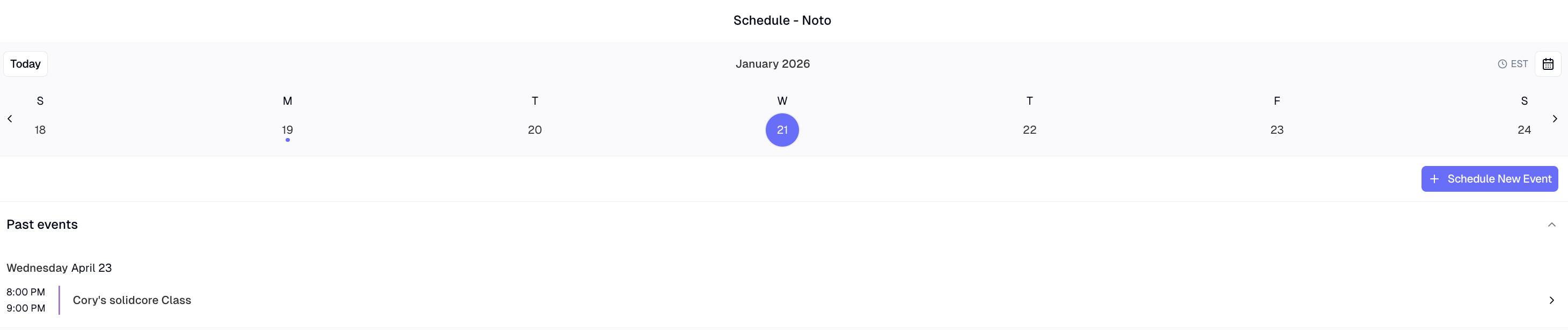
The parent/student can then schedule sessions for the enrolled student with the assigned service and instructor, which will then appear directly onto the instructor's calendar.
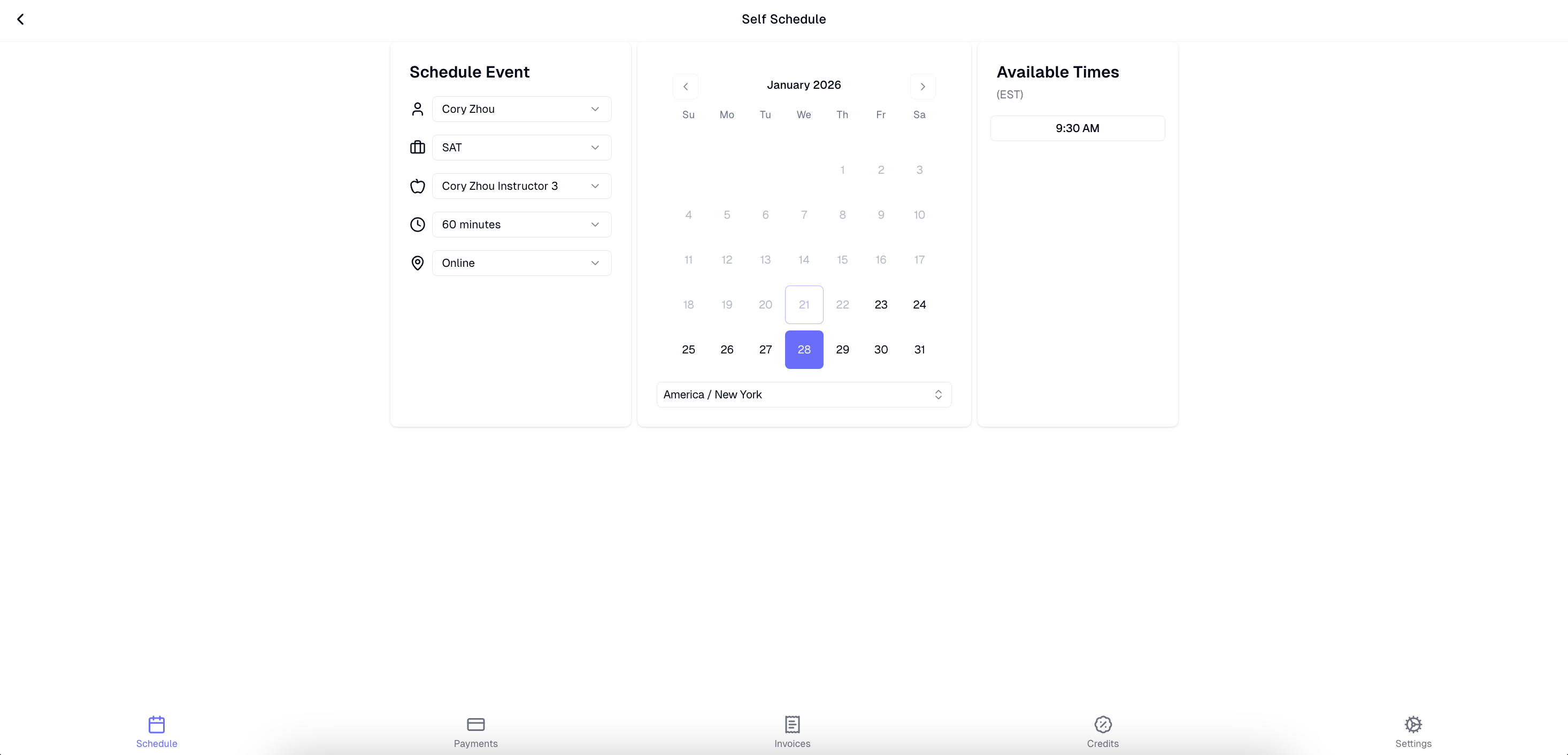
How do I prevent students from booking a session that conflicts with my existing events?
All sessions in Noto and sessions synced from Google Calendar that are marked as busy will also prevent bookings and mark you as unavailable on your self-scheduling link. To sync your Google Calendar, follow the steps in this article.