Member Portal Guide
Last updated: November 13, 2026
Noto
Your Member Portal
A short guide to everything you can do in your new portal
You do not need to use the portal to keep things running. Invoices will continue to arrive in your email exactly as before, and you can pay them straight from the email. Nothing changes there. The portal is there when you want it. It gives you one place to see your schedule, request sessions, check how many lessons you have left, and keep your payment details up to date. |
You can find this guide any time in the Resources tab of the portal.
Getting around
Six tabs run along the bottom of the screen.
Tab | What it is for |
|---|---|
Calendar | Your schedule, past sessions, and requesting new sessions |
Payments | The payment methods you have on file |
Invoices | What you owe, and your payment history |
Credits | Lessons remaining, if you are on a prepaid package |
Resources | Documents and materials shared with your family |
Settings | Your profile, payment methods, and time zone |
Calendar
The calendar is the home screen. It shows the week at a glance, with a dot under any day that has a session. Your time zone is displayed at the top right.
Below the calendar you will find three sections you can expand:
Session notes, notes from your instructor
Past sessions, everything already completed
Future events, everything coming up, listed by date with times
SCREENSHOT 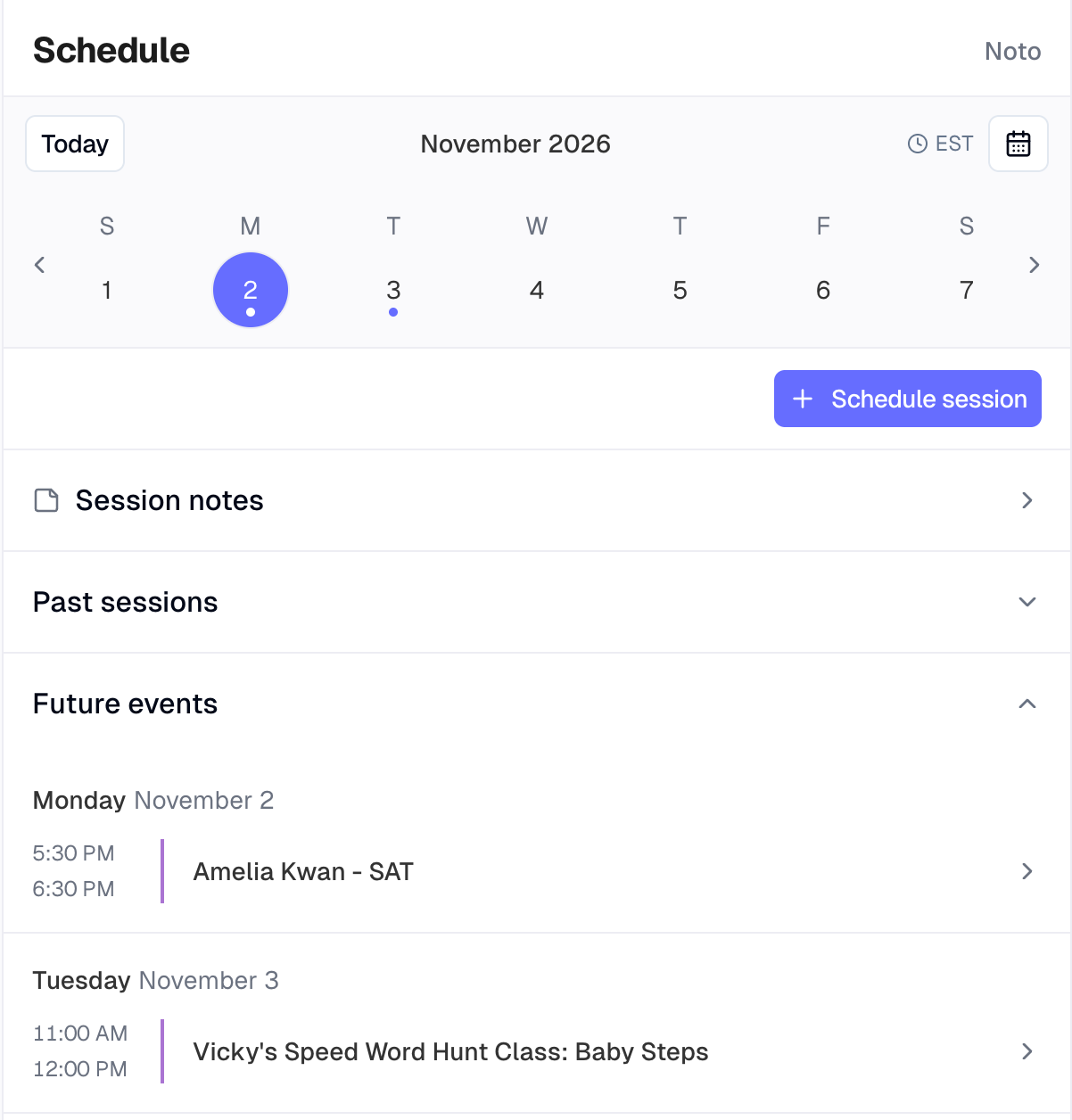 Calendar tab, showing the week strip, Schedule session button, and Future events |
Requesting a session
Tap Schedule session at the top right.
Choose the student first. The remaining options depend on this, so always start here.
Then choose the lesson type, the instructor, the session length, and whether it is online or in person. These should already be filled with the options available to you.
Once all of these are selected, your instructor’s availability appears on the calendar. Days with a dot have open times.
Tap a day, then pick a time from the Available Times list on the right.
Review the details on the confirmation screen. If there is anything your instructor should know before the session, add it under Notes for the instructor.
Tap Confirm and Book.
SCREENSHOT 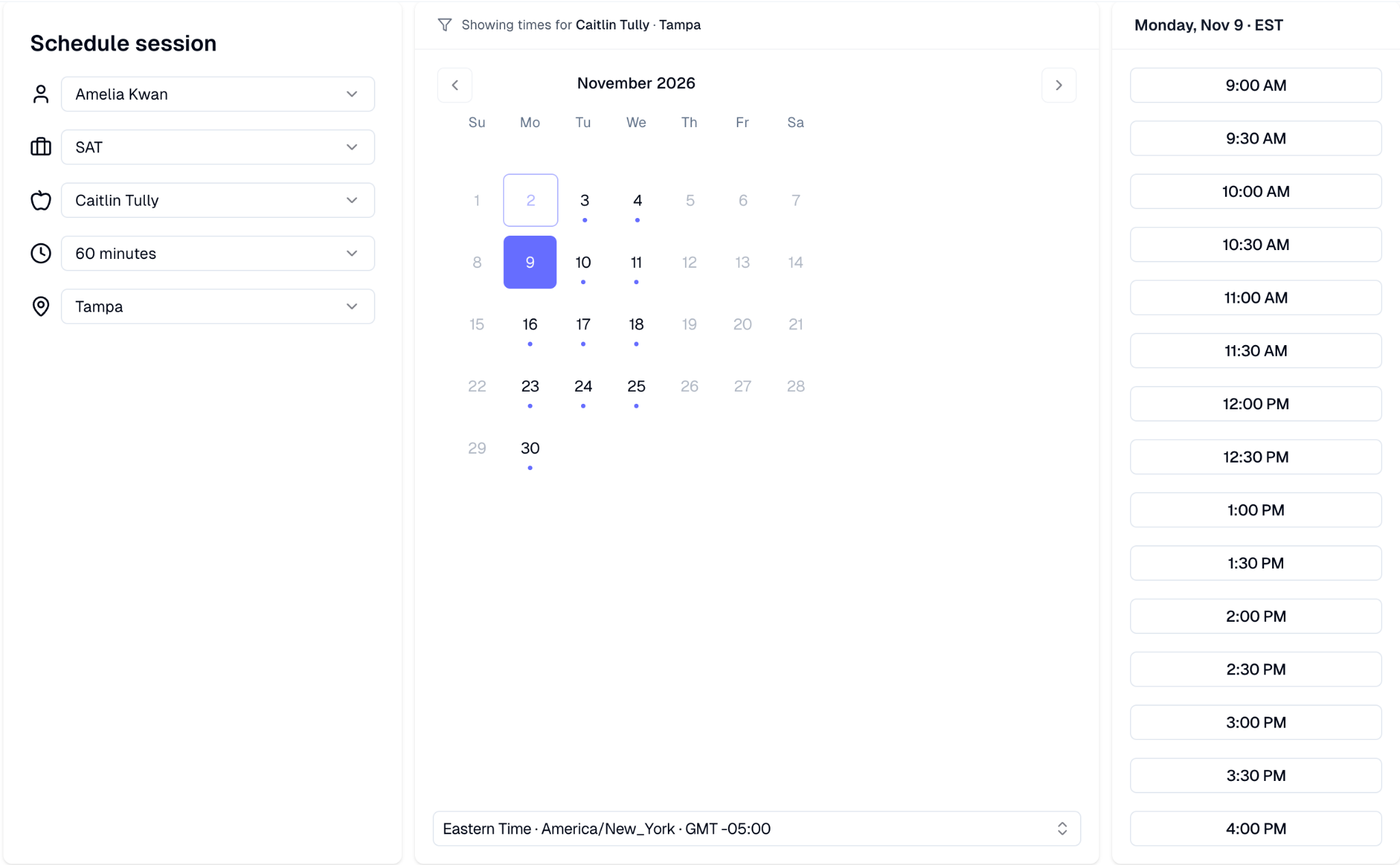 Self Schedule screen, showing the five dropdowns, calendar, and Available Times |
If session times are not showing in your own time zone, you can change it using the selector below the calendar.
SCREENSHOT 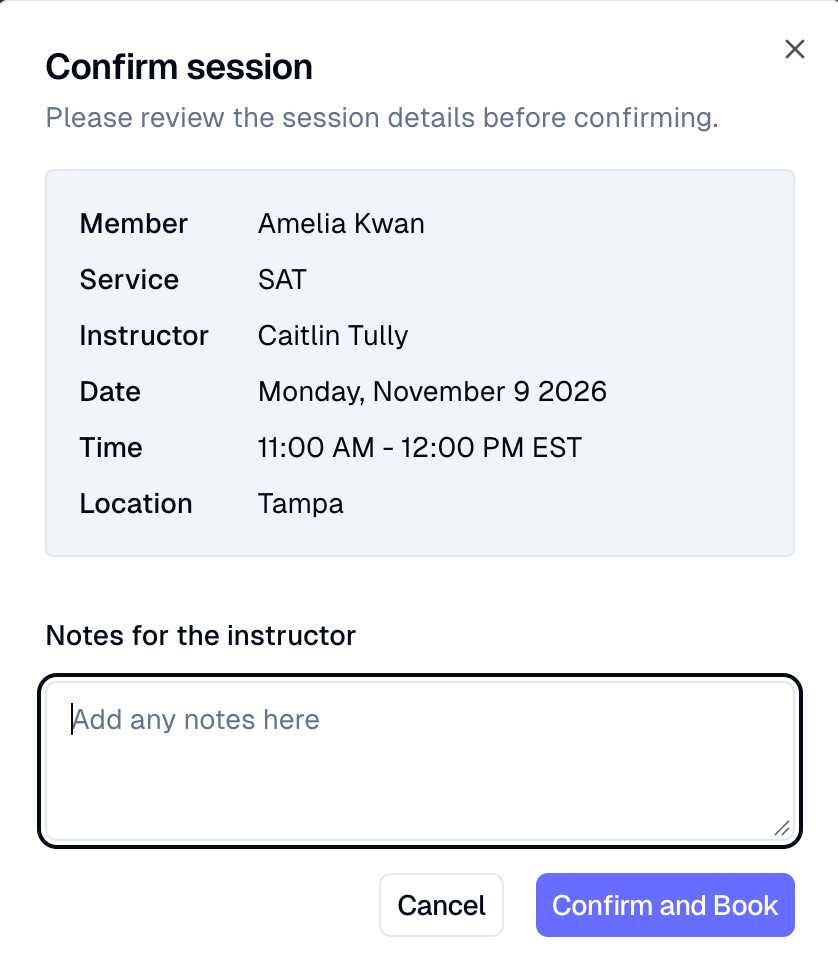 Confirm session dialog, showing the review panel and Notes for the instructor |
What happens after you book
Your requested session appears on your calendar straight away with a small orange clock icon next to it. The clock means the session is waiting for your instructor to approve it.
You can tap the session at any point to see the details, or to cancel it.
SCREENSHOT 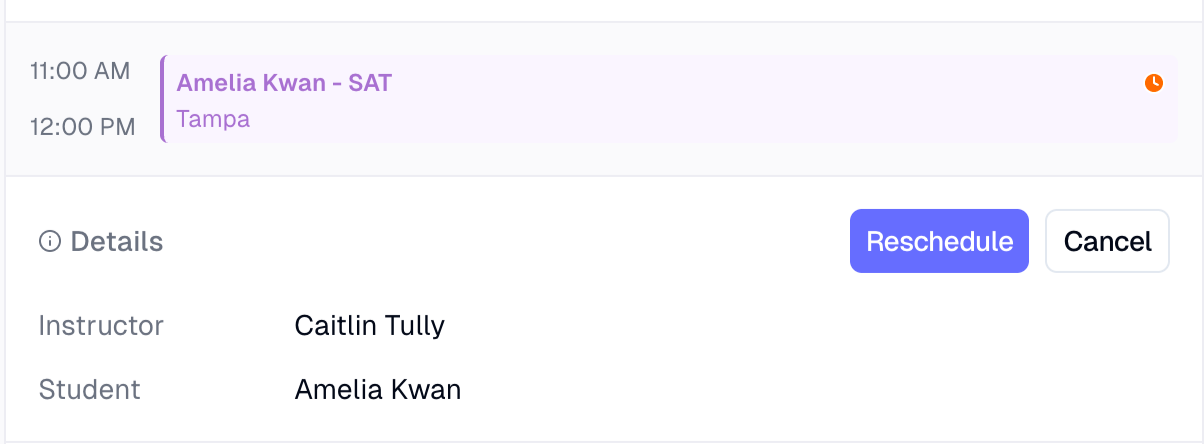 A pending session on the calendar, showing the orange clock icon |
Payments
Shows the payment methods currently on file for your family.
To add a new card or bank account, go to Settings and then Payment methods.
Invoices
At the top you will see You owe with your current outstanding balance, and a Connect bank option if you would like to pay by bank transfer rather than card.
Below that, invoices are split into two tabs, Unpaid and Paid. Each line shows what the invoice is for, when it is due, and the amount. Tap any invoice to open it.
You are always welcome to simply pay from the invoice emails you receive. This tab is here if you prefer to see everything in one place. |
SCREENSHOT 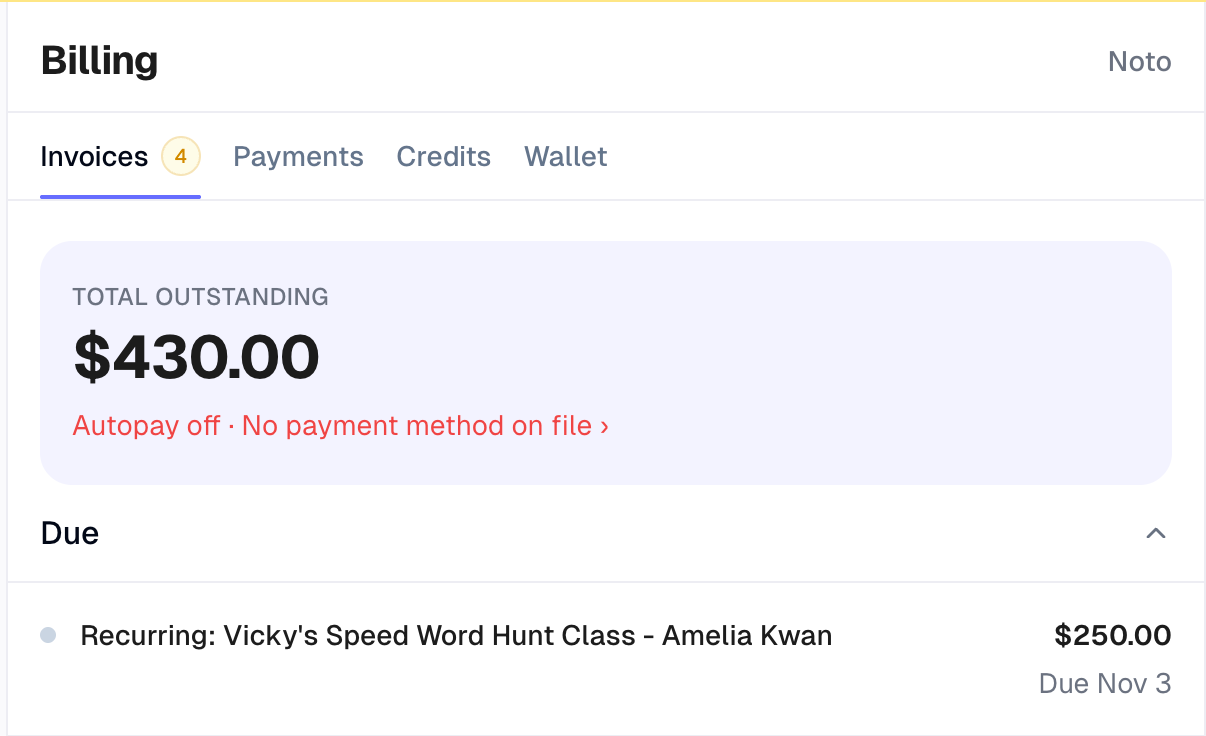 Invoices tab, showing the balance, Unpaid and Paid tabs, and an invoice line |
Credits
If you are on a prepaid lesson package, this tab shows what you have left.
Each package displays:
Remaining, the number of lessons left and the equivalent in hours
Expires on, the date the package expires
Valid for, what the package can be used towards
You do not need to keep checking this. You may receive an email reminder when your package is running low. |
SCREENSHOT 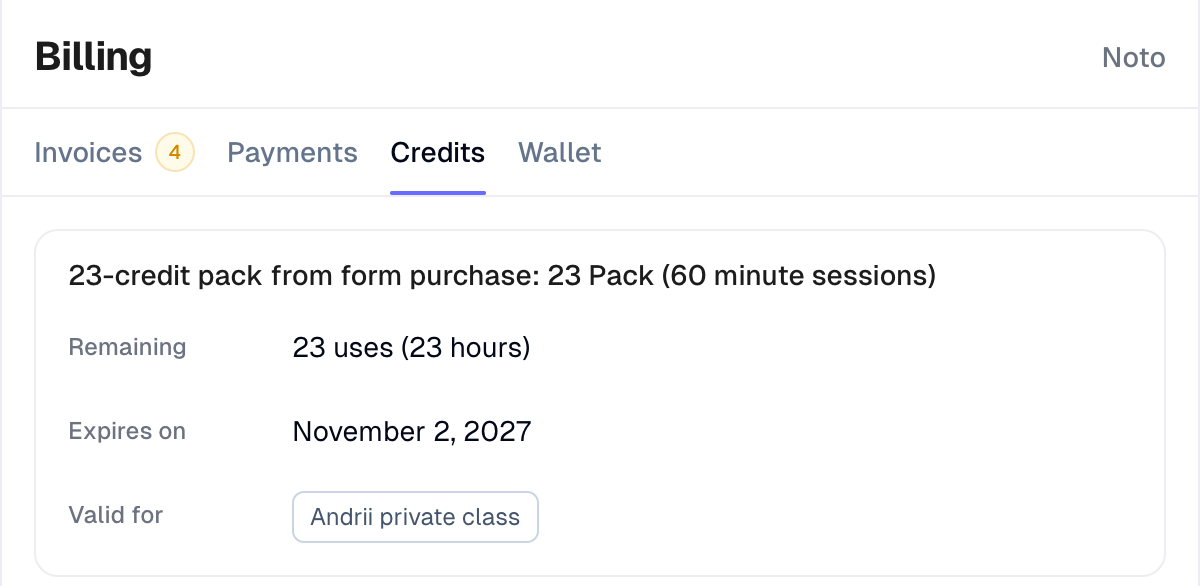 Credits tab, showing a package with lessons remaining and expiry date |
Settings
Profile, your account details
Files, your uploaded documents
Payment methods, add or update a card or bank account
Timezone, set to our organization default. Change this if your family is in a different time zone and you would like session times displayed in your own
Sign Out is also in this section.
SCREENSHOT 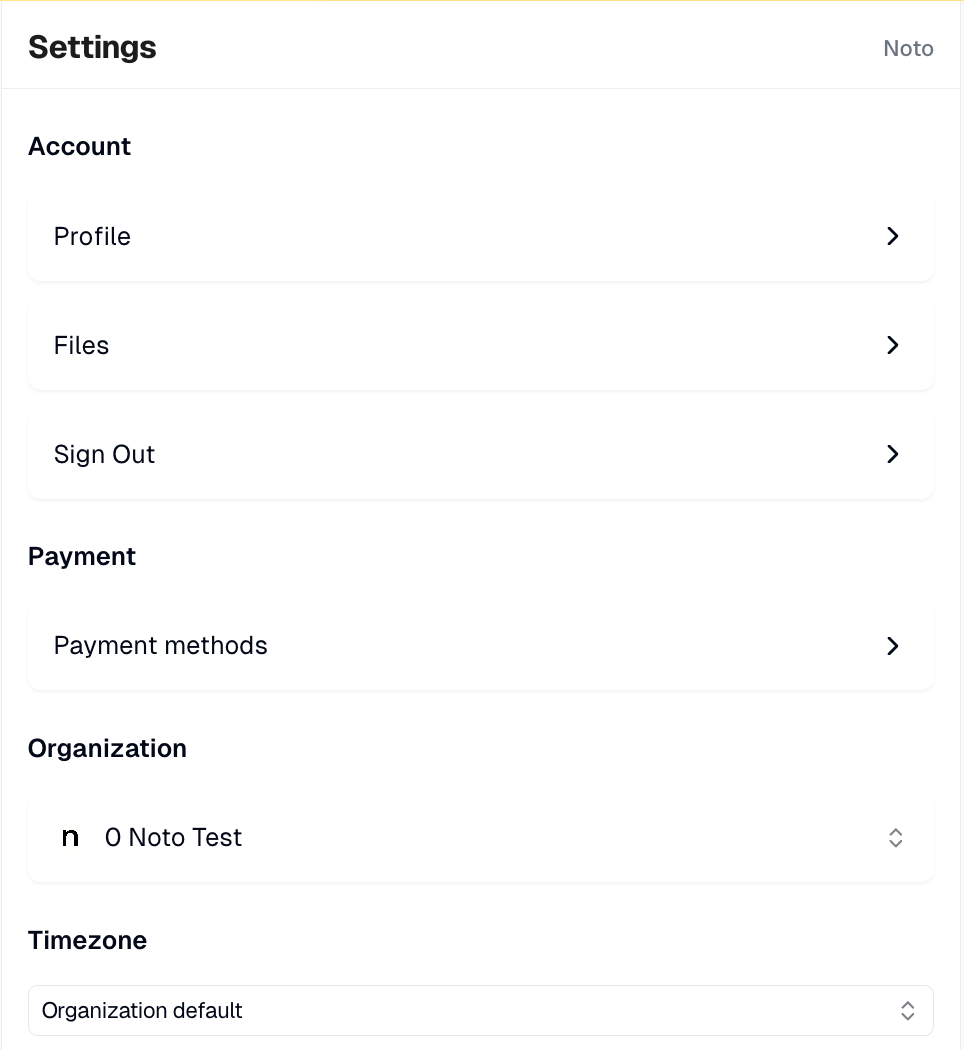 Settings tab, showing Account, Payment, Organization, and Timezone |
Questions
If anything looks wrong, or you are not sure about a session or an invoice, just reply to any email from us and we will sort it out. You do not need to solve it in the portal. |