What's New — July 2, 2026
Last updated: July 2, 2026
Duplicate a session from the event sheet menu
Open any session's 3-dot menu on the event sheet and select Duplicate to create a copy of that session. The schedule dialog opens pre-filled with the original session's member, service, enrollment, date and time, assigned staff, and room — so you only need to adjust what's different before saving. It's the fastest way to book a repeat session without starting from scratch.

Email guardians only from the Members page
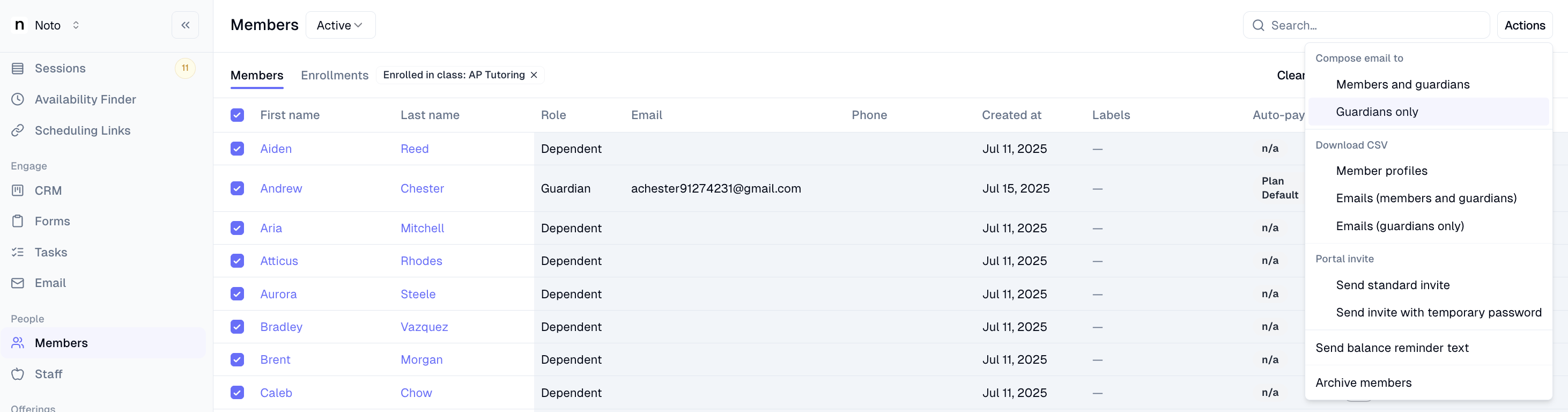
Head to the Members page, add your desired filters, and open the Actions menu to find the new option to email only guardians or download a guardian-only CSV — without pulling in student email addresses.
Merge unpaid family invoices into one
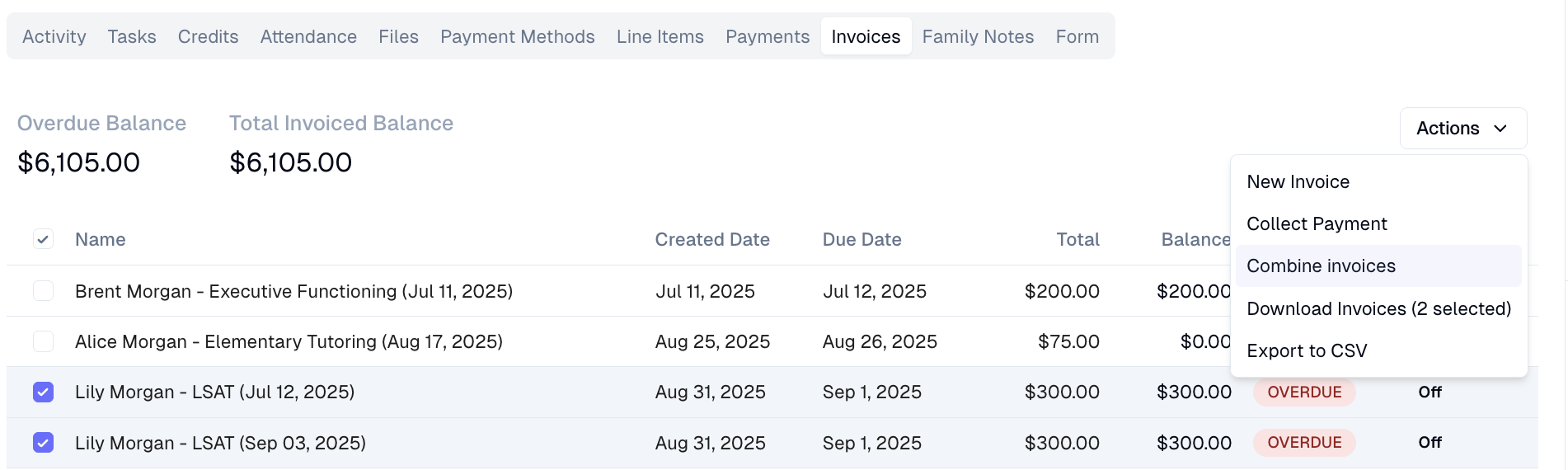
Admins can now combine multiple unpaid invoices from the same family into a single consolidated invoice. Select two or more unpaid invoices belonging to the same family, merge them, and Noto handles the rest — source invoices are archived, all ledger lines are carried over to the new invoice, and the total is recalculated automatically. This makes it easier to keep family billing tidy and reduces the back-and-forth of chasing several open balances at once.
Inbound call greeting and spam gating
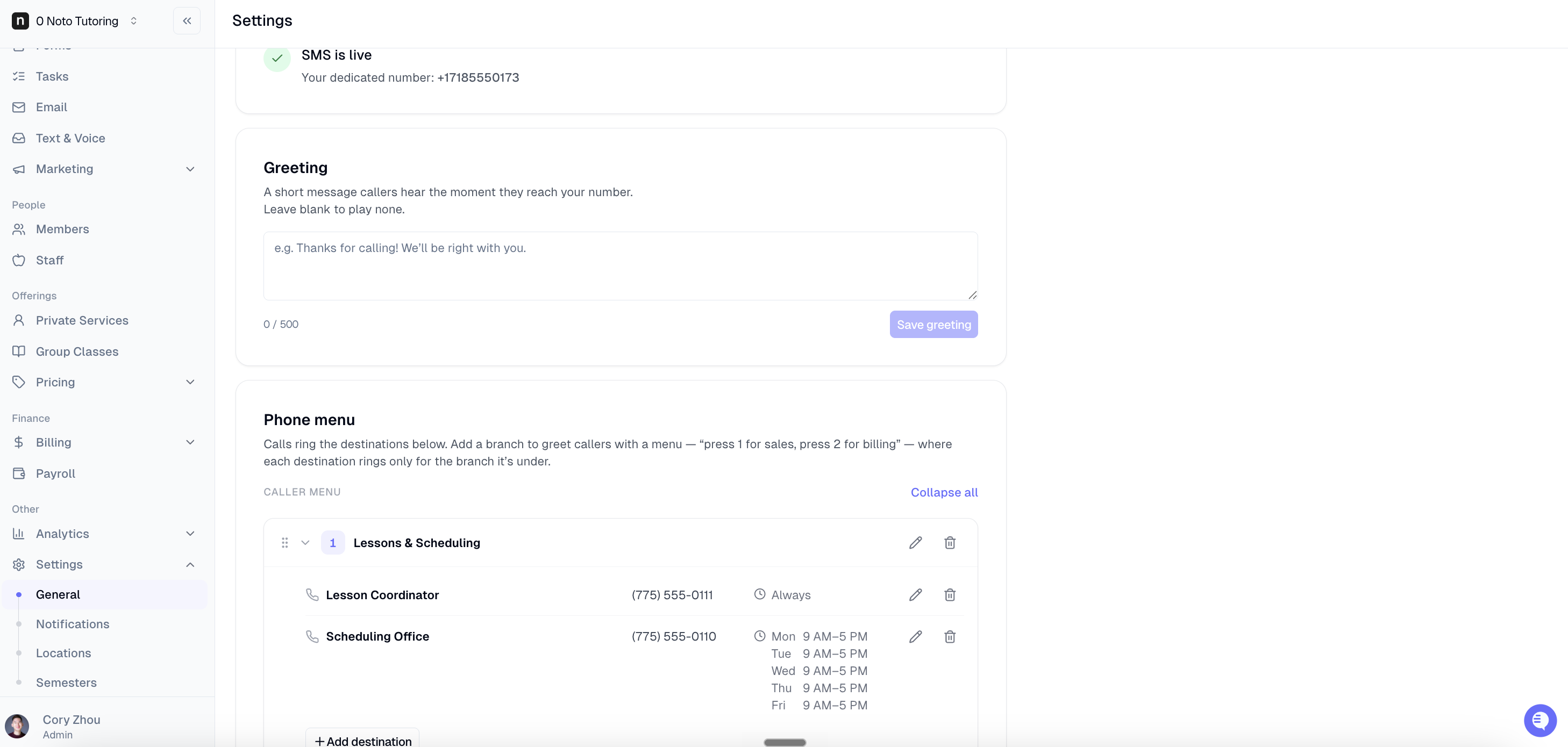
Head to the call branching admin screen to set up your inbound call experience. From there, you can write a custom greeting that callers hear before any menu options are read out, and configure a single-level press-a-key menu that routes callers to the right forwarding numbers based on their keypress. If no valid key is pressed after three replays, the call falls through to voicemail automatically.
Learn how: Inbound call greeting and spam gating
New recurring flat-fee plan type available
A new Recurring Flat Fee plan type is now available when creating a Billing Plan from the billing or plans area of your dashboard. Unlike pack or subscription plans, it issues no session credits and doesn't depend on attendance — it simply bills a fixed amount each cycle. This makes it a great fit for prepaid fixed-cycle family memberships or retainer-style offerings where the charge is the same every period, regardless of sessions attended.
Schedule Session button added to private enrollment details
A new Schedule Session button now appears directly in the private enrollment details sidebar, so staff can book a session without leaving the enrollment context. When clicked, a dialog opens with fields organized into four clear steps — Session, Date & time, Staff & location, and Notes & options — with the Schedule action anchored in a footer bar at the bottom. Work through each step, fill in the details, and confirm to create the session.