What's New — September 25, 2026
Last updated: September 25, 2026
Non-teaching hours for staff
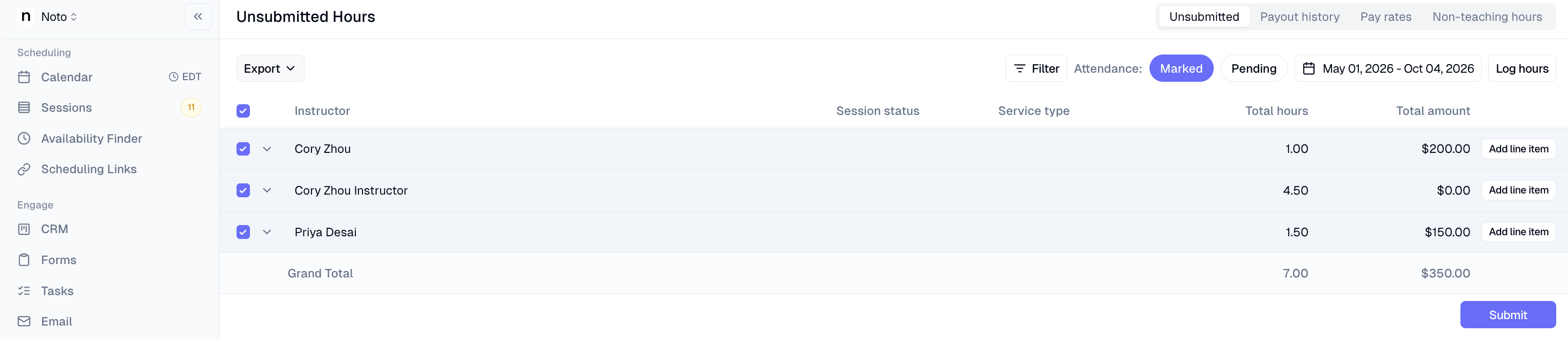
Staff log non-teaching time (meetings, front desk, driving) without dummy-member workarounds — from the calendar or a "Log hours" button in the Non-teaching payroll tab. Sessions auto-mark occurred and show up in Unsubmitted Hours immediately.

One-time registration fee on plans
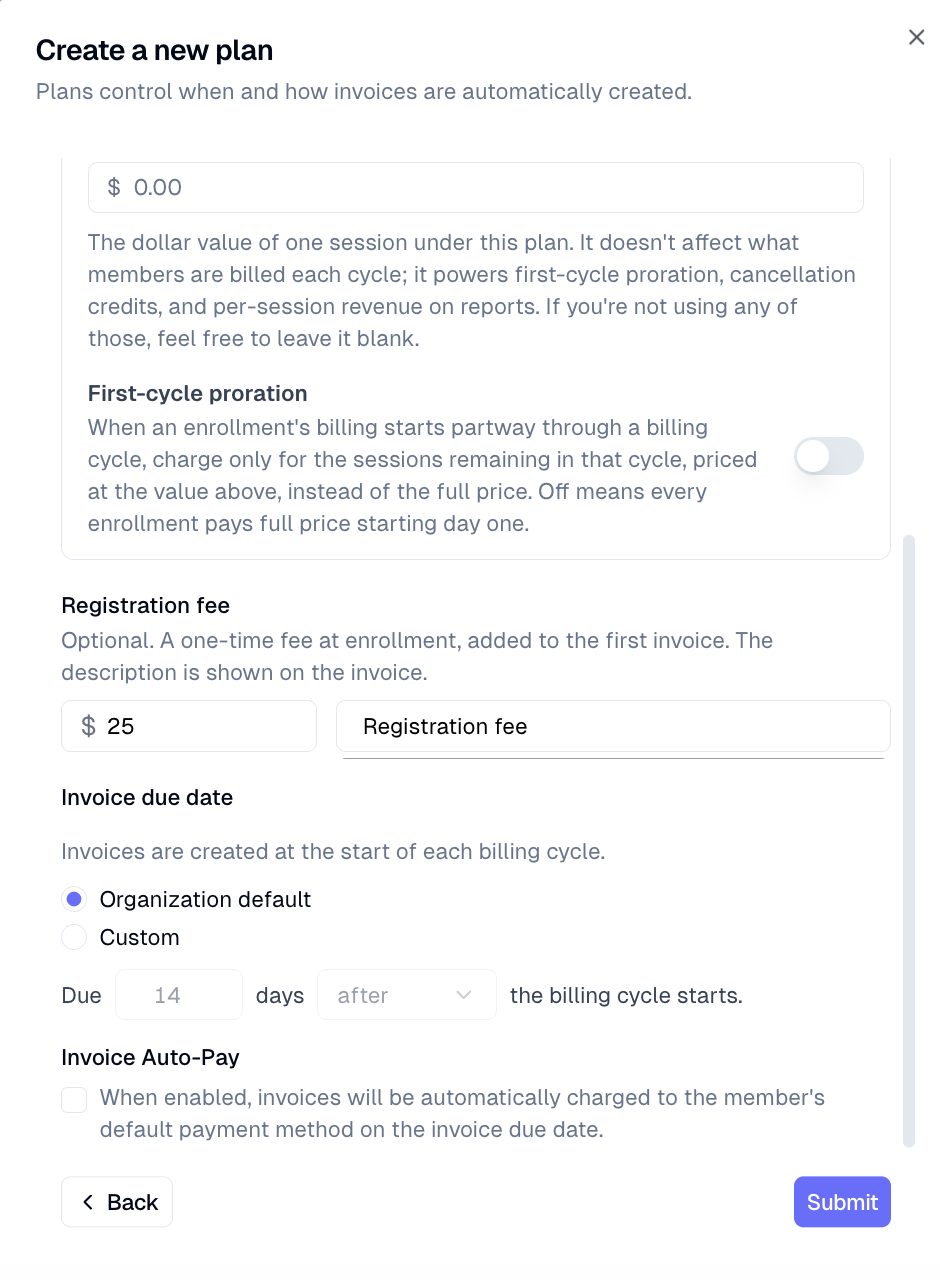
Head to Plans to configure a registration fee on any plan — set the amount, optionally customize the description (e.g. "Materials fee"), and save. From that point on, every new enrollment on that plan triggers the fee immediately: it's added as a line item on the first invoice or issued as its own standalone invoice, depending on the plan type. The fee also applies through self-enrollment forms and self-scheduling links, so members see and pay it as part of the sign-up flow. One-time discounts attach to the registration fee invoice, while recurring discounts apply only to regular billing invoices.
Learn how: One-time registration fee on plans
Bulk line item and due date edits on invoices
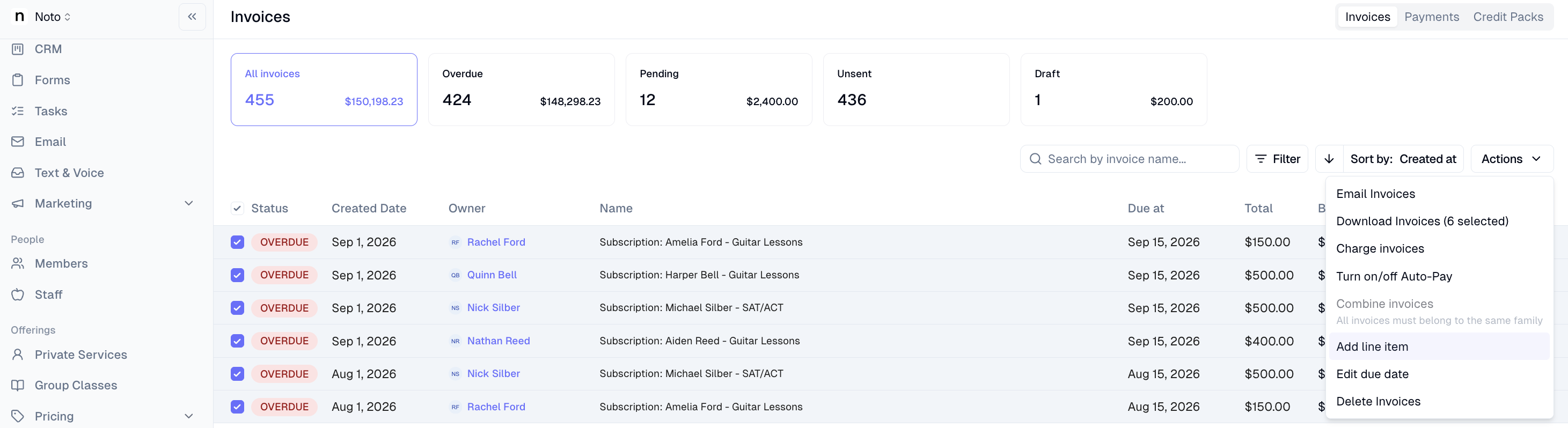
Head to the Finances dashboard and open the Invoices tab to get started.
Select the invoices you want to update using the checkboxes in the invoice table.
To add a charge or credit to all selected invoices at once, choose Add line item from the bulk actions menu — enter the amount, description, and any other details, and the line item is applied to all eligible invoices. Invoices that already have a payment applied are skipped automatically, and you'll see a count of how many were skipped.
To set a shared due date, choose Edit due date and pick the date — it's applied to every invoice in your selection, including those with payments already applied.
Export Unsubmitted Payroll
Staff can now download unsubmitted payroll as a CSV directly from the Unsubmitted tab — three formats: Itemized (one row per session), Instructor Totals (per instructor), or Instructor + Pay Rate (totals by rate). Export re-fetches at click time and respects active date/staff filters.
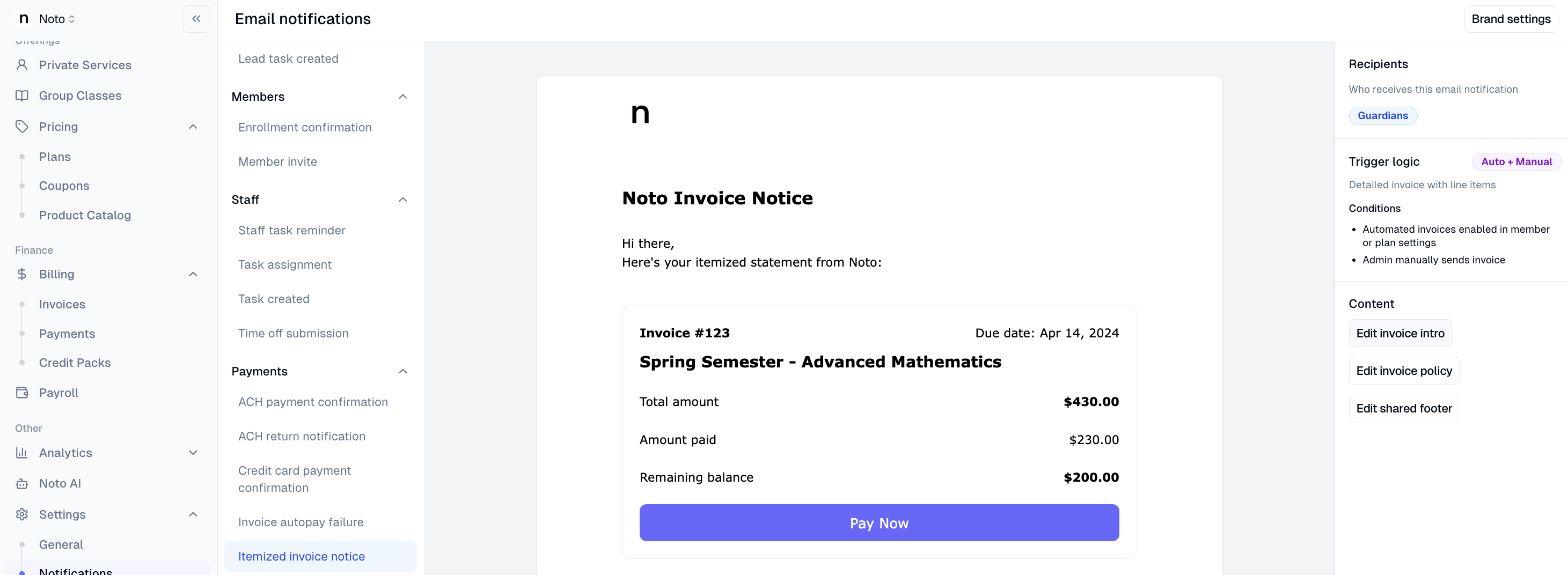
Editable intro section for invoice notification emails
Head to the Email notifications page in your dashboard to find this update. When you select the itemized invoice notification, you'll now see an Edit invoice intro block alongside the existing footer and policy blocks — giving you control over the intro text that appears at the top of invoice emails sent to members and guardians.
Open the Email notifications page and select the itemized invoice notification from the left-hand list.
Locate the new Edit invoice intro content block in the right-hand panel.
Edit the intro text using the rich-text editor.
Check the live preview to see exactly how your changes will appear to recipients.
Save your changes — they apply immediately to your organization.
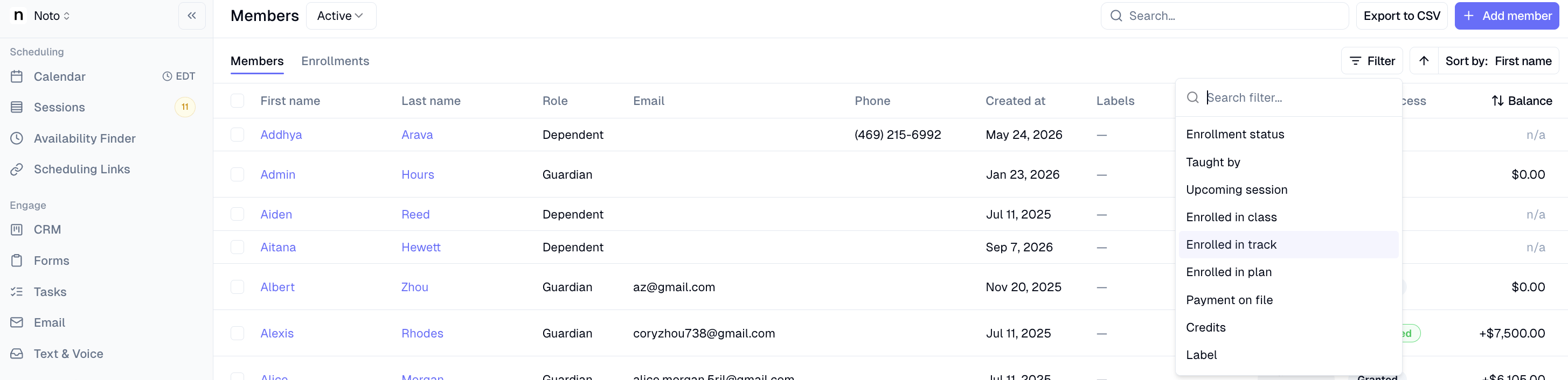
Filter members and segments by group-class track
Staff can now filter the Members page by a specific group-class track to view or export a targeted contact list. The same track-level filtering is also available in marketing segments, so automations can target students by track without creating duplicate classes.
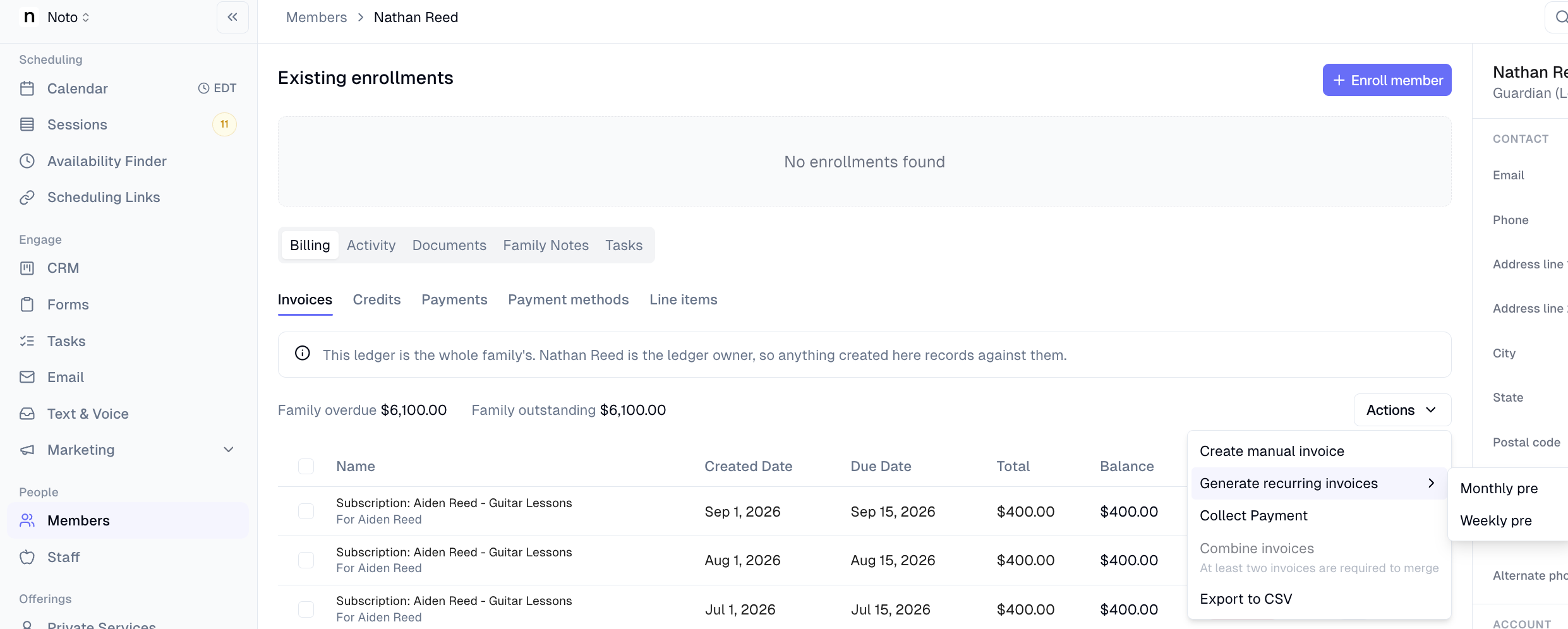
Generate recurring invoices for a single family
Staff can now generate Monthly Pre or Weekly Pre invoices scoped to one family directly from the guardian's Invoices tab, without triggering an org-wide billing run. Org-wide generation from the Finance dashboard is unchanged.
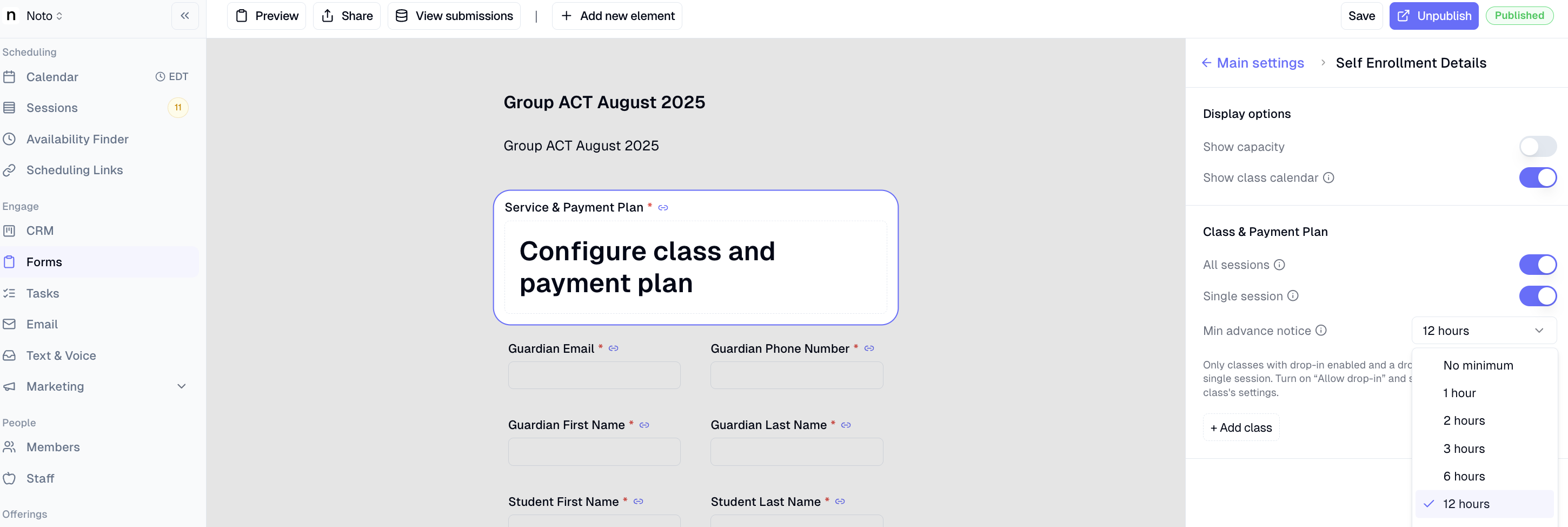
Min advance booking notice for group class drop-ins
Businesses can now set a minimum advance notice window for group-class drop-in bookings via self-enrollment forms, preventing last-minute sign-ups and giving staff time to prepare.
Per-number toggle for call recording disclosure
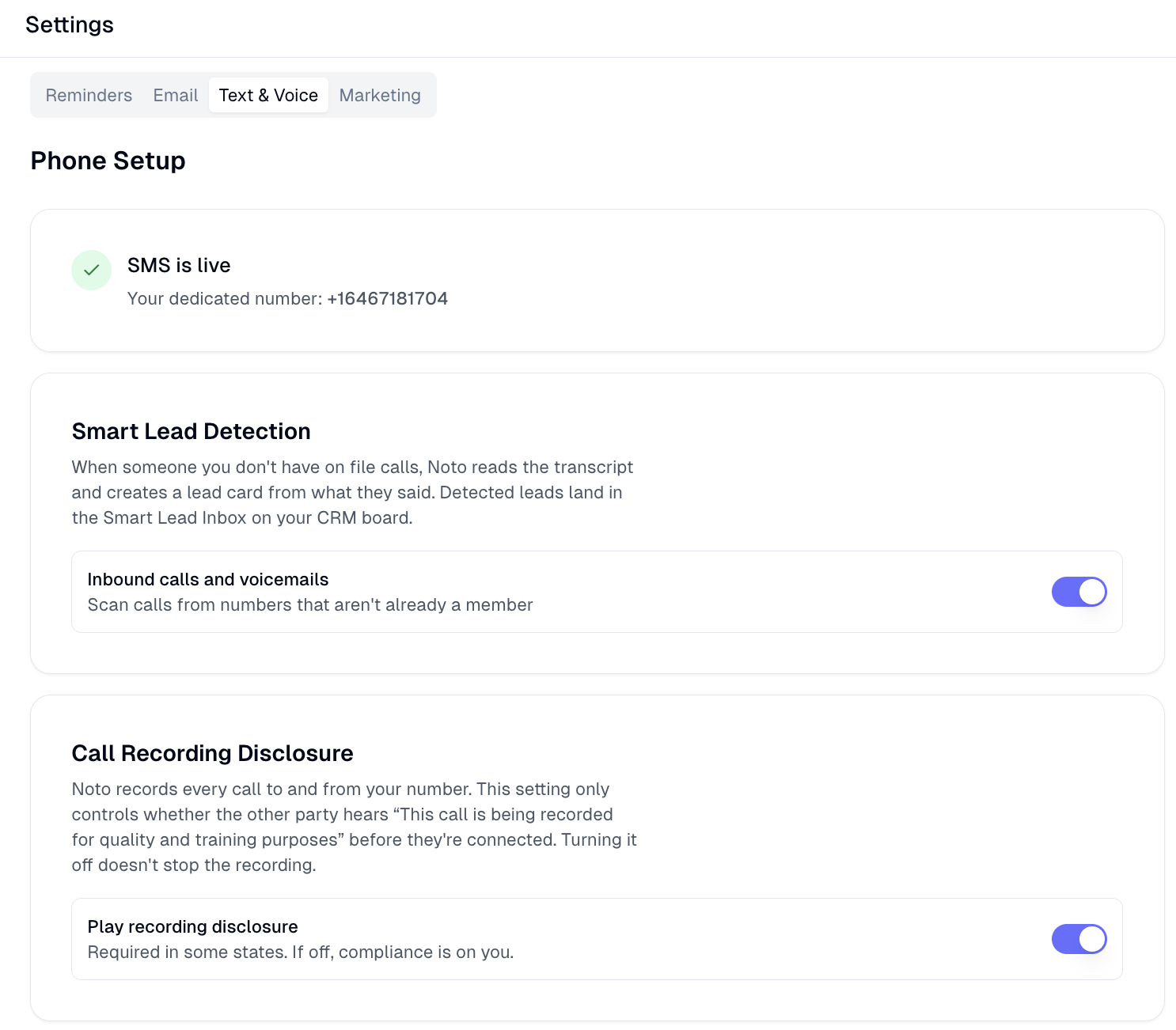
Orgs can now disable the "This call is being recorded" disclosure on a per-number basis via a new switch in voice settings. When off, the announcement is skipped on all inbound, IVR, and outbound call legs — with a compliance reminder that some states legally require it.
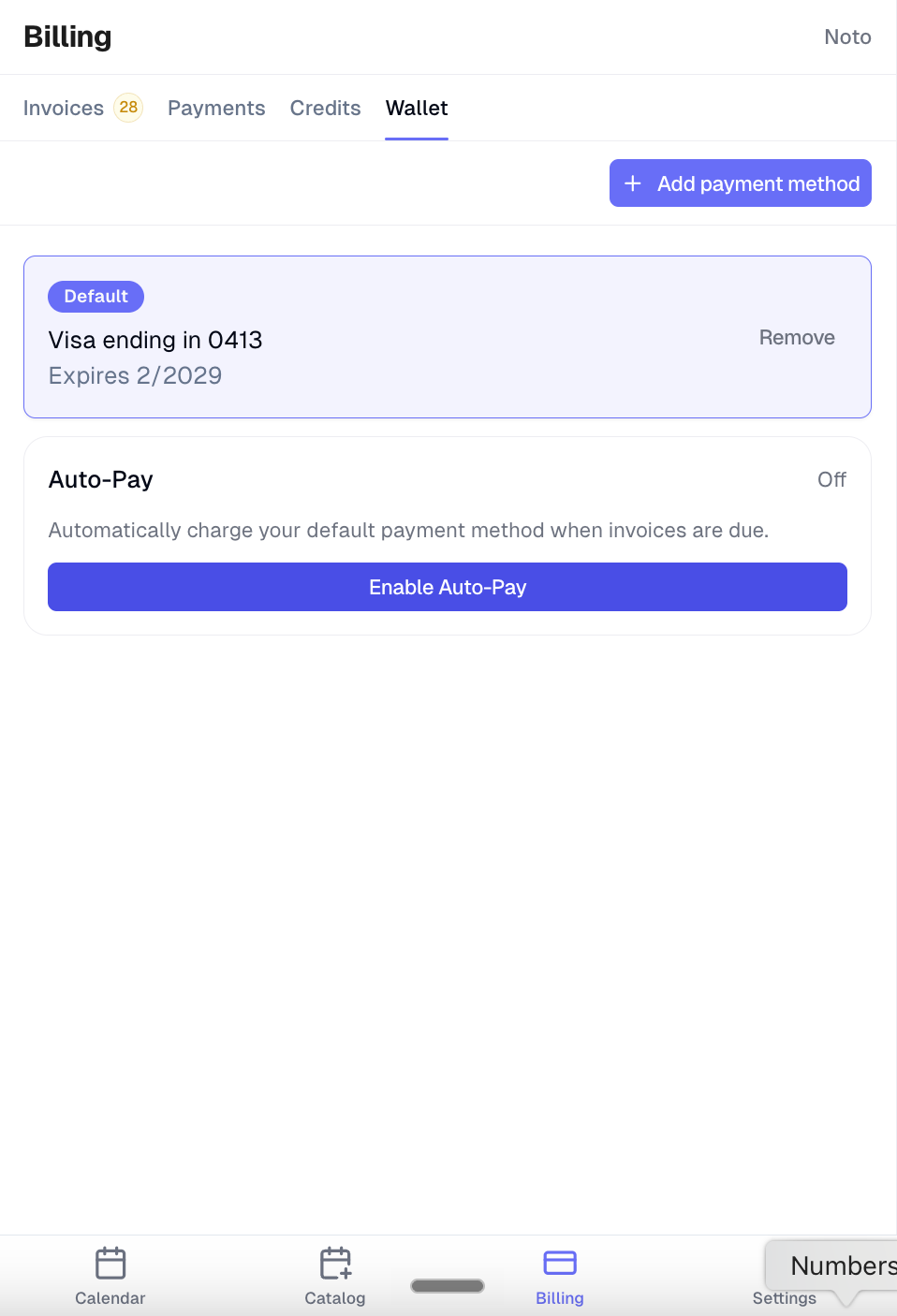
Guardians can enable autopay from the member portal
Families turn on autopay themselves from Member Portal → Settings → Payment — no staff required. Sets family to Always Auto-Pay, flips open invoices immediately. One-way from the portal; org gets email notification.