What's New — November 12, 2026
Last updated: November 12, 2026
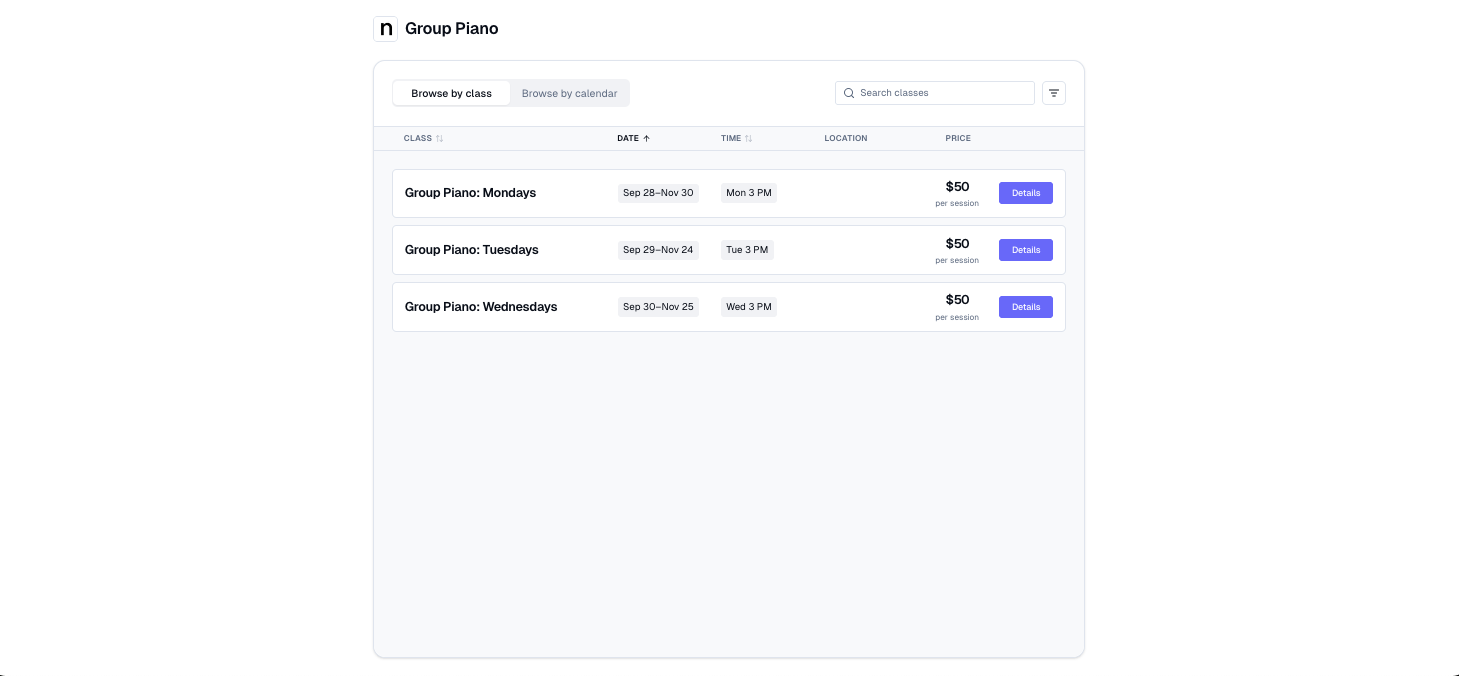
A redesigned self-enrollment page for group classes
Families now get a cleaner, easier way to find and sign up for group classes. They can browse by class or by calendar (in a list or month view), filter by day, time of day, location, instructor, or classes with open spots, and see each session's name. Parents can enroll several children in a single checkout and pay with credits they already have. Families can also choose Book all sessions from any date on the calendar to sign up for the full class.
Where to find it: Forms → select a self-enrollment form → Preview
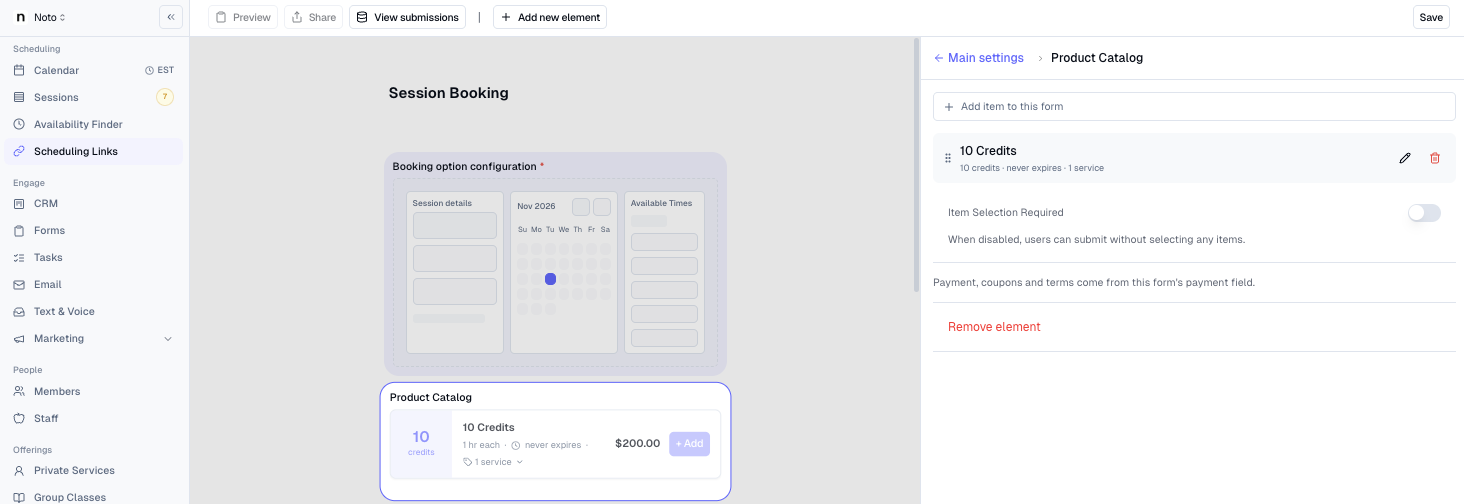
Sell catalog items alongside bookings and enrollments
You can now add a Product Catalog to self-enrollment forms and self-scheduling links, so families can add items like instrument rentals, materials, or credit packs and pay for everything in one checkout. Credit packs bought this way are applied to the sessions being booked.
Where to find it: Forms → select a self-enrollment form → add a Product Catalog field. For scheduling links: Scheduling Links → select a link → edit the form → add a Product Catalog field
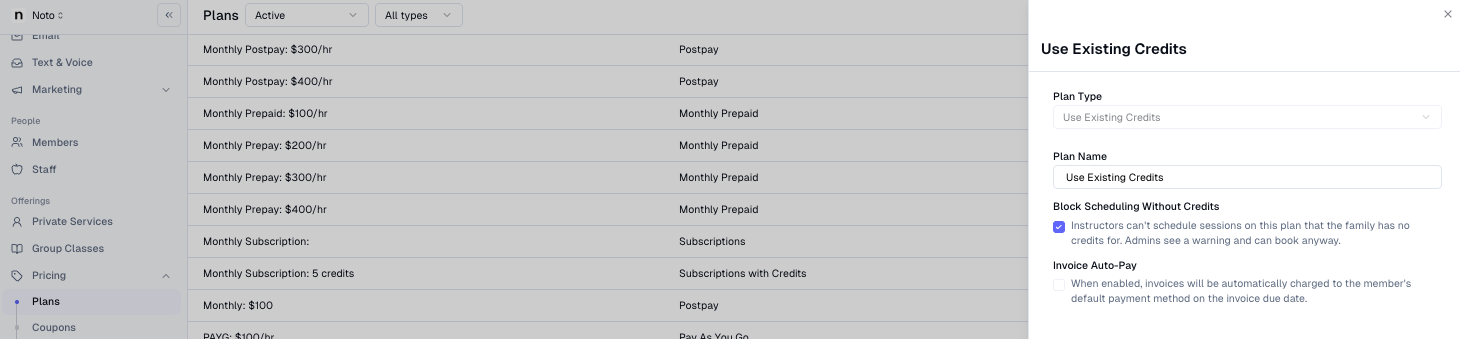
Block scheduling when a family is out of credits
Plans that use credits can now stop instructors from scheduling sessions the family doesn't have credits for. Admins see a "Not enough credits for this booking" warning and can choose Book anyway when they want to make an exception. This works for Non Repeating Packs, Non Repeating Packs (Installments), and Use Existing Credits plans.
Where to find it: Plans → create or edit a plan → Block Scheduling Without Credits
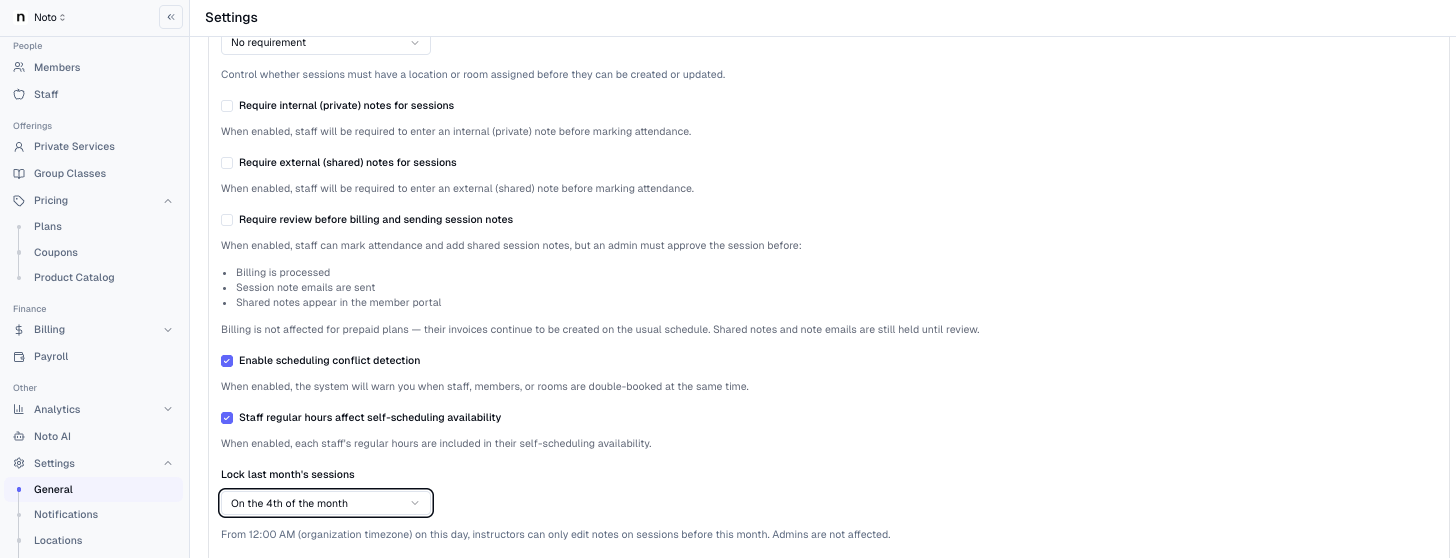
Lock last month's sessions for instructors
Choose a day of the month after which instructors can no longer change the previous month's sessions. Once the lock day passes, instructors can still edit session notes, but not times, attendance, or other details. This keeps payroll and billing steady after you close out the month. Admins are not affected.
Where to find it: Settings → Scheduling → Sessions → Lock last month's sessions
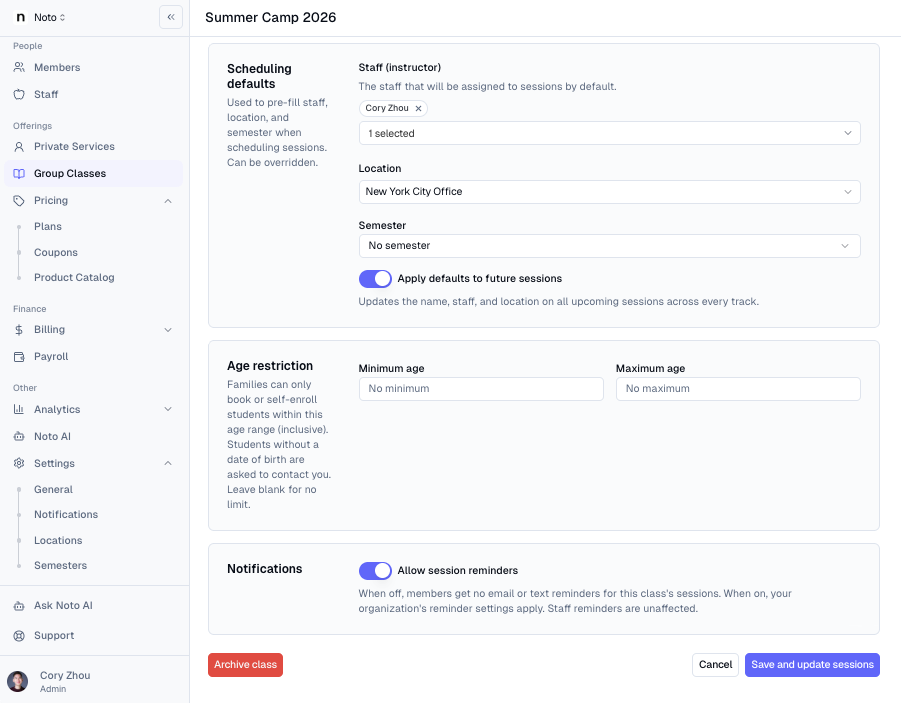
Age restrictions on classes and services
Set a minimum and/or maximum age on any class or service. Families can only self-book or self-enroll students within that range, and classes outside it appear greyed out. If a student doesn't have a birth date on file, the form asks for one. When an admin enrolls a student outside the age range, Noto shows a warning, but the admin can still go ahead.
Where to find it: Private Services or Group Classes → select a service → ⋯ → Edit service settings → Age restriction
Set a default plan for each service
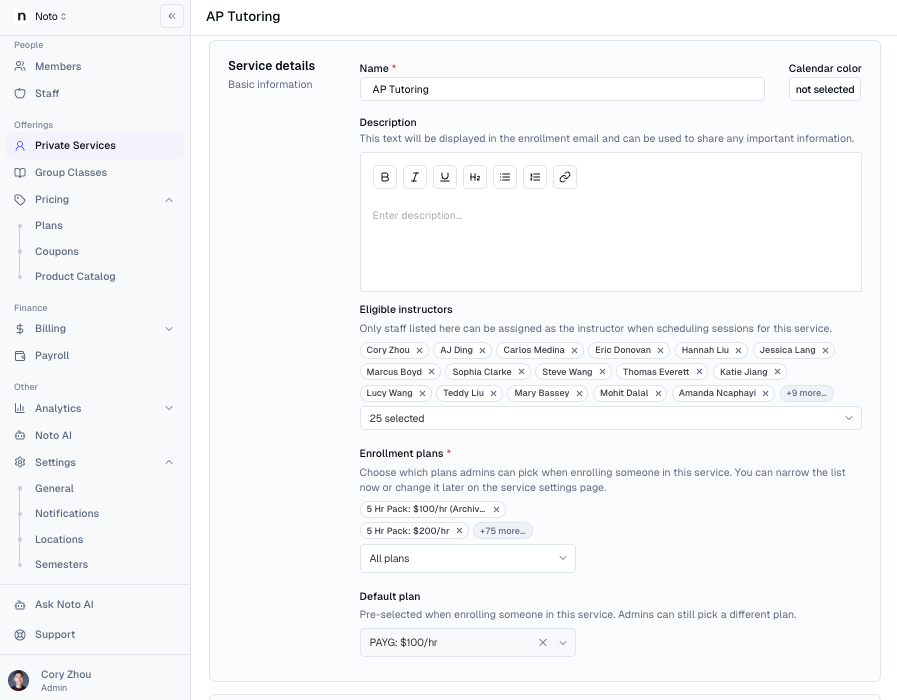
Each service can now have a default plan that's pre-selected whenever someone is enrolled in it, saving a step on every new enrollment. Admins can still pick a different plan if needed.
Where to find it: Private Services or Group Classes → select a service → ⋯ → Edit service settings → Default plan
Custom reports, now with charts
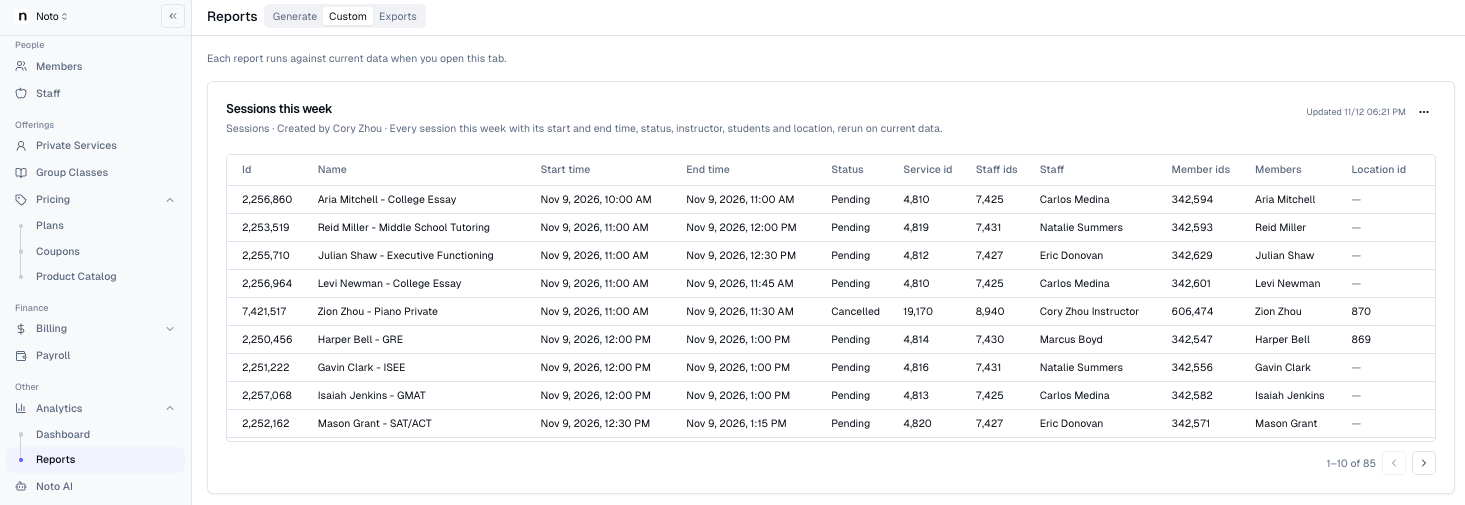
Custom reports are now available to everyone. Ask Noto AI for the report you need, and it's saved to the Custom tab, where you can view it as a table, line, area, bar, or pie chart, or as a single number. Reports now show readable column names, formatted dates, and totals.
Where to find it: Analytics → Reports → Custom
See a tutor's working hours on the calendar
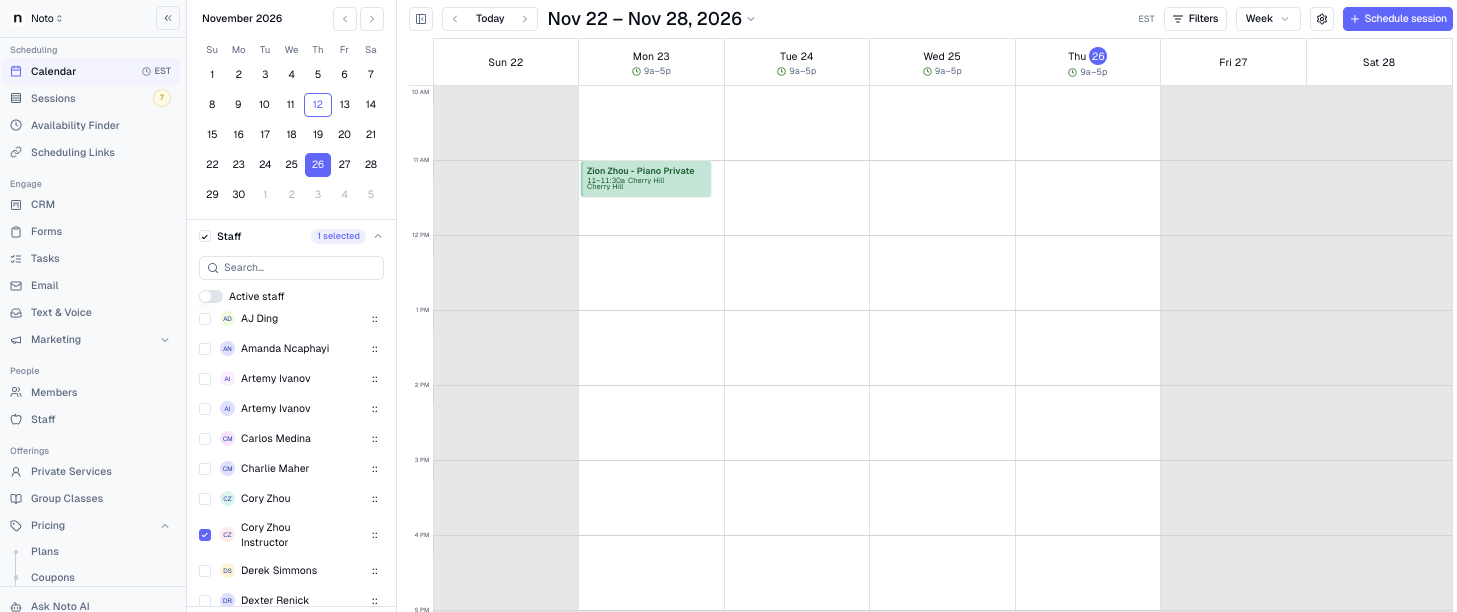
Filter the calendar to a single staff member to see their working hours right alongside their sessions in the month and week views. This makes it easy to spot open time when scheduling. You can choose how working hours are displayed (Detailed, Compact, or Off).
Where to find it: Calendar → Show date and filters → Staff → click Only next to a staff member. To change how hours appear: Calendar → ⚙ Calendar settings → Working hours
More calendar view options
Compact row height for the week view, to fit more of the day on screen. Calendar → Week → ⚙ Calendar settings → Row height
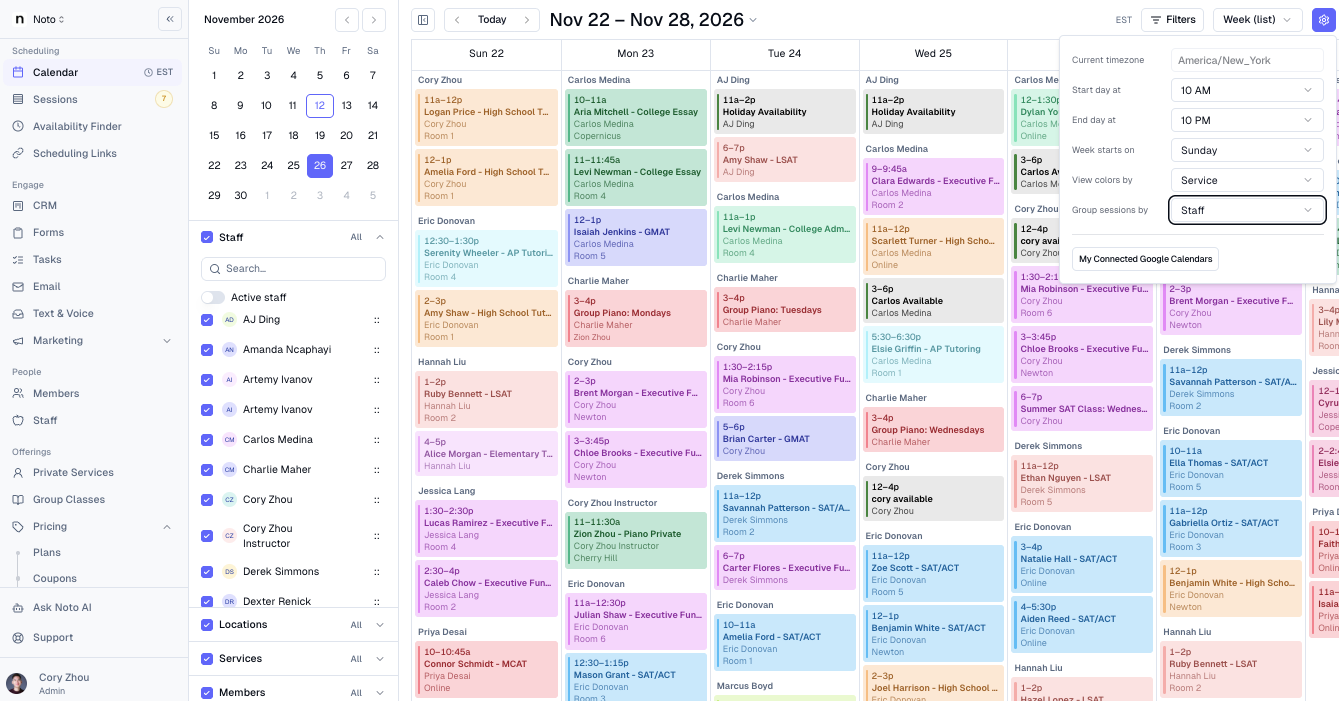
Group the week list by staff, so each instructor's sessions are shown together instead of by morning, afternoon, and evening. Calendar → Week (list) → ⚙ Calendar settings → Group sessions by → Staff
Unavailable time on the calendar is now shaded darker, so it's easier to tell apart from open time.
Redesigned pay rates page
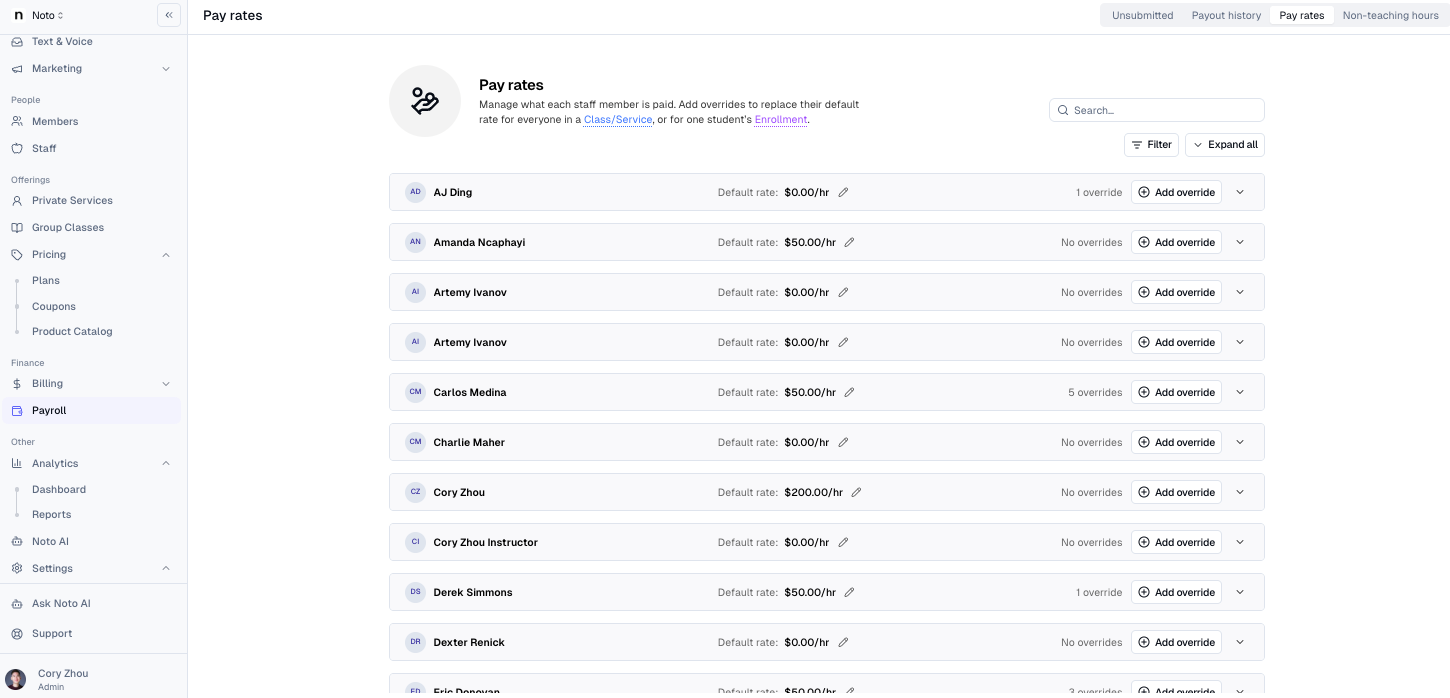
The pay rates page has a cleaner layout showing each staff member's default rate and overrides at a glance. Adding or editing an override now happens in a single dialog, where you choose who the rate applies to (a class or service, or one student) and how it's paid (hourly, per session, or a pay structure).
Where to find it: Payroll → Pay rates
Billing improvements
Delete several invoices at once from a member's profile, without going to the Invoices tab. Invoices with a payment applied can't be deleted. Members → select a member → Billing → Invoices → select invoices → Actions → Delete Invoices
Filter invoices by label, using the labels on the invoice's owner. Billing → Invoices → Filter → Label
Credits come back automatically when a booked session is cancelled on time or removed by staff, on any plan, and any unpaid charge for that session is cleared.
Smaller improvements
Send a session reminder on demand. Re-send a reminder email for an upcoming session and see exactly who will receive it before you send. Calendar → select a session → ⋯ → Send reminder
Filter members by more than one label at a time. Members → Filter → Label
Collapse CRM board columns into a narrow strip that shows the lead count. Collapsed columns stay collapsed the next time you visit. CRM → hover a column header → Collapse
On phones and tablets, times are now picked from an easy-to-scroll hour and minute wheel.
Calls from unknown numbers that can't be verified now go to voicemail, are labeled "Possible spam," and are filed under Done instead of Open. Text & Voice → Done