How do I handle duplicate members?
Last updated: January 27, 2026
Duplicate family members can be created when clients submit forms. While Noto will use the client's email to match form submissions on existing members, if clients submit forms using a different email than the one on file, then duplicates can be created. Merging families can be used to handle these duplicates.
Merging Families
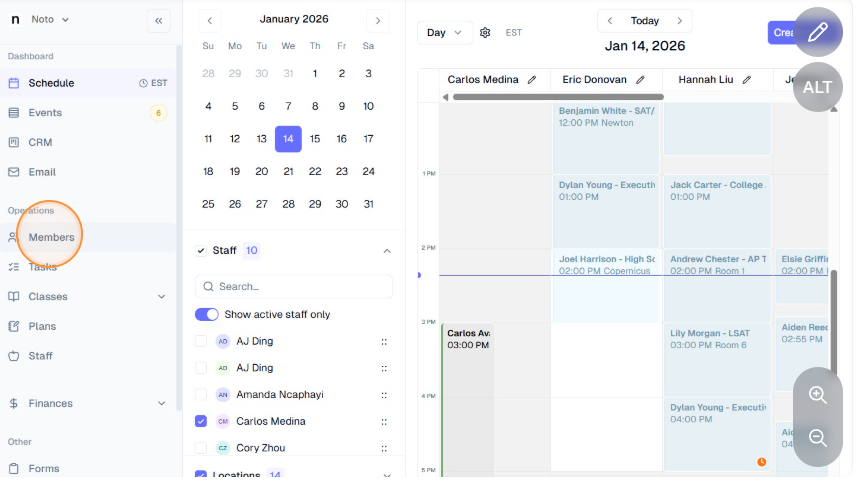
Click "Members" on the left-hand navigation bar and select any member of this family.
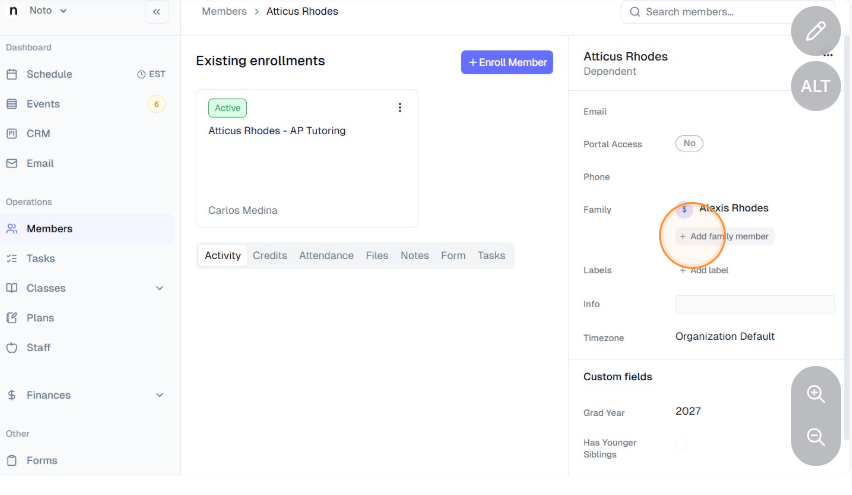
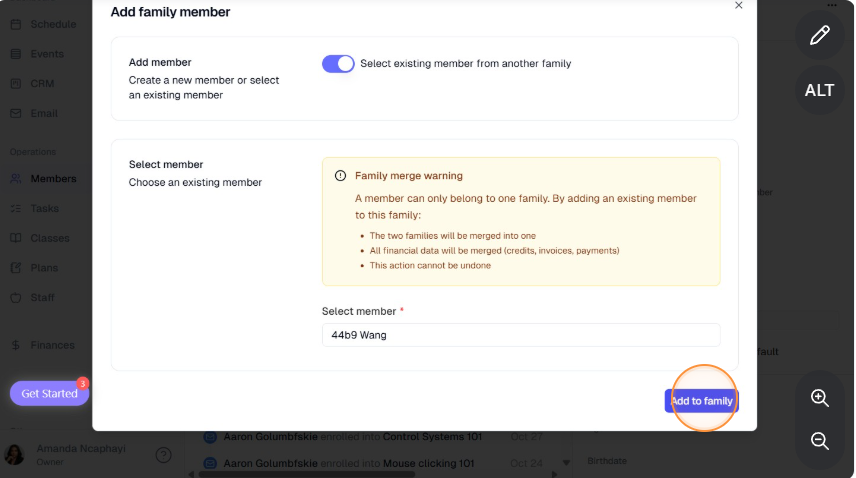
Under "Family" on the right-hand information bar, click "+ Add family member".
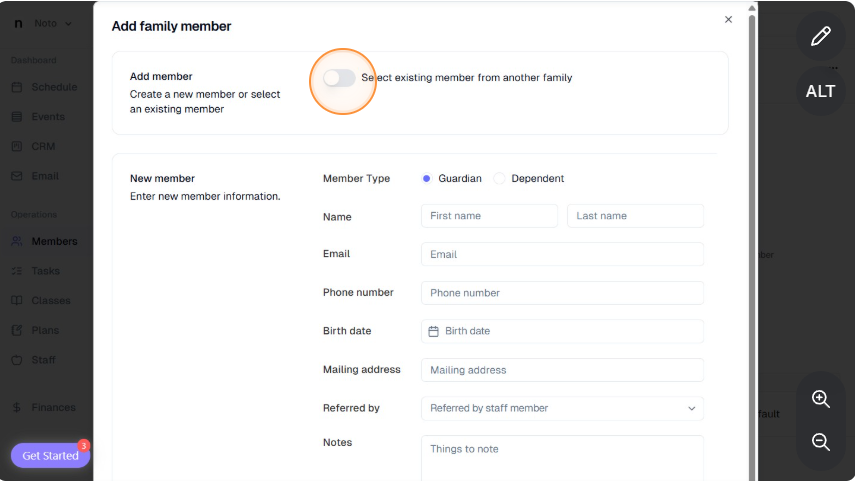
Click "Select existing member from another family", search for and select the duplicate member.
Click "Add to family".
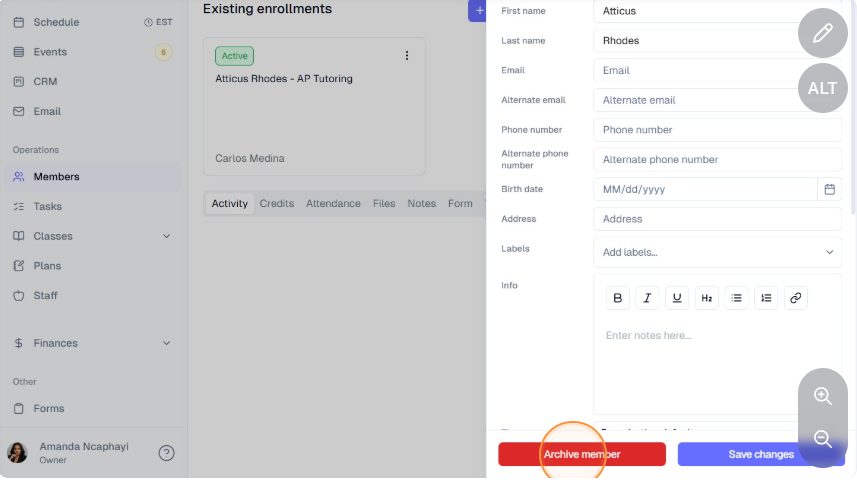
Optional: Archive the duplicate member by clicking the 3 dots on the top right of their profile to edit, and then clicking "Archive member".